Video
A Shopify-hosted, YouTube or Vimeo video with text and buttons.
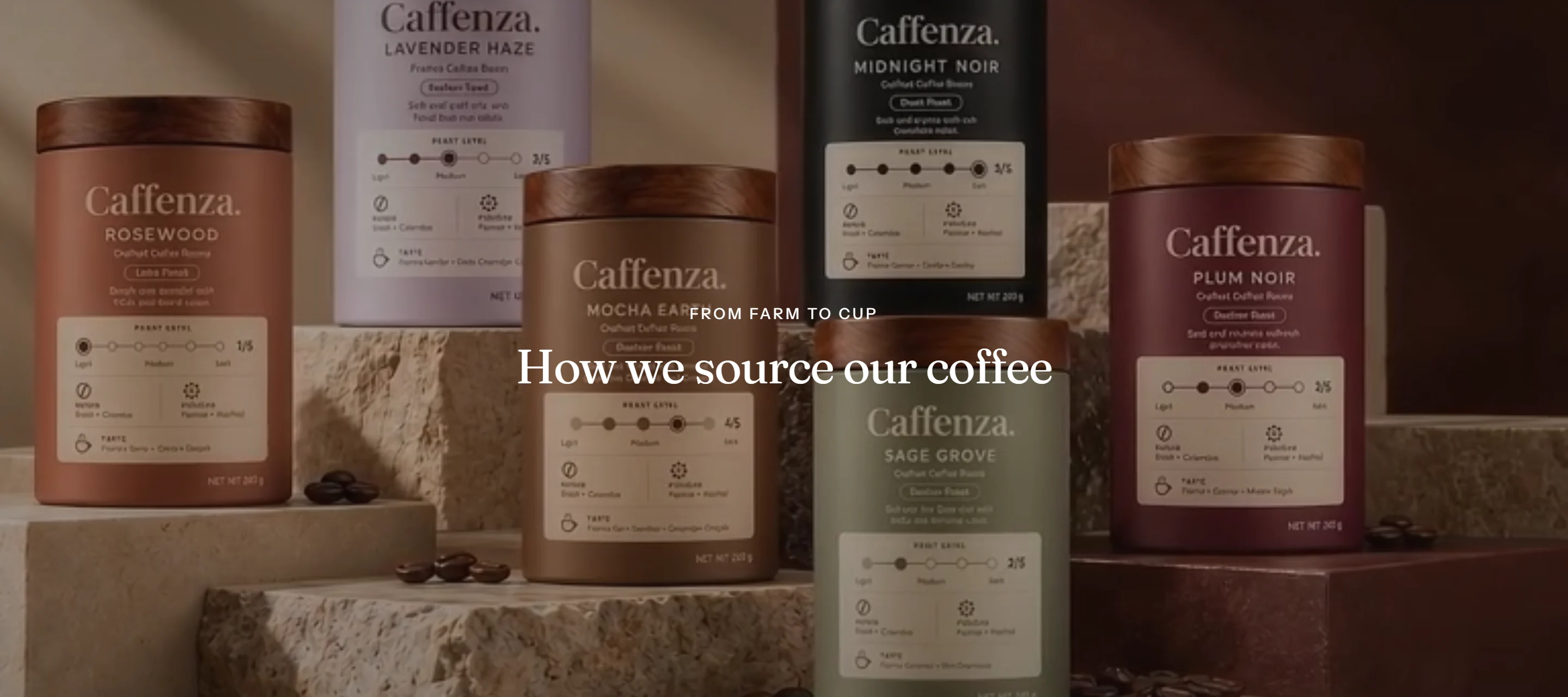
Show your roasting process, your café or a brewing tutorial.
How to add it
- In Shopify admin, go to Online Store → Themes and click Customize.
- Open the page from the page picker at the top of the editor.
- In the sidebar, click Add section and choose Video.
- Fill in the content, then click Save.
Tips
- Autoplay works only with Shopify-hosted videos, muted and looping.
- YouTube and Vimeo players only load after a tap, so they never slow the page.
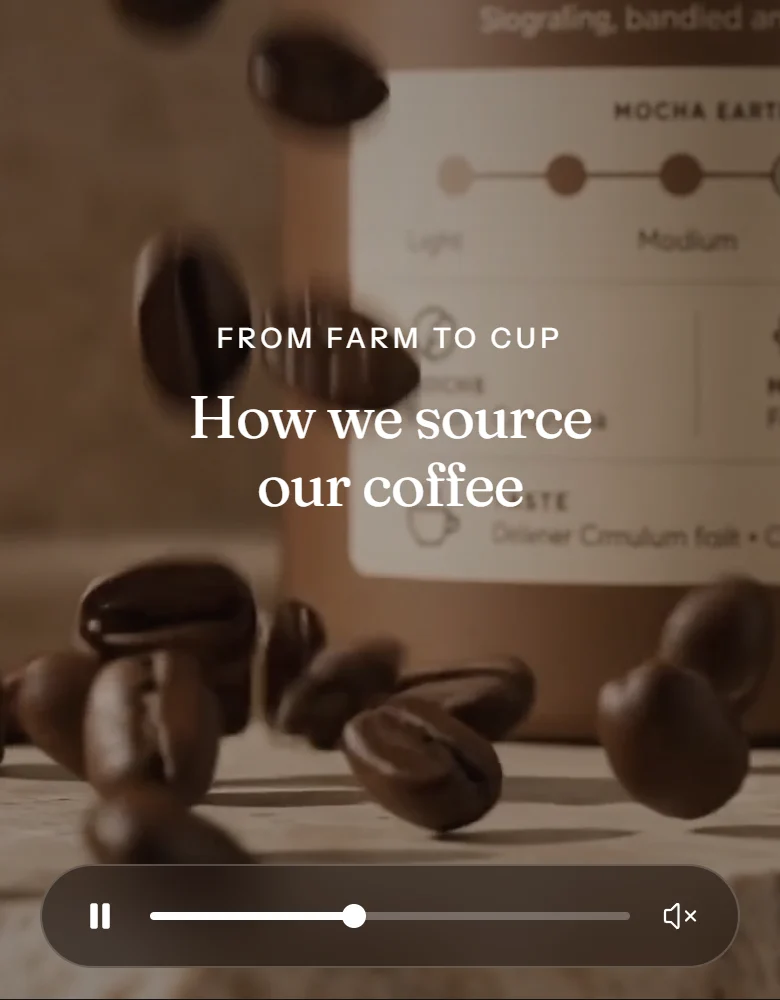
- Always add a cover image and a video description for screen readers.
Screenshots
Settings
| Setting | Options | What it does |
|---|---|---|
| Section appearance | ||
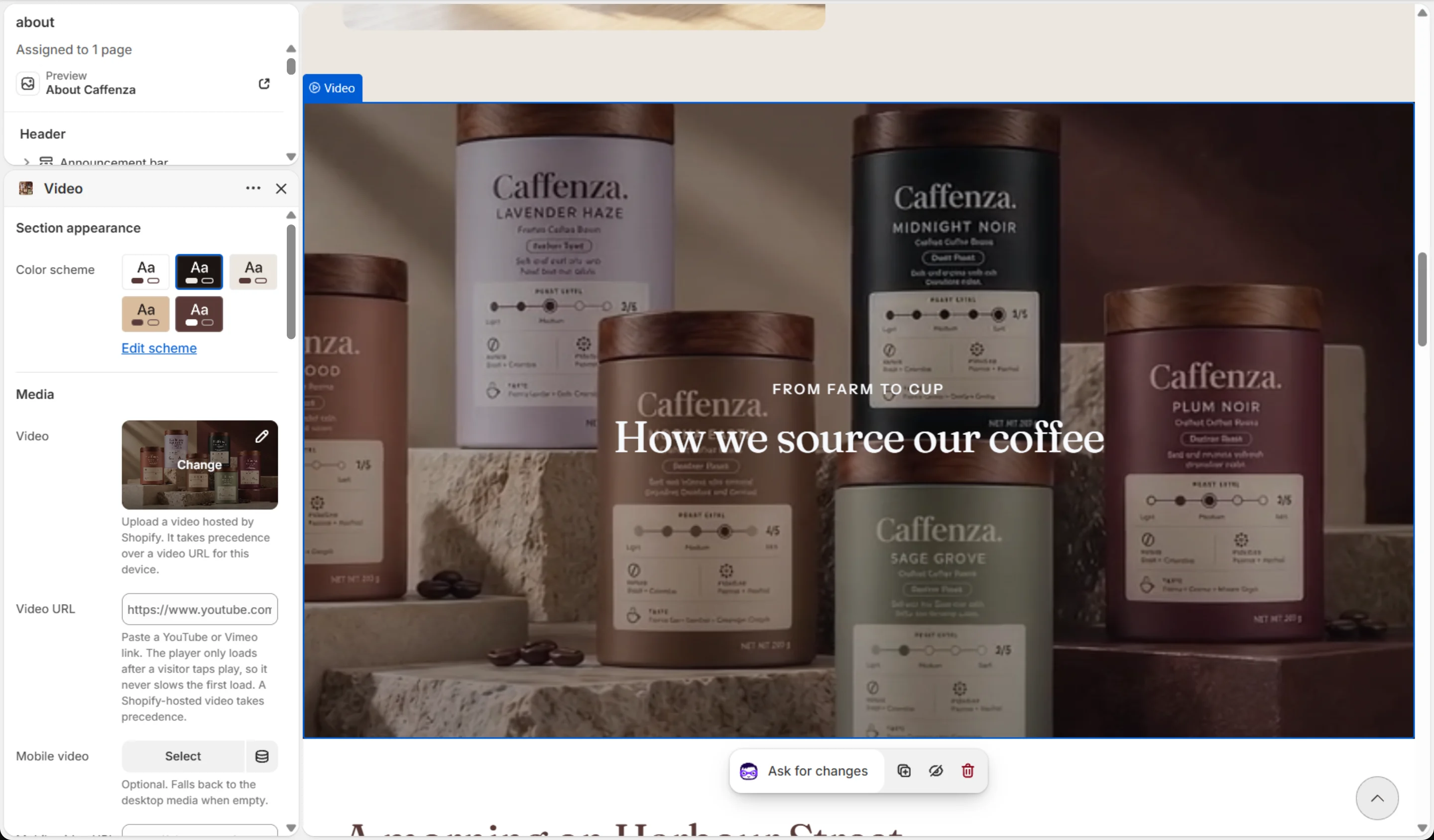
| Color scheme | Color scheme | |
| Media | ||
| Video | Shopify-hosted video | Upload a video hosted by Shopify. It takes precedence over a video URL for this device. |
| Video URL | YouTube or Vimeo link | Paste a YouTube or Vimeo link. The player only loads after a visitor taps play, so it never slows the first load. A Shopify-hosted video takes precedence. |
| Mobile video | Shopify-hosted video | Optional. Falls back to the desktop media when empty. |
| Mobile video URL | YouTube or Vimeo link | Optional. Falls back to the desktop media when empty. |
| Cover image | Image | Shown before the video plays. A Shopify-hosted video falls back to its own preview frame. Add one for YouTube/Vimeo links, which have no preview here. |
| Mobile cover image | Image | Optional. Falls back to the desktop media when empty. |
| Video description | Text | Describe the video for screen readers. Also used as the embedded player's title. |
| Settings | ||
| Autoplay | On / Off | Plays a muted, looping Shopify-hosted video quietly in the background while it is on screen, and pauses it off screen. A pause control is always shown with autoplay. Visitors who prefer reduced motion, or use data saver, see the cover image instead. Video URLs always wait for a tap. |
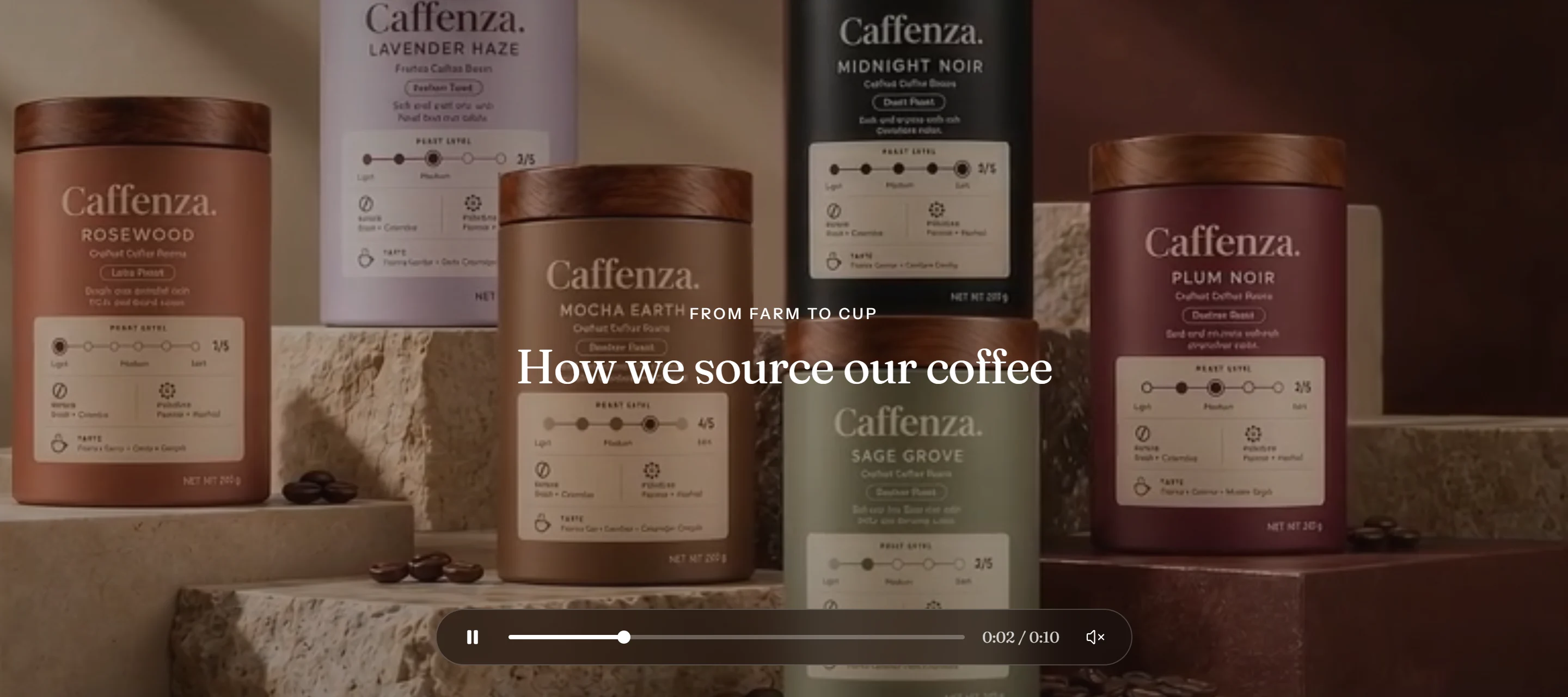
| Show playback controls | On / Off | Shows a play/pause, scrubber and mute bar over Shopify-hosted videos, revealed on hover. Video URLs use their own player controls. |
| Hold video while scrolling | On / Off | The video holds still while the page scrolls over it. Turned off automatically on touch devices, for visitors who prefer reduced motion, and once a YouTube or Vimeo player loads. |
| Container | Full width · Page width | |
| Section height | Adapt to video shape · Small · Medium · Large · Full screen | Reserves the band's height before the video loads, so the page never jumps. Every height stays inside one screen. |
| Mobile section height | Adapt to video shape · Small · Medium · Large · Full screen | |
| Aspect ratio | Widescreen (16:9) · Classic (4:3) · Square (1:1) · Adapt to video | Used by the "Adapt to video shape" height. "Adapt to video" uses a Shopify-hosted video's own shape; URLs default to 16:9. |
| Mobile aspect ratio | Same as desktop · Widescreen (16:9) · Classic (4:3) · Square (1:1) · Adapt to video | |
| Overlay color | Color | |
| Overlay opacity | 0–100 % | Tints the media with the overlay color so text stays readable. Lower it with care — check your text contrast. |
| Content | ||
| Subheading | Text (bold, italic, links) | |
| Subheading size | Small · Medium · Large | |
| Heading | Text (bold, italic, links) | Italicized words switch to the Accent font from Theme settings → Typography. They stay italic and keep the color of the text around them. |
| Heading size | Small · Medium · Large · Extra large | |
| Heading level | H1 · H2 · H3 · H4 · H5 · H6 | Adjust for page structure — one H1 per page. Size is controlled separately. |
| Text | Rich text | |
| Text size | Small · Medium · Large | |
| Position | ||
| Content position | Top · Middle · Bottom | |
| Content alignment | Left · Center · Right | |
| Mobile content alignment | Left · Center · Right | |
| Animations | ||
Blocks
Click Add block under the section in the sidebar. Drag blocks to change their order.
Button up to 2
| Setting | Options | What it does |
|---|---|---|
| Button label | Text | |
| Link | Link | Leave empty and the first button without a link plays the video from the start with sound (an uploaded video can also be played from the control bar). A second button without a link stays inactive until you add one. |
| Button style | Primary · Secondary · Ghost · Link | |
| Button size | Small · Medium · Large | |
| Open in a new tab | On / Off |
It also has the shared Animate on scroll and Section spacing settings.