Scrolling content
A scrolling strip of small images with text.

A moving strip of products or flavors, such as “Chocolate · Berry · Caramel”.
How to add it
- In Shopify admin, go to Online Store → Themes and click Customize.
- Open the page from the page picker at the top of the editor.
- In the sidebar, click Add section and choose Scrolling content.
- Fill in the content, then click Save.
Tips
- Square product photos work best.
Screenshots

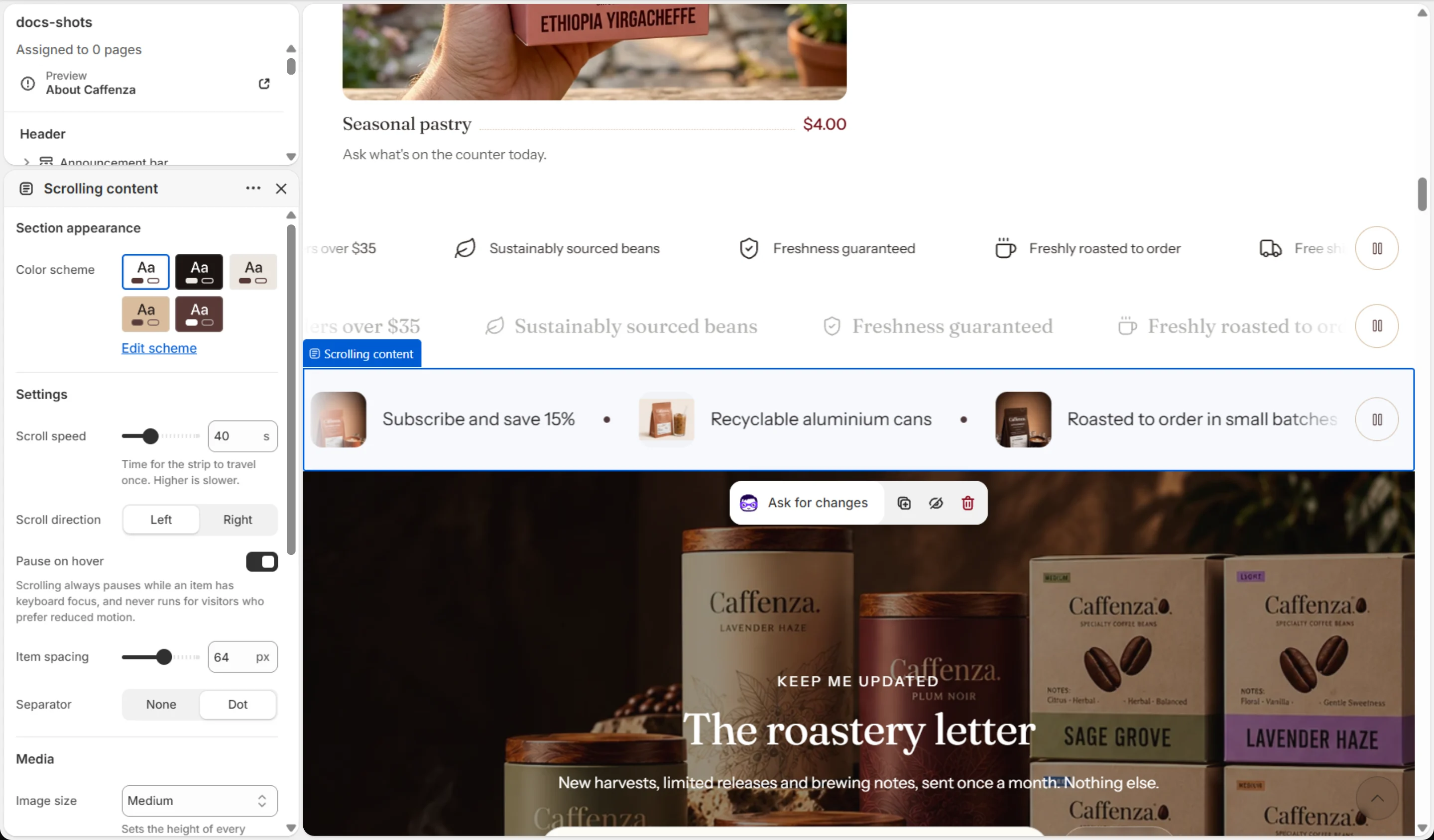
Settings
| Setting | Options | What it does |
|---|---|---|
| Section appearance | ||
| Color scheme | Color scheme | |
| Settings | ||
| Scroll speed | 15–90 s | Time for the strip to travel once. Higher is slower. |
| Scroll direction | Left · Right | |
| Pause on hover | On / Off | Scrolling always pauses while an item has keyboard focus, and never runs for visitors who prefer reduced motion. |
| Item spacing | 24–96 px | |
| Separator | None · Dot | |
| Media | ||
| Image size | Small · Medium · Large | Sets the height of every thumbnail. Images scale down on small screens. |
| Text | ||
| Text size | Small · Medium · Large | |
Blocks
Click Add block under the section in the sidebar. Drag blocks to change their order.
Item
| Setting | Options | What it does |
|---|---|---|
| Image | Image | Optional. A square product shot works best — it sits on a tinted tile. Leave empty for a text-only item. |
| Text | Text (bold, italic, links) | |
| Link | Link | |
| Open in a new tab | On / Off |
It also has the shared Animate on scroll and Section spacing settings.