Colors and color schemes
The five Caffenza color schemes and how to change them safely.
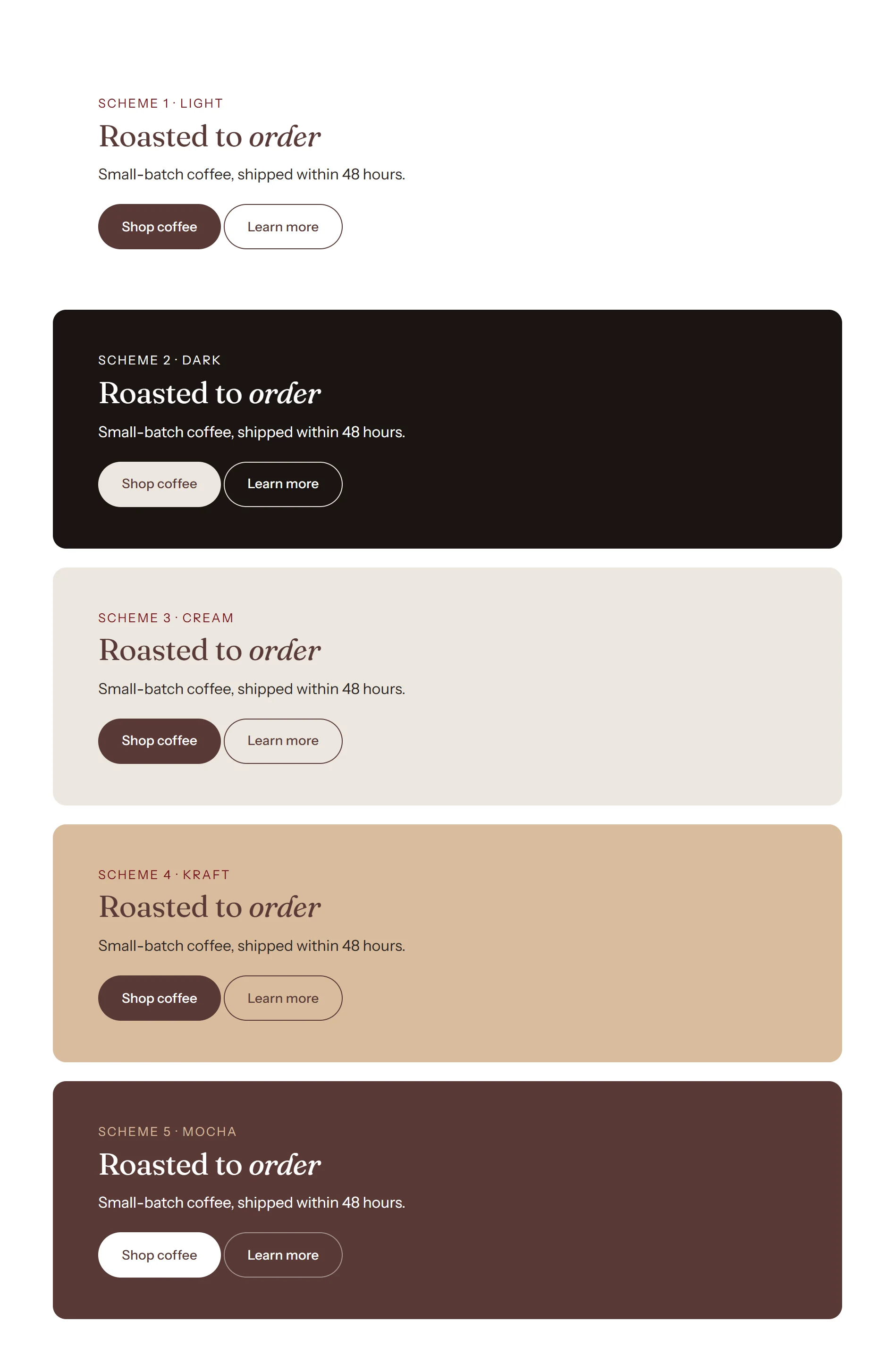
Caffenza colors work through color schemes. A scheme is a set of colors for a background, text, buttons and borders. Each section picks one scheme, so changing a scheme updates every section that uses it.
The Caffenza palette
Background
#FFFFFF
Ink#2B2422
Espresso#1A1412
Cream#ECE7DF
Mocha#583937
Bordeaux#74121A
Tan#D8BC9D
| Scheme | Looks like | Good for |
|---|---|---|
| Scheme 1 · Light | White background, ink text, mocha buttons | Most sections, product pages |
| Scheme 2 · Dark | Espresso background, cream buttons | Hero banners, footer, promo bands |
| Scheme 3 · Cream | Warm cream background | Alternating sections, FAQ, newsletter |
| Scheme 4 · Kraft | Tan, like a coffee bag | Subscription, café menu, highlights |
| Scheme 5 · Mocha | Mocha background, light text | Statements, testimonials, promotions |
Edit a color scheme
- Open Theme settings → Colors.
- Click the scheme you want to change.
- Change background, text, button and border colors. The preview updates live.
Important
Keep enough contrast between text and background: at least 4.5:1 for body text and 3:1 for large text and buttons. Check the scheme preview in the editor: if the sample text looks faint there, it will be hard to read in your store.
Screenshots
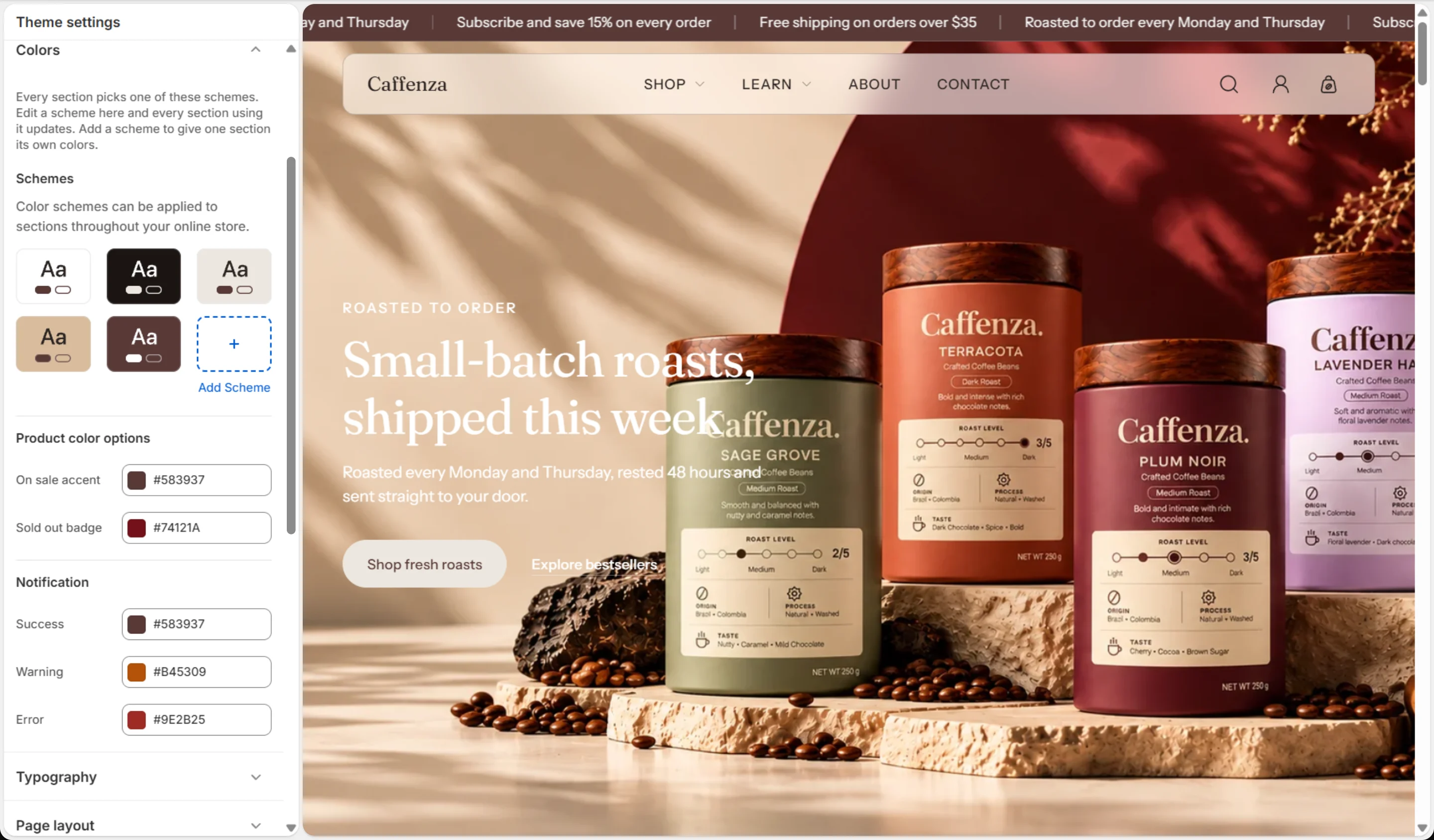
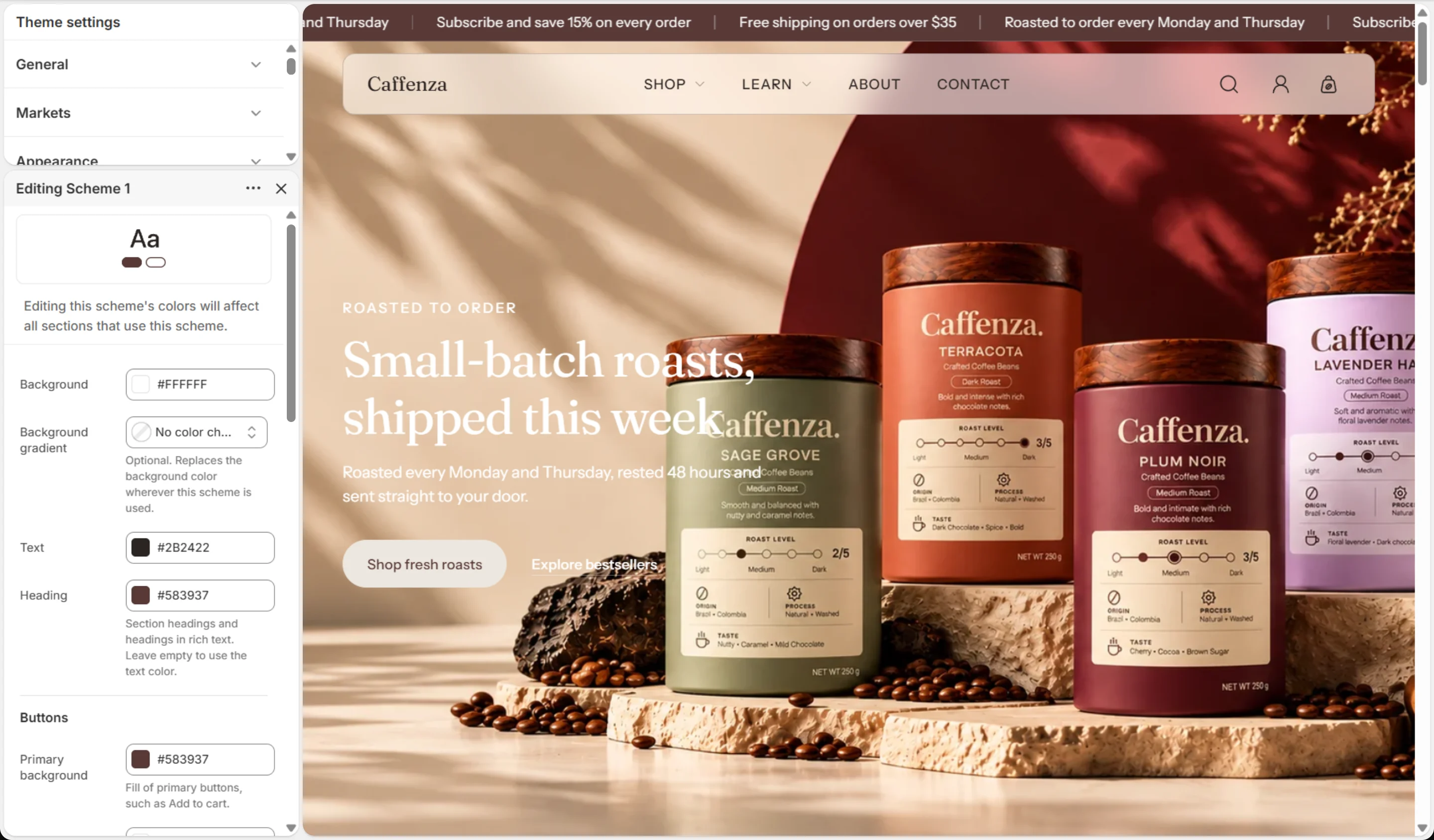
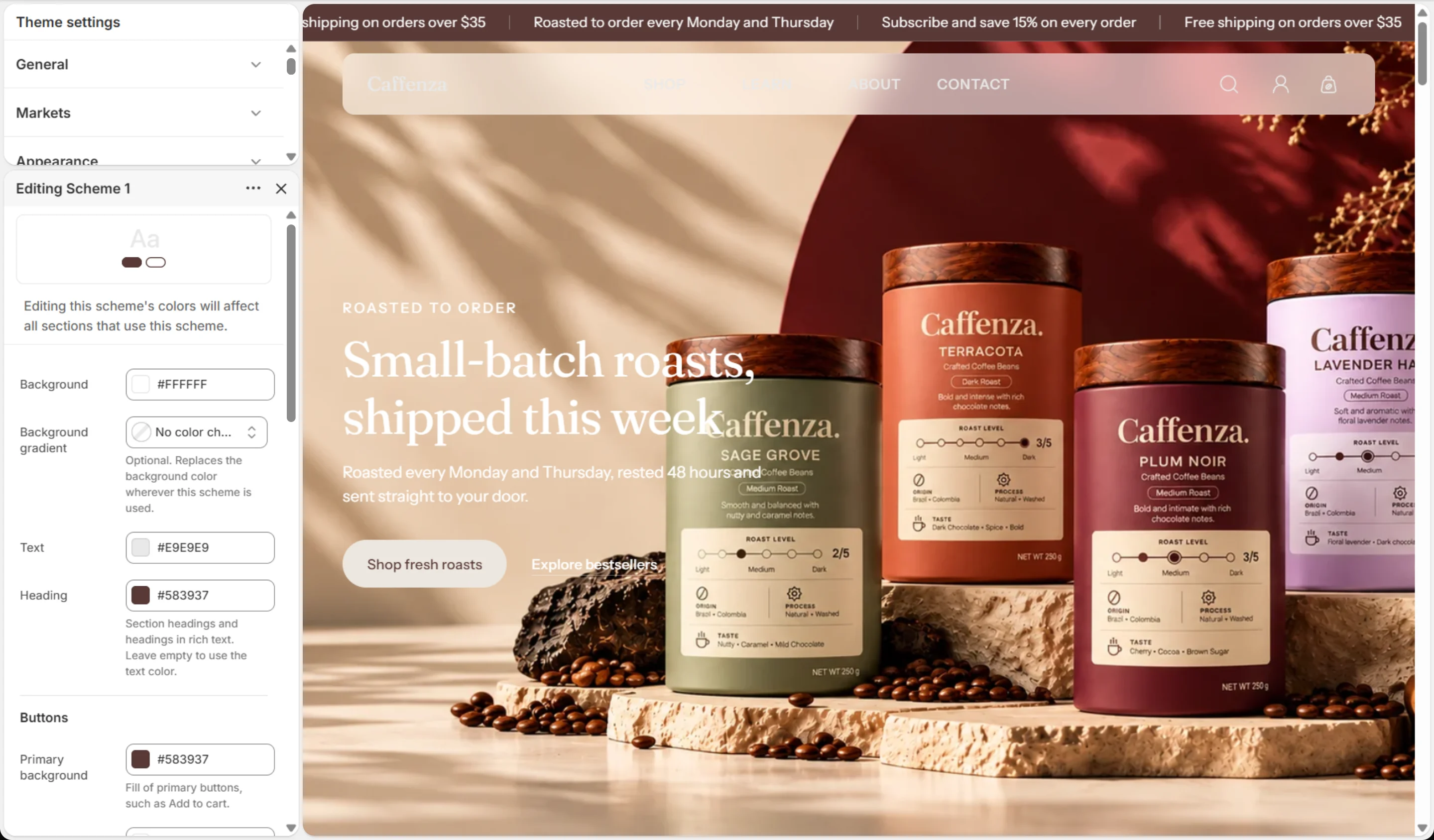
Colors
| Setting | Options | What it does |
|---|---|---|
| Product color options | ||
| On sale accent | Color | |
| Sold out badge | Color | |
| Notification | ||
| Success | Color | |
| Warning | Color | |
| Error | Color | |