Templates included
The page templates that come with Caffenza and how to use them.
A template decides which sections a type of page shows. Caffenza includes these templates:
| Template | Used for | Sections it starts with |
|---|---|---|
| Home page | Your home page | Slideshow, Multi-column, Featured products, Shop the look, Featured collections, Image with text, Subscription, Promo banner, Featured product, Testimonials, Featured blog, Collapsible content |
| Product | Every product | Breadcrumb, Product information, Product facts, Testimonials, Comparison table, Featured products, Collapsible content, Scroll story (hidden until you turn it on) |
| Collection | Every collection | Breadcrumb, Collection |
| Collections list | The /collections page | Breadcrumb, Collections grid |
| Cart | The cart page | Cart |
| Search | Search results | Breadcrumb, Search results |
| Blog | Blog listing | Breadcrumb, Blog posts |
| Article | Each blog post | Breadcrumb, Article, Related articles |
| Page | Standard pages | Breadcrumb, Page |
| page.about | An “Our story” page | Slideshow, Page, Image with text, Video, Mixed media grid, Image with hover, Featured blog, Rich text, Multi-column |
| page.contact | Contact page | Page, Contact form, Contact details, Map |
| page.faq | FAQ page | Collapsible content, Page |
| page.legal | Policies and legal text | Page banner, Page, Rich text |
| 404 | Page not found | Not found |
| Password | Store password page | Password |
| Gift card | The gift card a customer receives | Gift card |
Use a template on a page
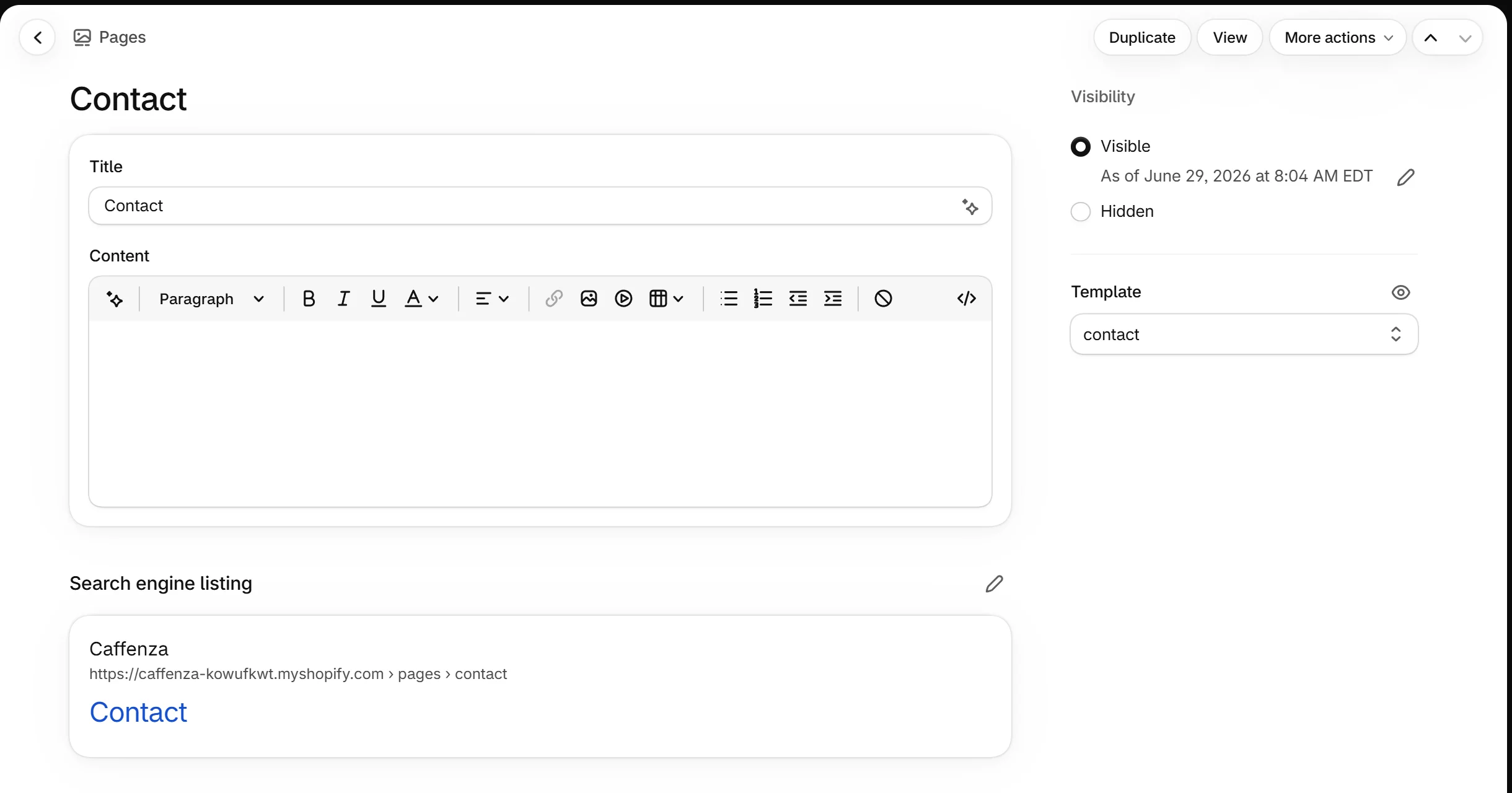
- In Shopify admin, go to Online Store → Pages and open (or create) a page.
- In the Theme template box, choose a template, for example contact.
- Click Save. Then edit the template in the theme editor.
Create your own template
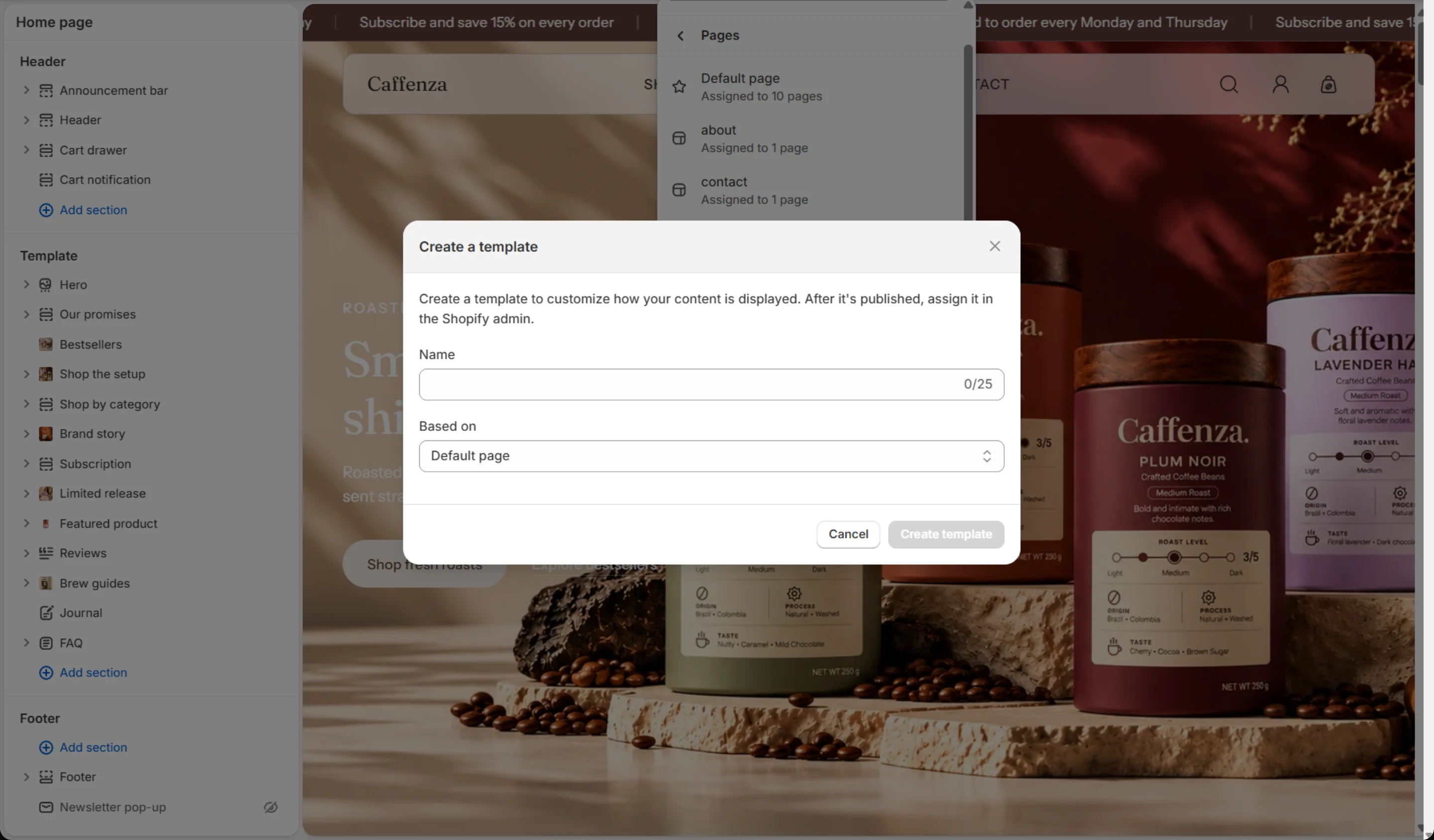
In the theme editor, open the page picker, choose a page type, then Create template. Give it a name and start from an existing template. Assign it to products, collections or pages the same way as above.
Screenshots