Shop the look
A photo with pins that open product cards.
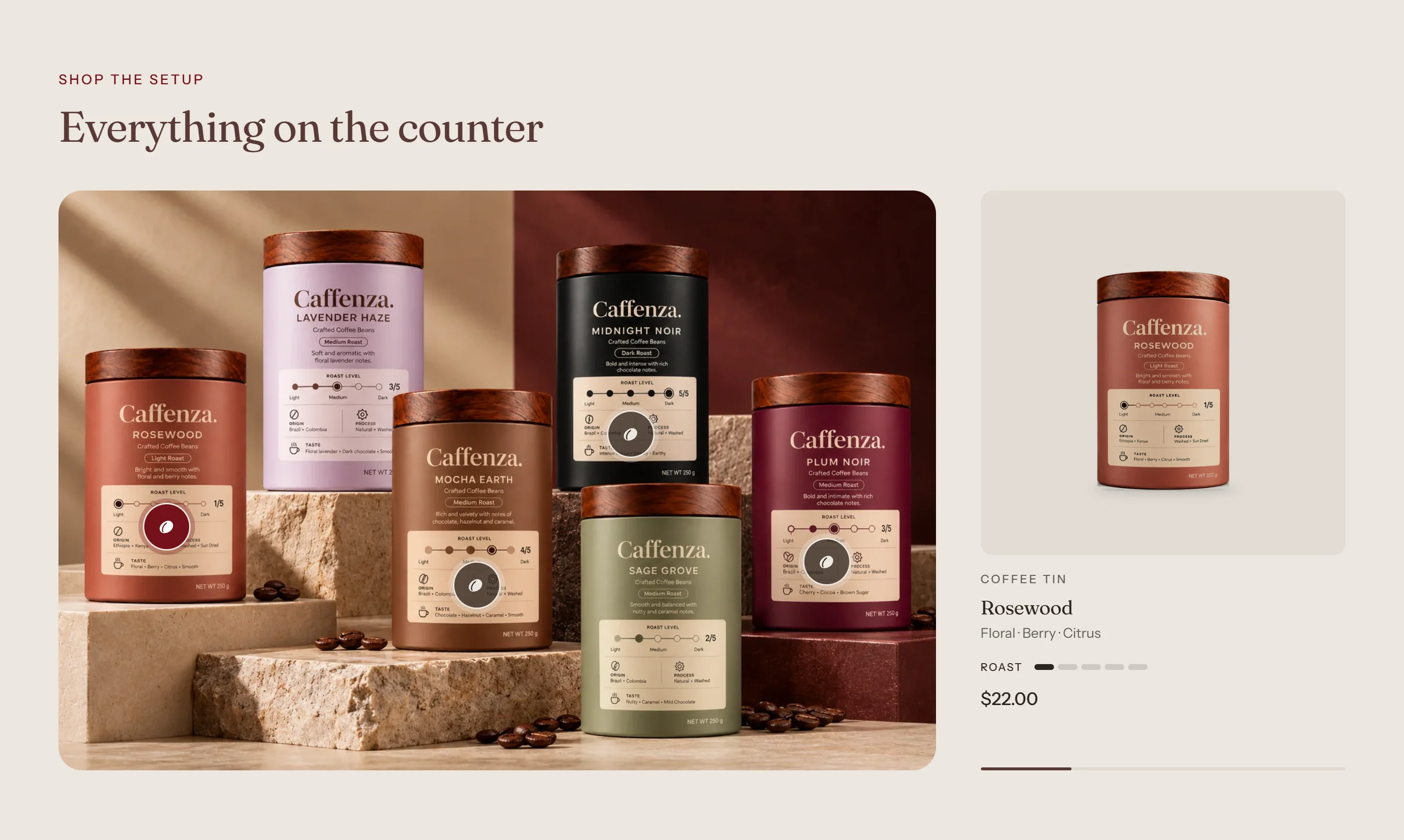
Show a brewing setup or a breakfast table and let shoppers buy every item in it.
How to add it
- In Shopify admin, go to Online Store → Themes and click Customize.
- Open the page from the page picker at the top of the editor.
- In the sidebar, click Add section and choose Shop the look.
- Fill in the content, then click Save.
Tips
- Use a landscape photo.
- Drag the across and down sliders until each pin sits on its product.
Screenshots
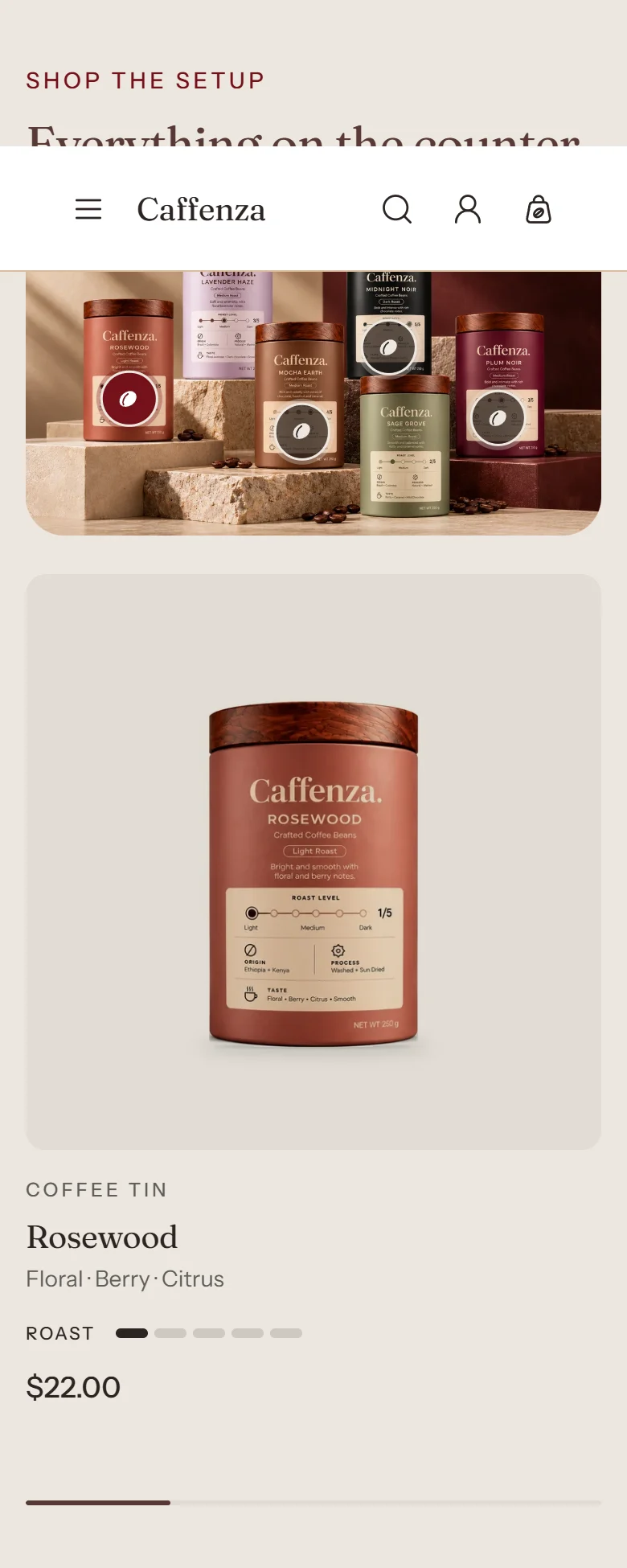
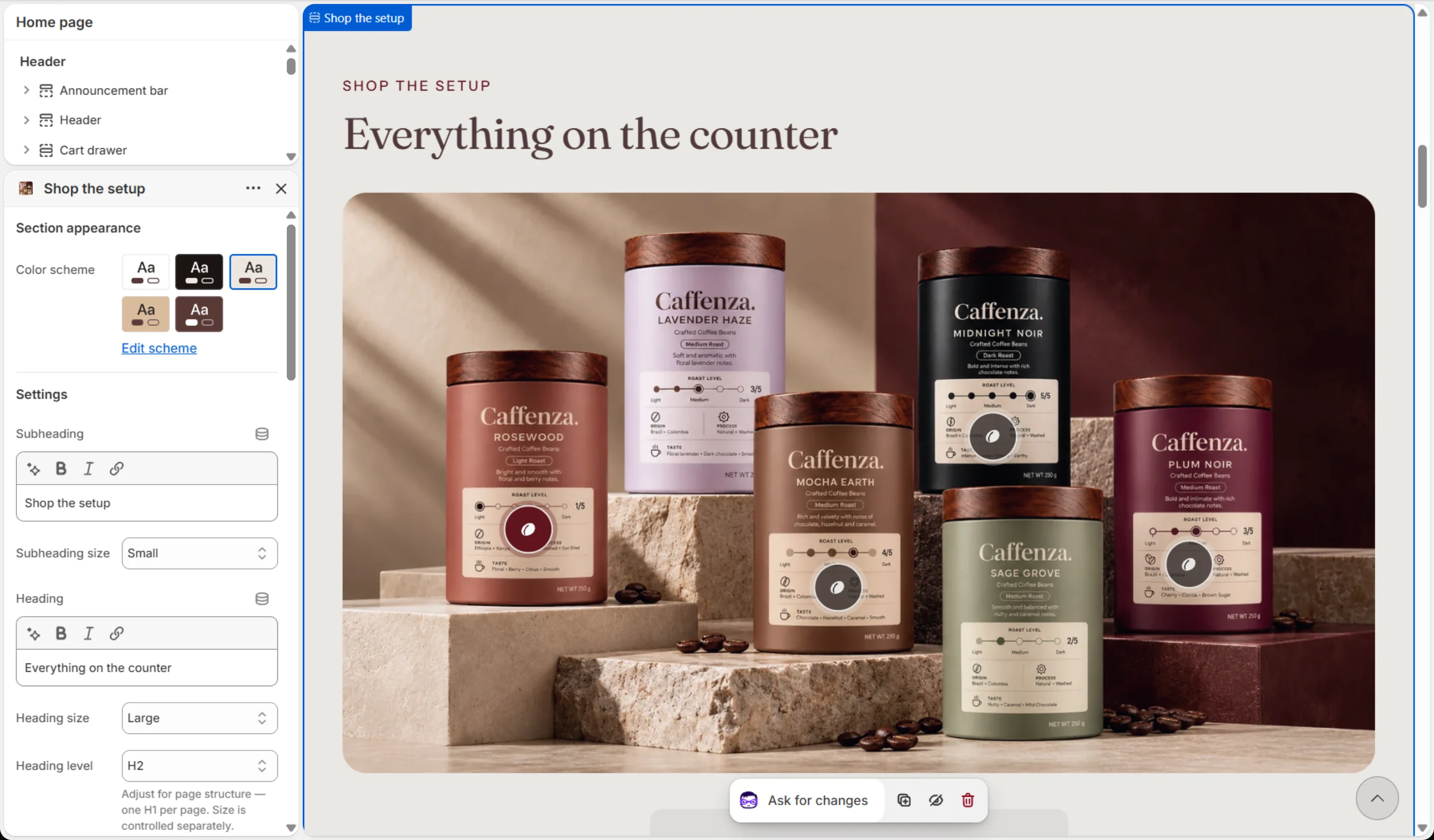
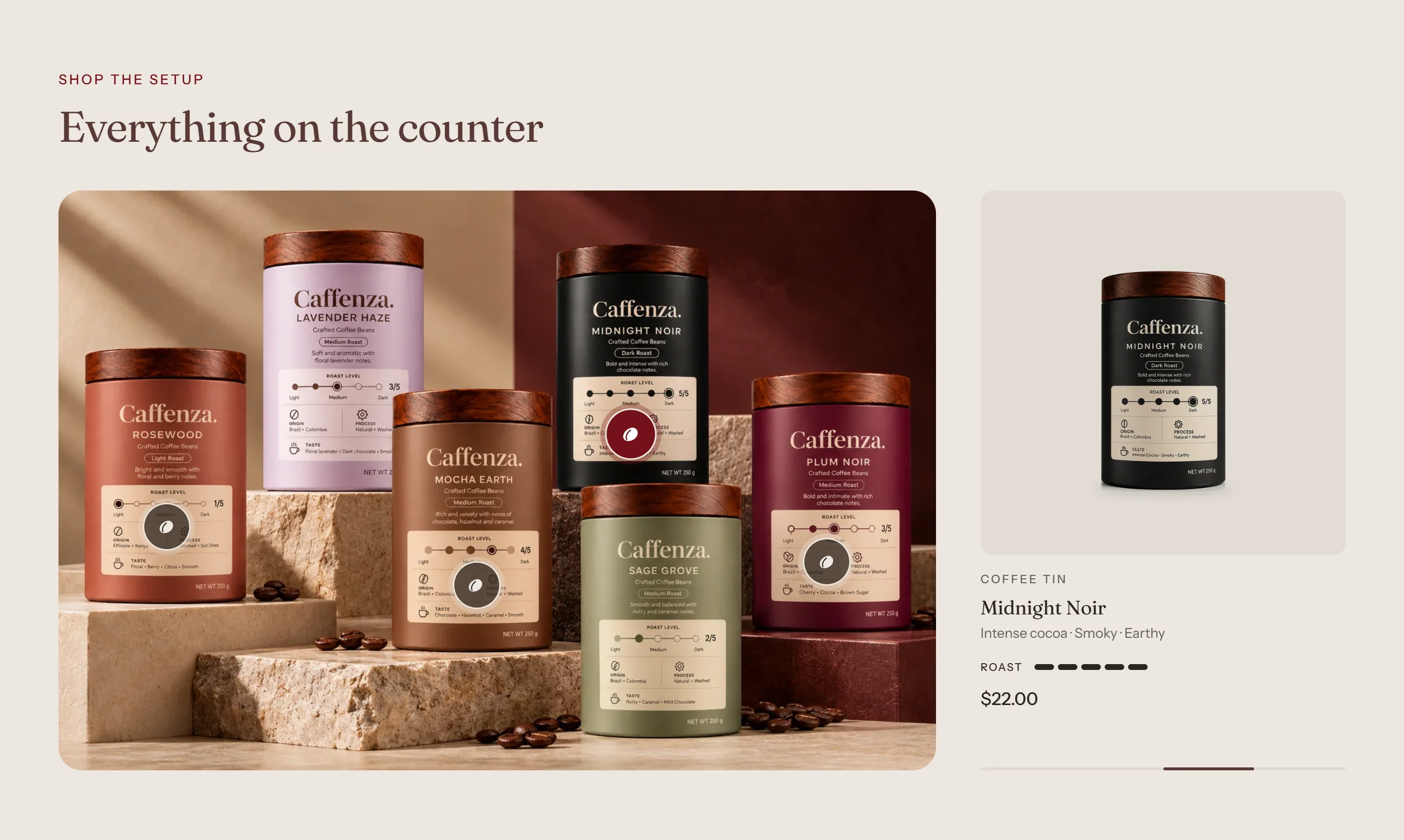
Settings
| Setting | Options | What it does |
|---|---|---|
| Section appearance | ||
| Color scheme | Color scheme | |
| Settings | ||
| Subheading | Text (bold, italic, links) | |
| Subheading size | Small · Medium · Large | |
| Heading | Text (bold, italic, links) | |
| Heading size | Small · Medium · Large · Extra large | |
| Heading level | H1 · H2 · H3 · H4 · H5 · H6 | Adjust for page structure — one H1 per page. Size is controlled separately. |
| Media | ||
| Image | Image | A styled photo showing your products together. Landscape works best — the image fills its frame. |
| Mobile image | Image | Optional. Falls back to the desktop media when empty. |
| Hotspot size | 28–60 px | Size of the pins on desktop. Phones show them at about two thirds of this size, never smaller than 28 px, so they stay easy to tap. |
| Product card | ||
| Card style | Simple · Brew specs · Pairs with | "Simple" shows one detail line, the price and the level meter. "Brew specs" adds the spec cells set in Theme settings. "Pairs with" shows the companion product. |
| Carousel | ||
| Product cards | One card at a time · Swipe carousel | One card at a time swaps the card when a pin is tapped. Swipe carousel shows the next product peeking in, so shoppers can swipe through them all. Drag the product blocks in the sidebar to change their order. |
| Show previous/next arrows | On / Off | |
| Pagination style | Progress bar · Counter with line · Dots · Counter · None | |
| Control alignment | Left · Center · Right | Aligns the dots, counter or arrows under the slides. |
| Loop slides | On / Off | |
| Autoplay | On / Off | Cycles through the pinned products. Visitors can pause it, and it never runs for visitors who prefer reduced motion. |
| Change slides every | 3–10 s | |
| Animations | ||
Blocks
Click Add block under the section in the sidebar. Drag blocks to change their order.
Product
| Setting | Options | What it does |
|---|---|---|
| Product | Product | |
| Hotspot position — across | 0–100 % | Where this product's pin sits on the image, measured from the top-left corner. Drag both sliders until the pin lands on the product. |
| Hotspot position — down | 0–100 % |
It also has the shared Animate on scroll and Section spacing settings.