Announcement bar
Short messages above the header: offers, free shipping, news.

The announcement bar sits at the very top of every page. Use it for free shipping thresholds, roast dates, new arrivals or opening hours.
How to set it up
- In the theme editor, click Announcement bar in the Header group.
- Click Add block → Message for each message (up to 10).
- Choose a Display type: Default shows one message, Rotate changes messages, Marquee scrolls them.
Tip
Keep messages short (under 60 characters) so they fit on phones without wrapping.
Screenshots

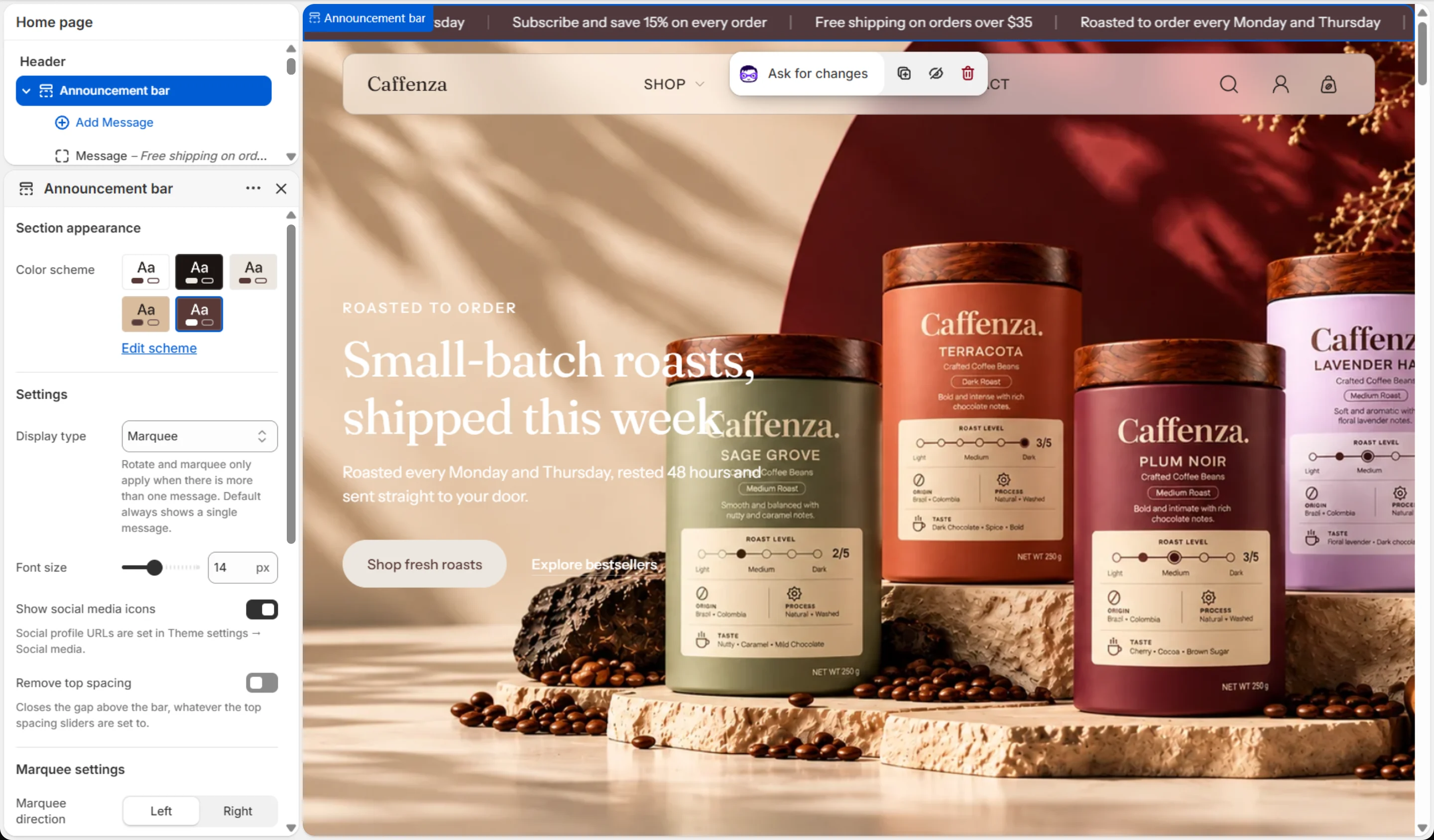


Settings
| Setting | Options | What it does |
|---|---|---|
| Section appearance | ||
| Color scheme | Color scheme | |
| Settings | ||
| Display type | Default · Rotate · Marquee | Rotate and marquee only apply when there is more than one message. Default always shows a single message. |
| Font size | 10–20 px | |
| Show social media icons | On / Off | Social profile URLs are set in Theme settings → Social media. |
| Rotate messages automatically | On / Off | |
| Change message every | 3–12 s | |
| Show previous/next arrows | On / Off | Optional. The bar rotates on its own and pauses whenever a visitor hovers or tabs into it. |
| Remove top spacing | On / Off | Closes the gap above the bar, whatever the top spacing sliders are set to. |
| Marquee settings | ||
| Marquee direction | Left · Right | |
| Marquee speed | 10–60 s | Time for the line to travel once. Higher is slower. |
| Show separator between messages | On / Off | |
Blocks
Click Add block under the section in the sidebar. Drag blocks to change their order.
Message up to 10
| Setting | Options | What it does |
|---|---|---|
| Text | Text | |
| Link | Link |
It also has the shared Animate on scroll and Section spacing settings.