Subscriptions
Sell coffee on subscription with “Subscribe & save” on cards and product pages.
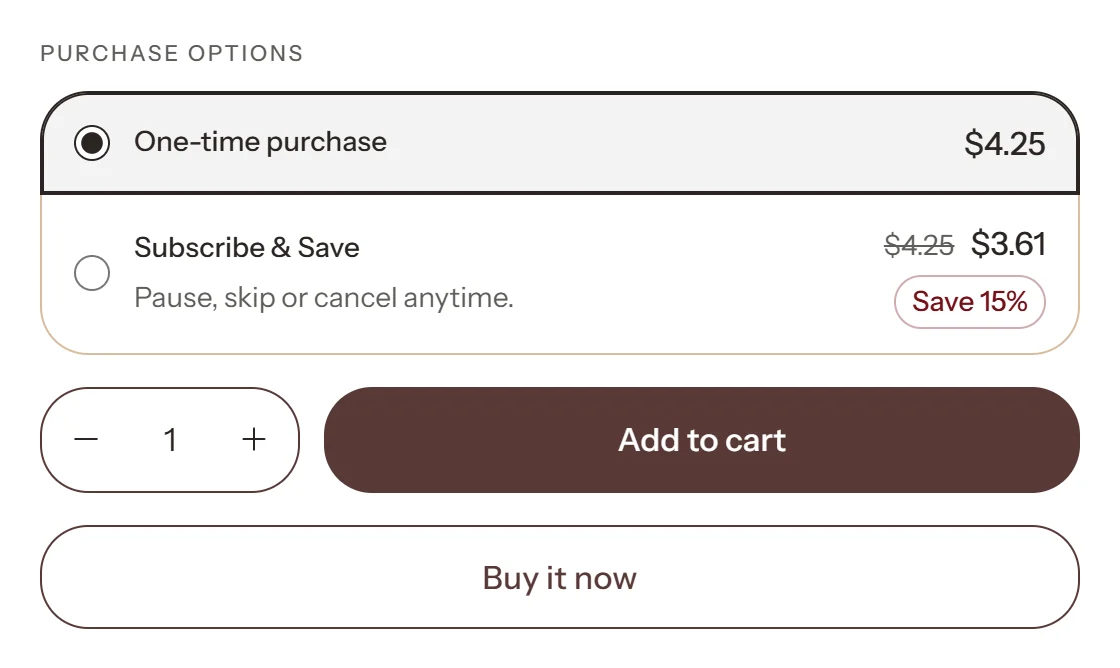
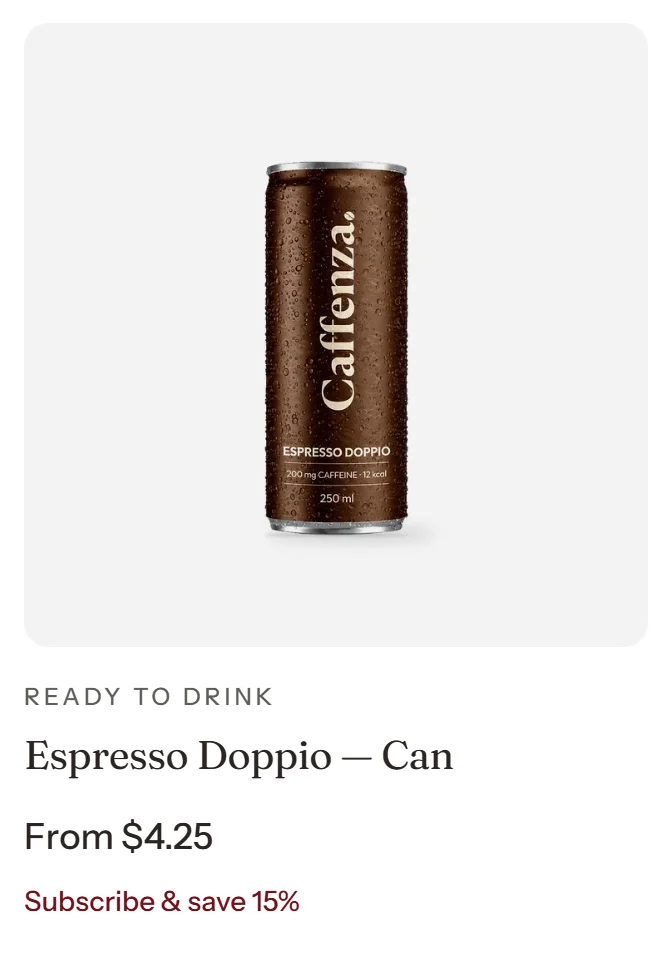
Caffenza supports Shopify subscriptions. Shoppers choose between one-time purchase and subscription on the product page, and cards can show “Subscribe & save 10%”.
Step 1 · Install a subscription app
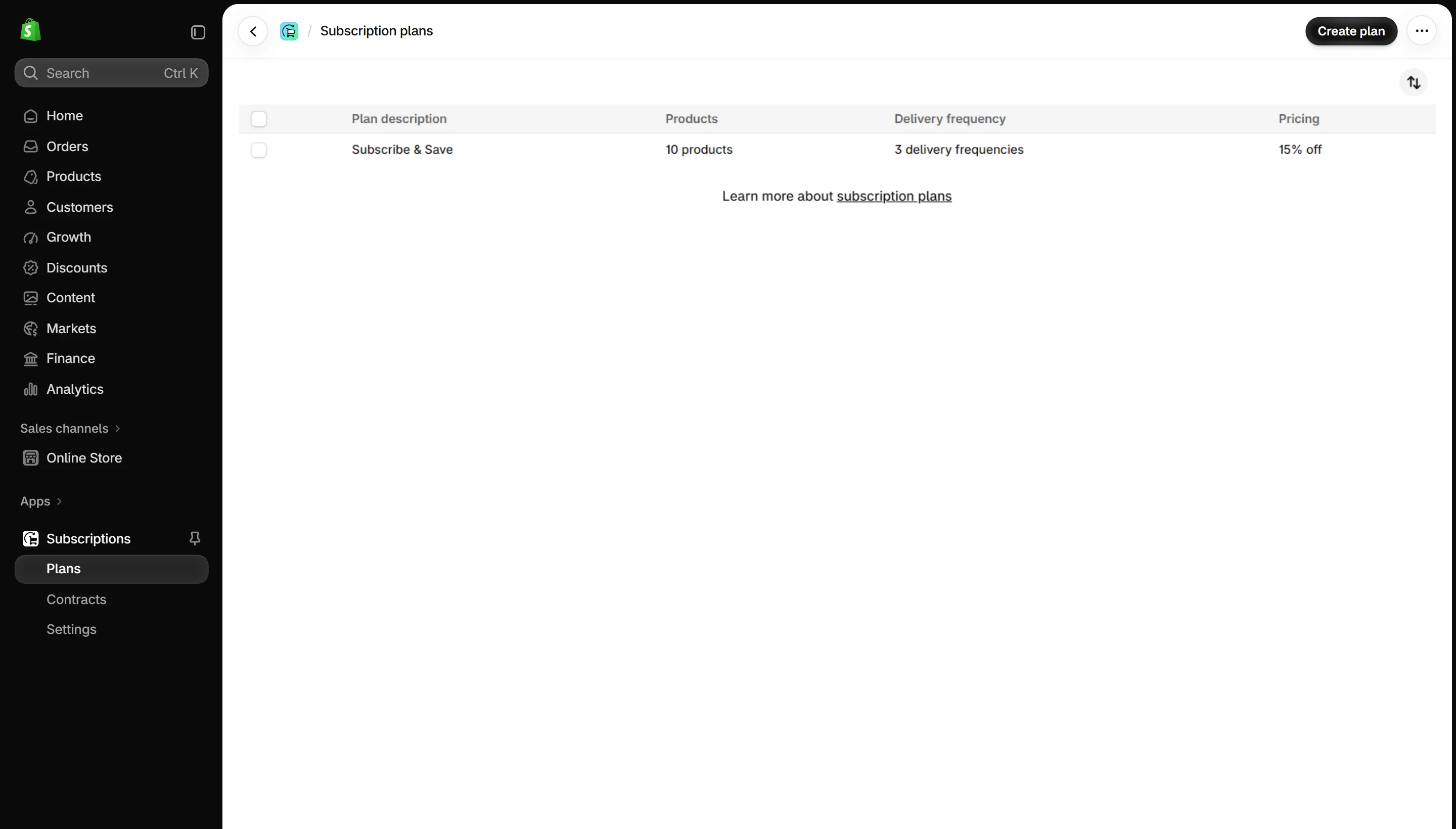
Subscriptions need an app, for example the free Shopify Subscriptions app or another subscription app from the Shopify App Store. Create your plans in the app (for example “Every 2 weeks, save 10%”) and add products to them.
Step 2 · Theme settings
- On the product page, the Buy buttons block shows the subscription options automatically. Add a Subscription note such as “Pause, skip or cancel anytime”.
- Turn on Theme settings → Product card → Show subscription offer to show the best saving on cards.
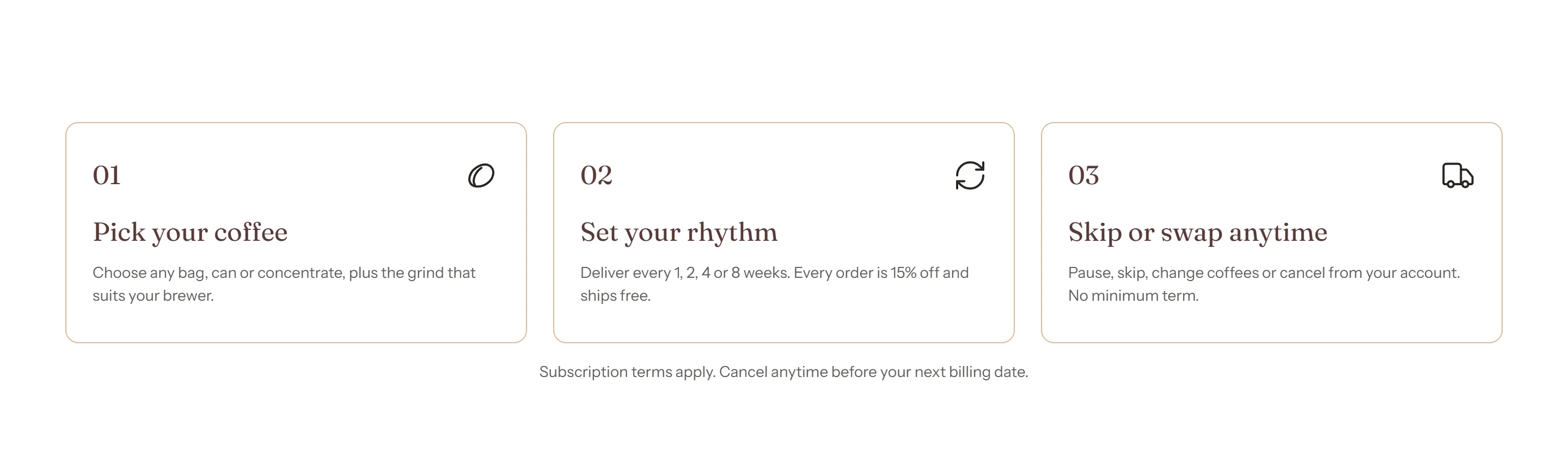
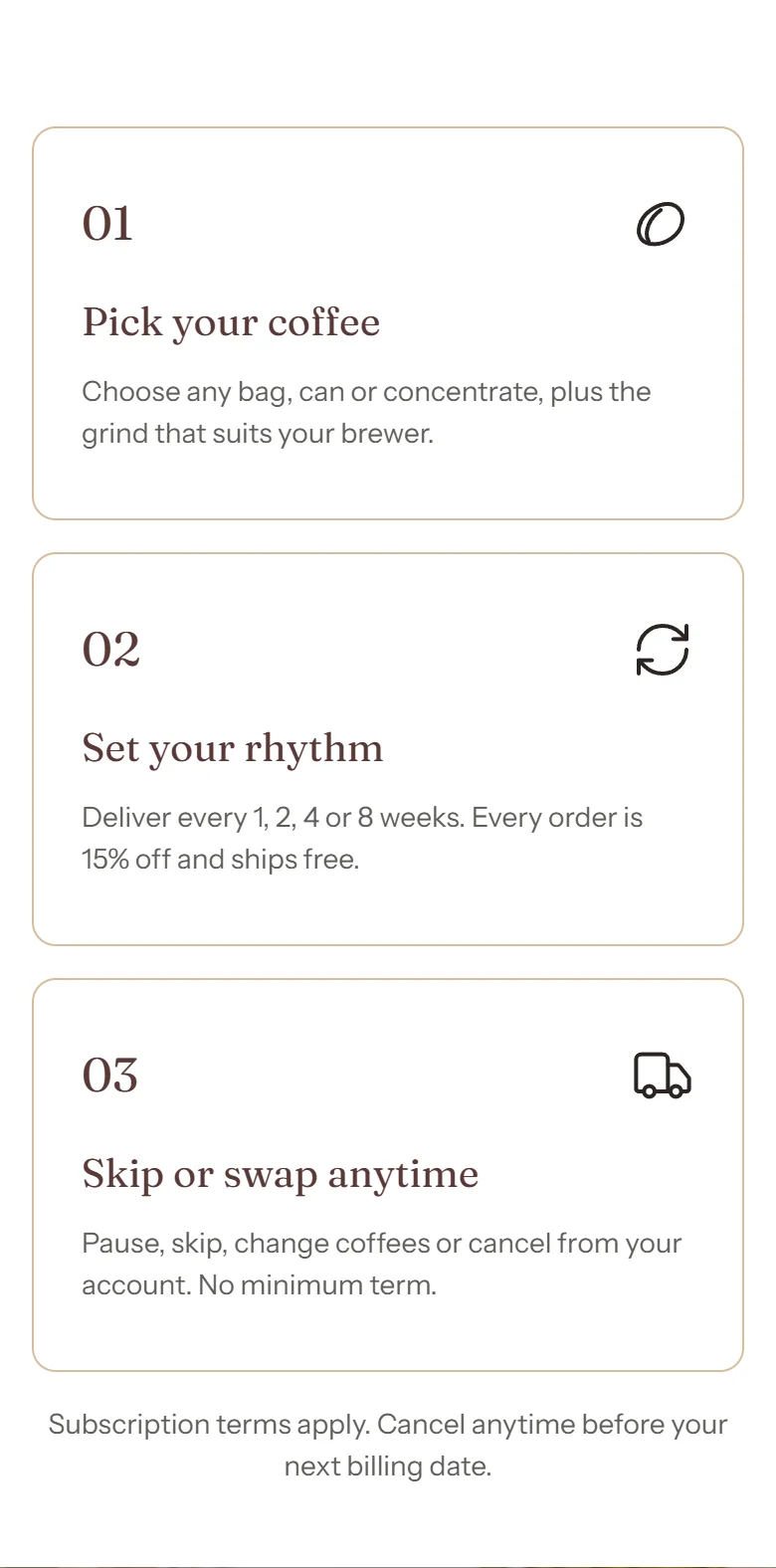
- Add the Subscription section to the home page to explain how it works in up to 4 steps.
Important
Only promise what your subscription app really allows. If the app does not let customers pause, do not say “pause anytime”.
Subscription section
How to add it
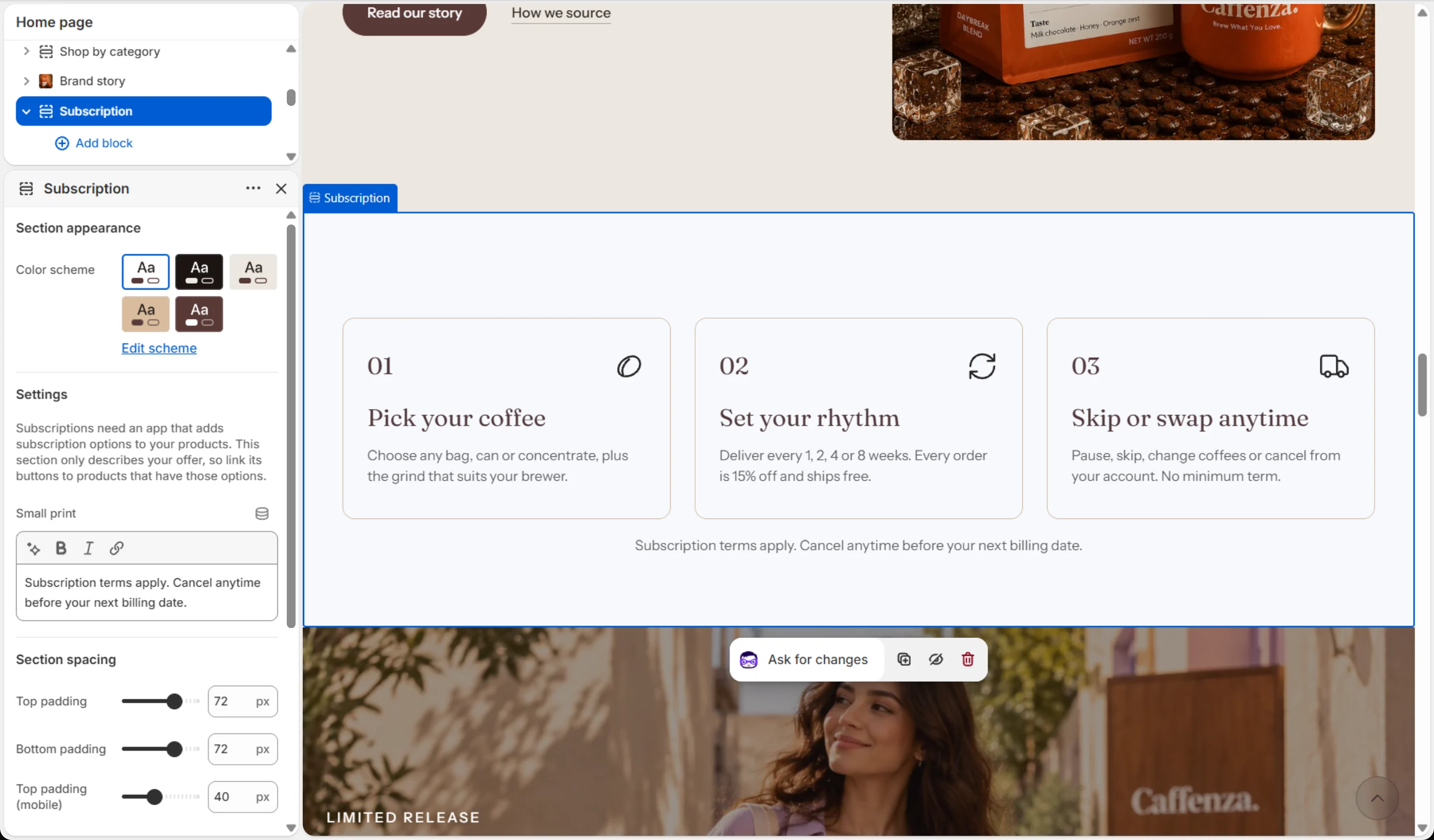
- In Shopify admin, go to Online Store → Themes and click Customize.
- Open the Home page from the page picker at the top of the editor.
- In the sidebar, click Add section and choose Subscription.
- Fill in the content, then click Save.
Screenshots
Settings
| Setting | Options | What it does |
|---|---|---|
| Section appearance | ||
| Color scheme | Color scheme | |
| Settings | ||
| Small print | Text (bold, italic, links) | |
| Animations | ||
Blocks
Click Add block under the section in the sidebar. Drag blocks to change their order.
Subheading up to 1
| Setting | Options | What it does |
|---|---|---|
| Subheading | Text (bold, italic, links) | |
| Subheading size | Small · Medium · Large |
Heading up to 1
| Setting | Options | What it does |
|---|---|---|
| Heading | Text (bold, italic, links) | Italicized words switch to the Accent font from Theme settings → Typography. They stay italic and keep the color of the text around them. |
| Heading size | Small · Medium · Large · Extra large | |
| Heading level | H1 · H2 · H3 · H4 · H5 · H6 | Adjust for page structure — one H1 per page. Size is controlled separately. |
Text up to 1
| Setting | Options | What it does |
|---|---|---|
| Text | Rich text | |
| Text size | Small · Medium · Large |
Step up to 4
| Setting | Options | What it does |
|---|---|---|
| Icon | None · Award · Bag · Coffee bean · Book · Building · Coffee cup · Envelope · Globe · Headset · Leaf · Lock · Refresh · Shield check · Star · Truck | |
| Custom image | Image | Replaces the icon. Shown at the icon width. |
| Icon width | 16–64 px | |
| Heading | Text (bold, italic, links) | |
| Text | Rich text |
Buttons up to 1
| Setting | Options | What it does |
|---|---|---|
| Button label | Text | |
| Link | Link | |
| Button style | Primary · Secondary · Ghost · Link | |
| Button size | Small · Medium · Large | |
| Open in a new tab | On / Off | |
| Second button label | Text | |
| Link | Link | |
| Second button style | Primary · Secondary · Ghost · Link | |
| Second button size | Small · Medium · Large | |
| Open second button in a new tab | On / Off |
It also has the shared Animate on scroll and Section spacing settings.