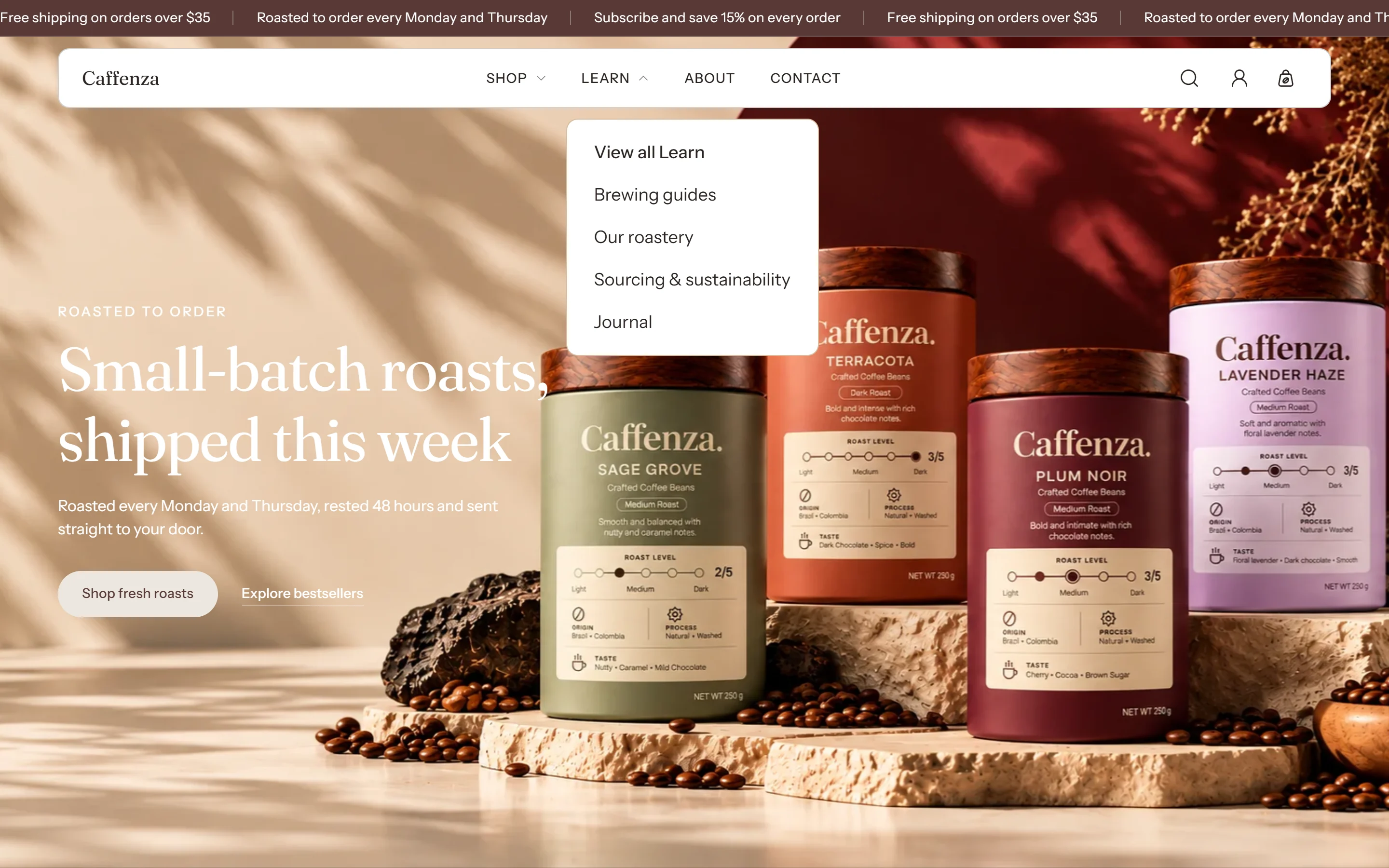
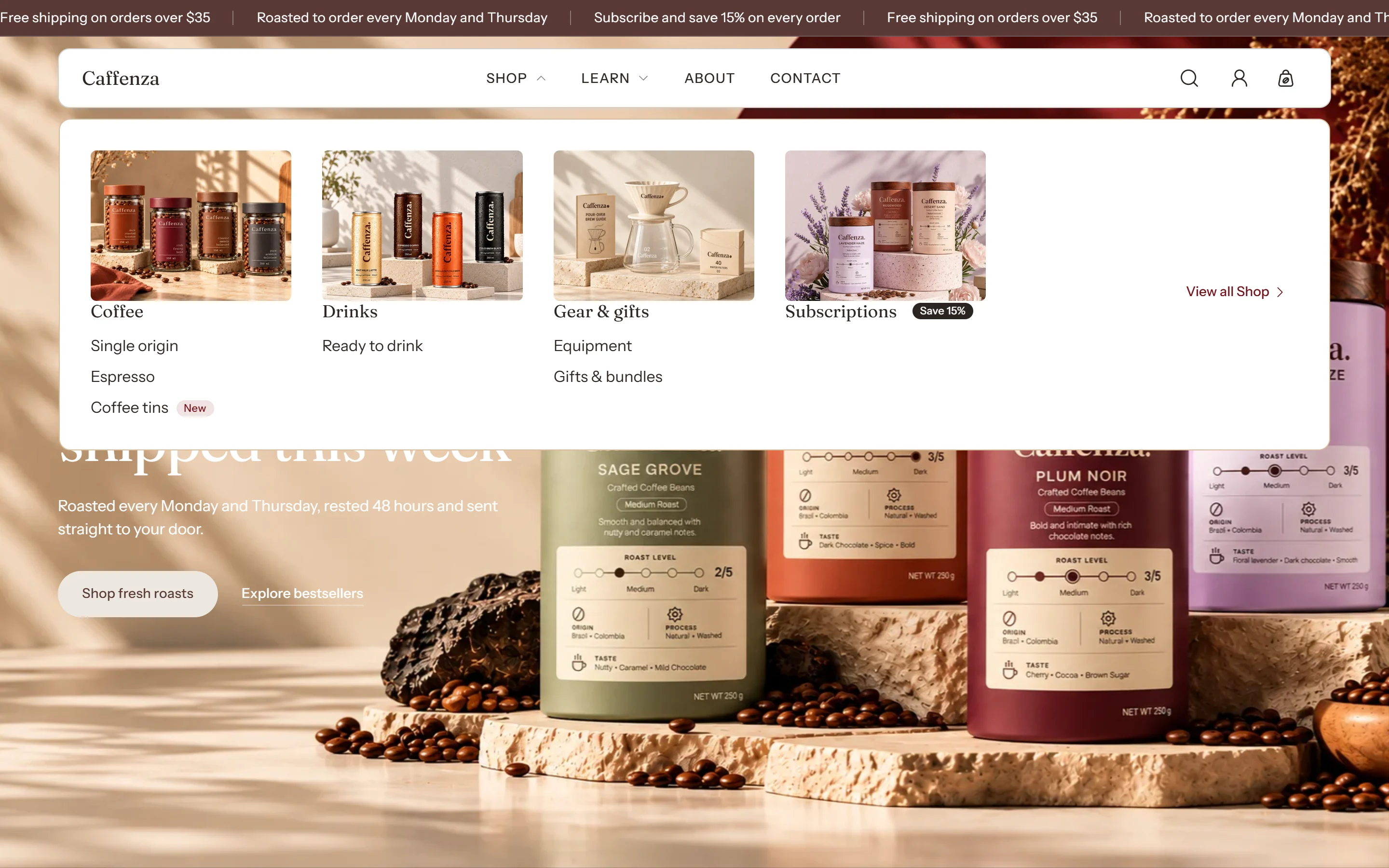
Mega menu
Large dropdowns with products, link columns, promo images and badges.
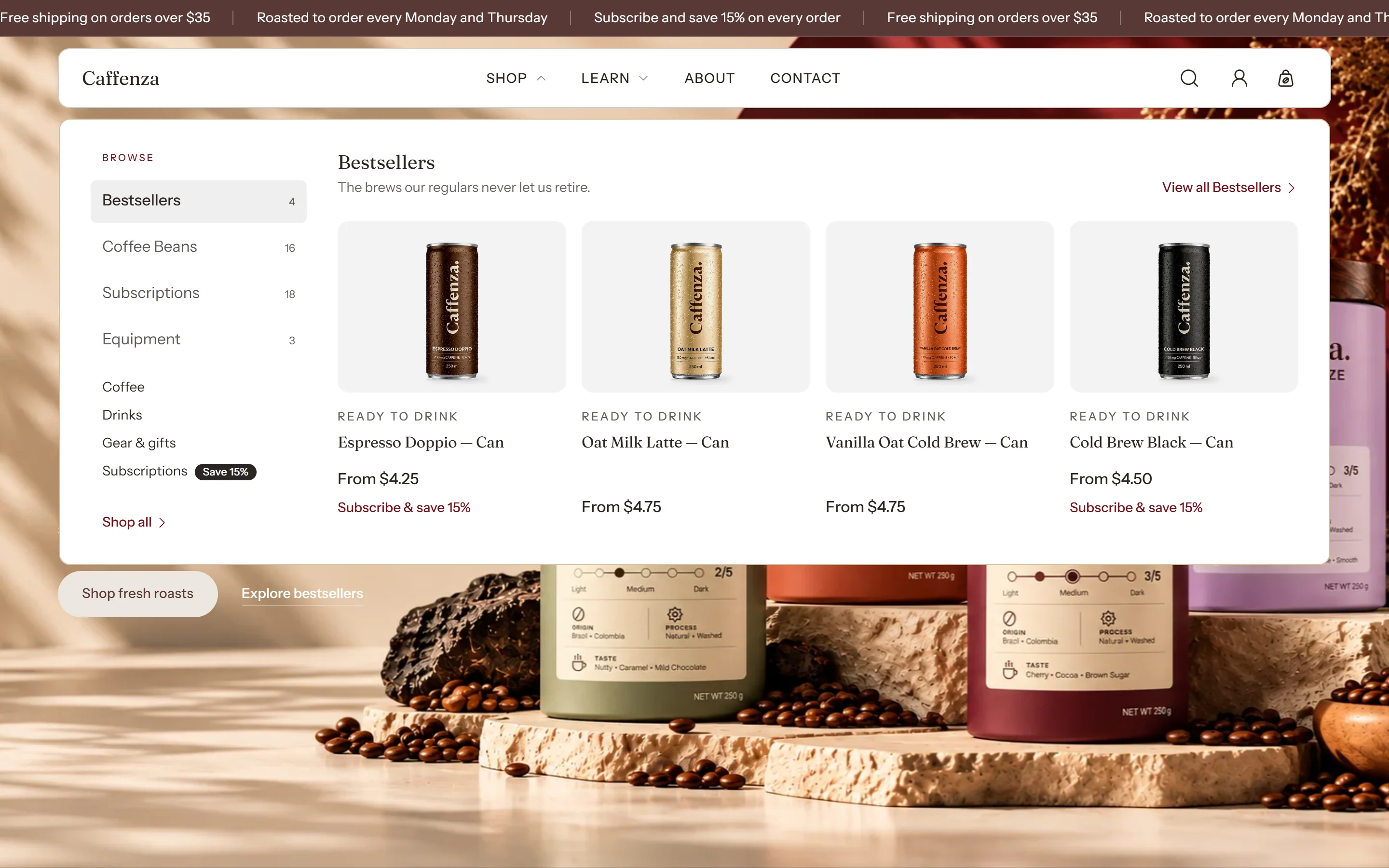
A mega menu is a big dropdown panel that opens from a top-level menu item. Caffenza builds mega menus from blocks in the Header section.
How to add a mega menu
- Make sure the top-level item exists in your main menu, for example Coffee.
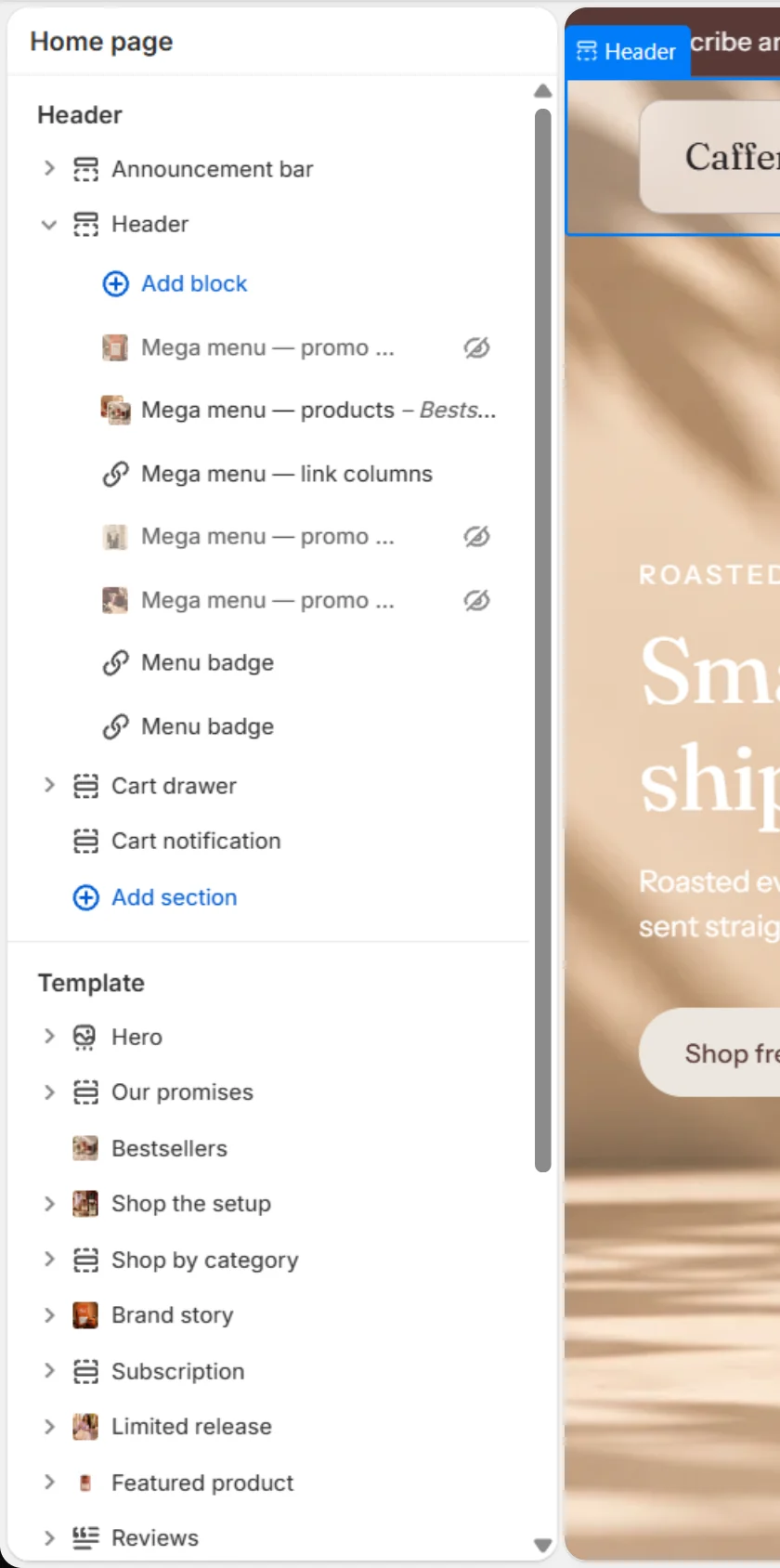
- In the theme editor, click Header → Add block.
- Choose a mega menu block (see the types below).
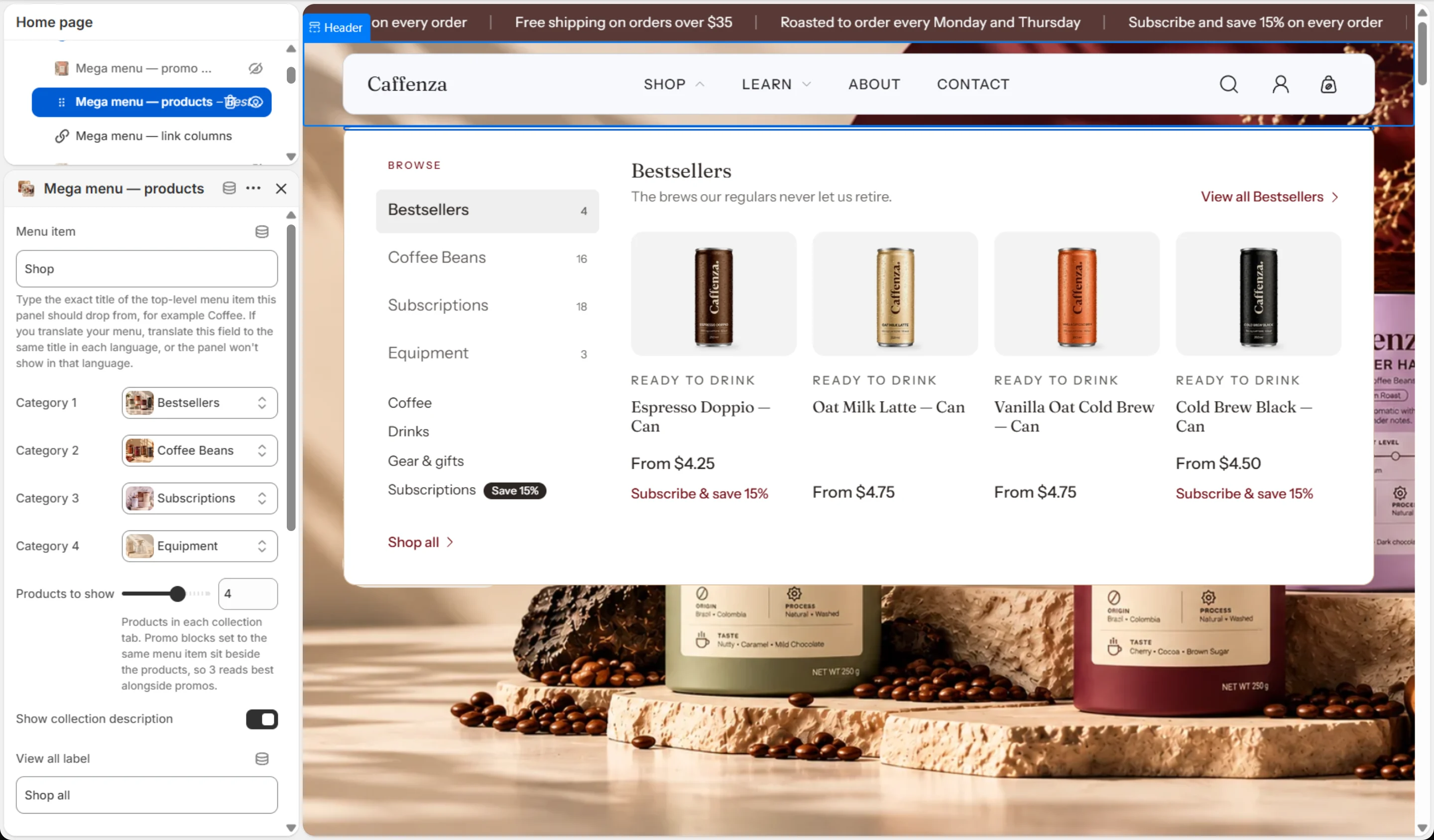
- In Menu item, type the exact title of the top-level item, for example
Coffee. - Add more blocks with the same menu item title to combine them in one panel.
| Block | Shows | Example |
|---|---|---|
| Mega menu — products | Up to 4 collection tabs with product cards | Coffee → Single origin, Blends, Decaf, Capsules |
| Mega menu — link columns | The menu’s child links as columns, as text or images | Equipment → Grinders, Brewers, Kettles |
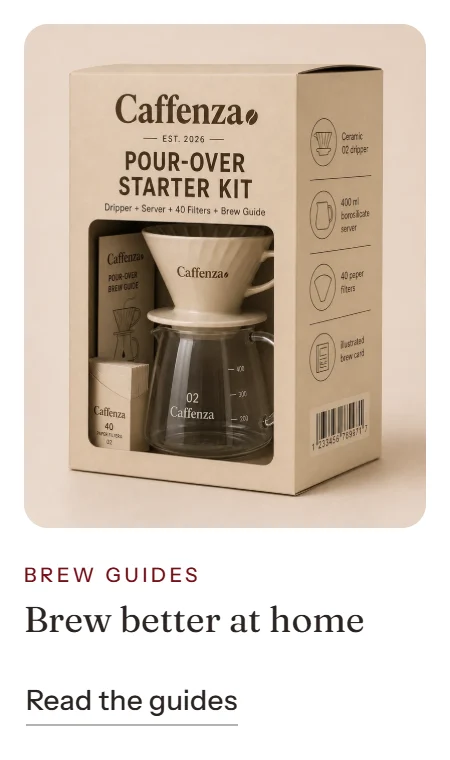
| Mega menu — promo card | An image card with a heading and button | “New harvest from Ethiopia” |
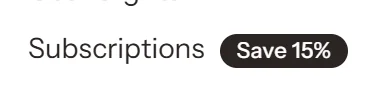
| Menu badge | A small label next to any menu link | “New” on Gift cards |
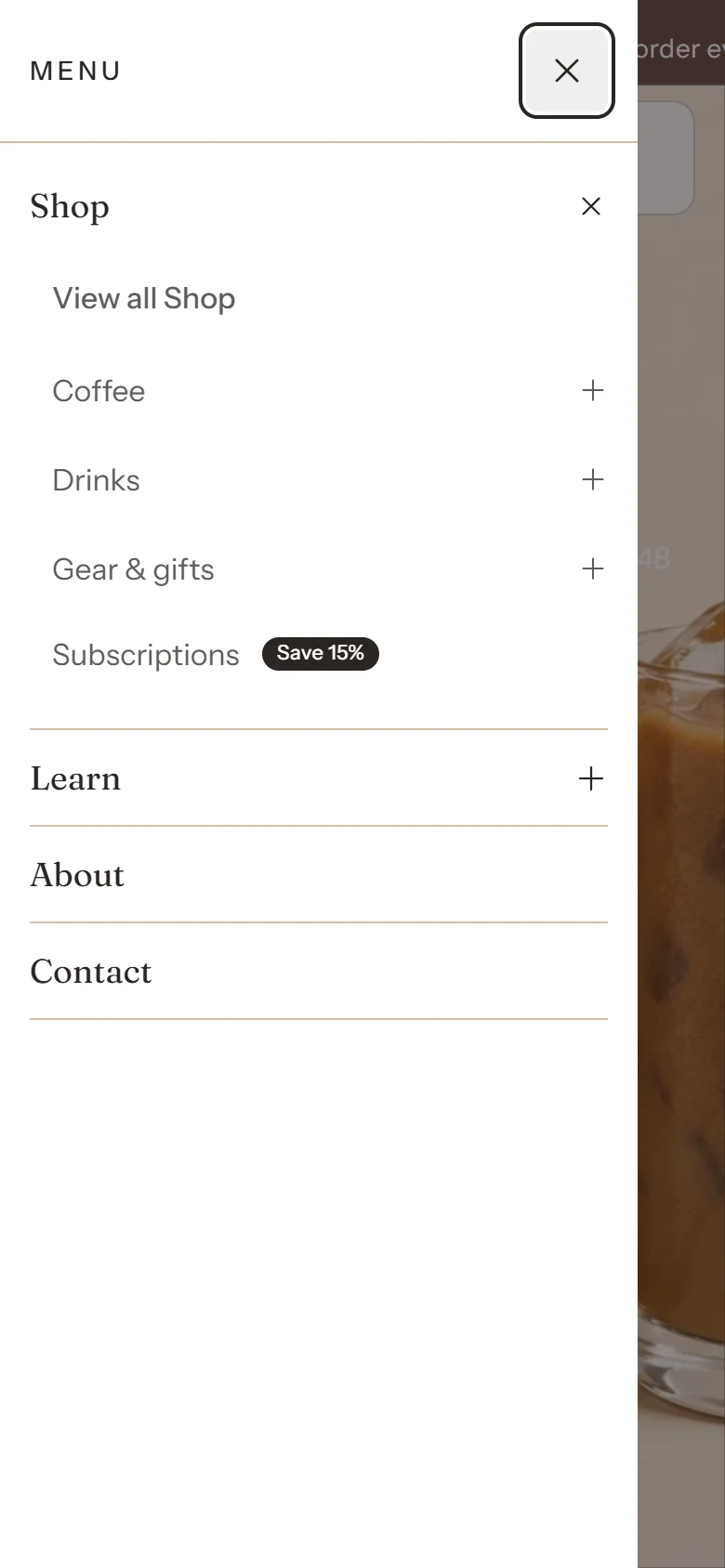
| Mobile menu | A different menu for the phone drawer | A shorter list for phones |
| Customer account menu | Links in the account dropdown | Orders, Subscriptions, Profile |
Important
The Menu item text must match the menu title exactly. If you translate your store, enter the translated title too, or the panel will not show in that language.
Panel style, color, column headings and promo image shape are set in the Mega menu settings of the Header section. See Header settings.
Screenshots