Collection page and filters
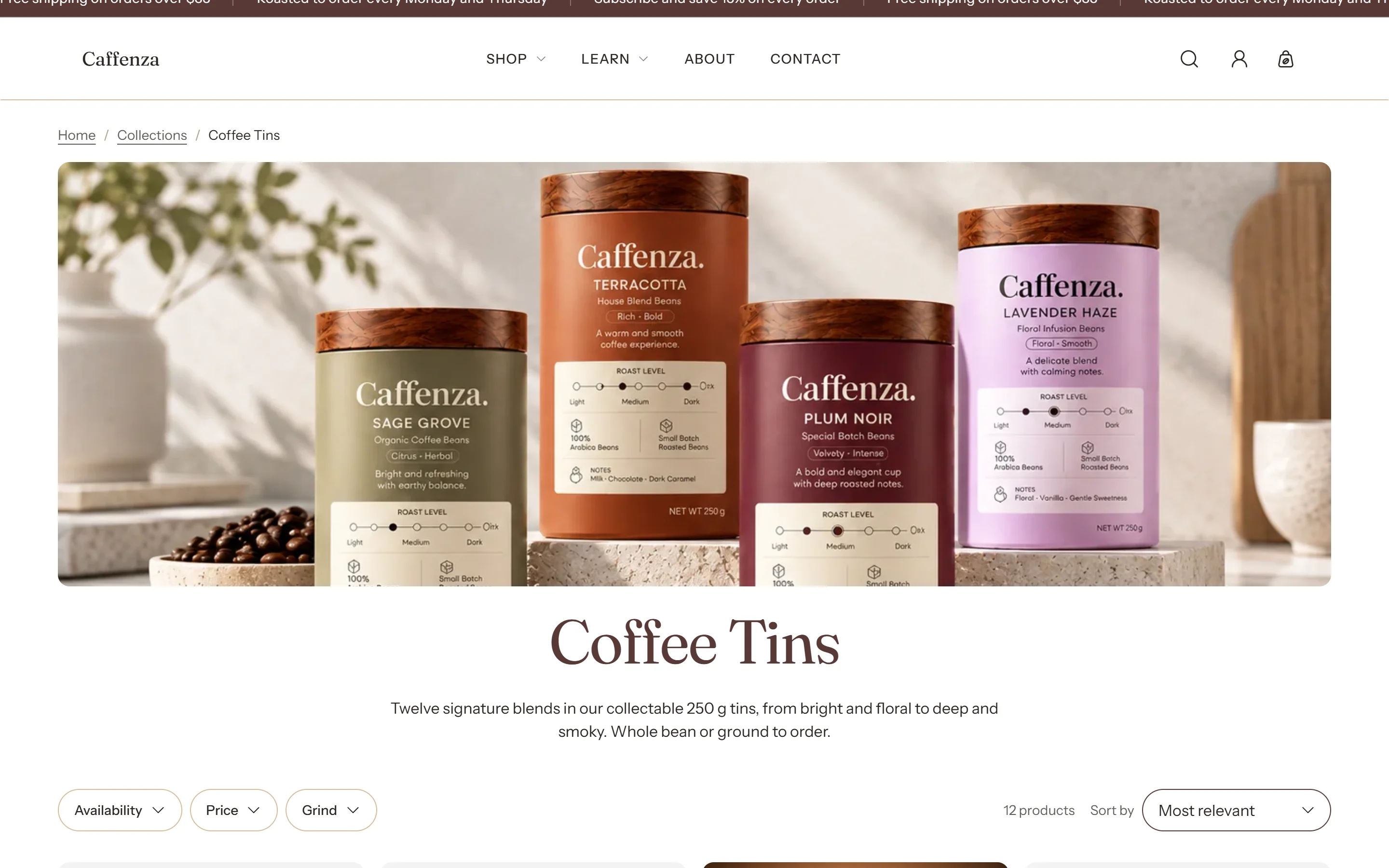
Product grid, filters, sorting and promo tiles.
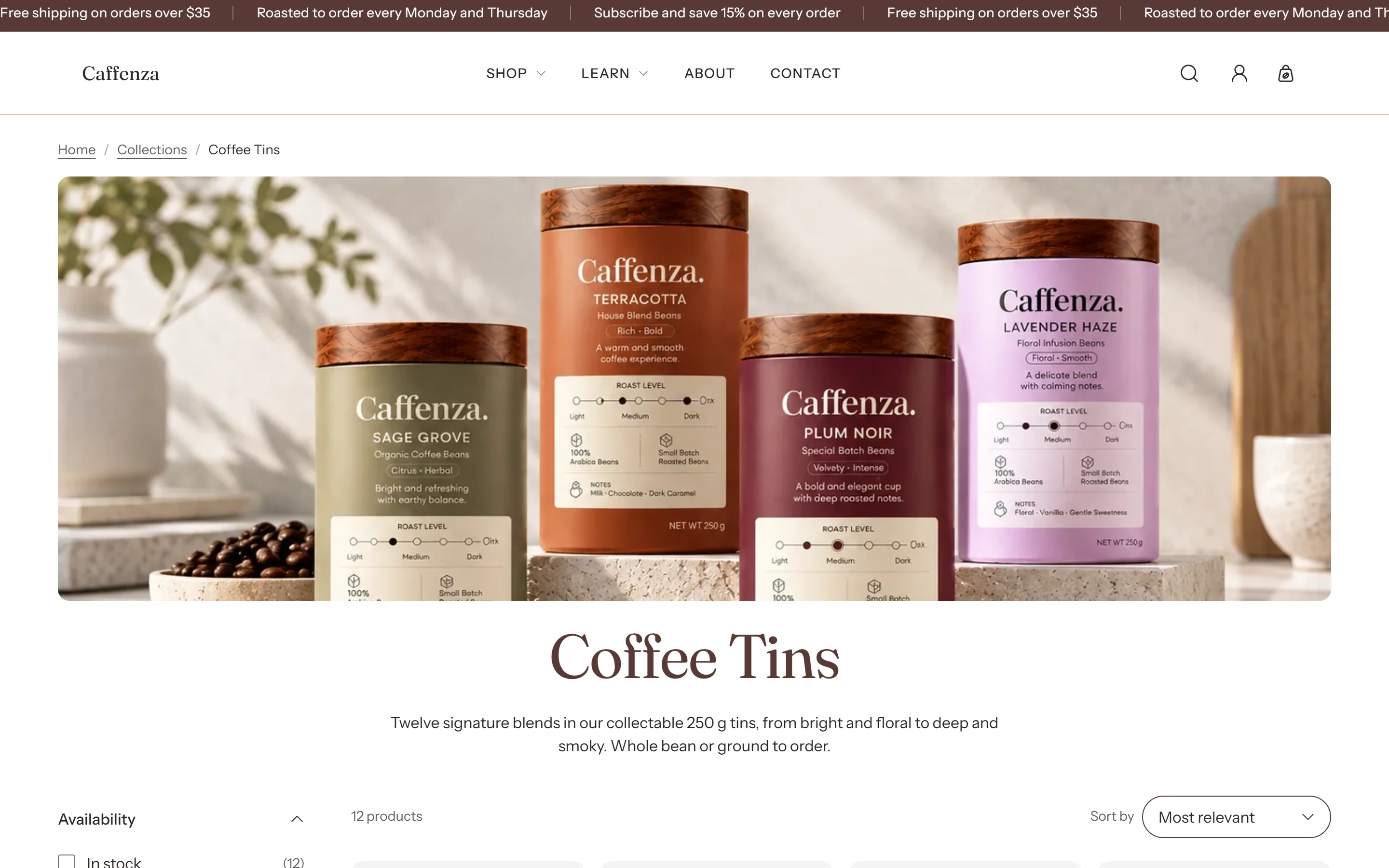
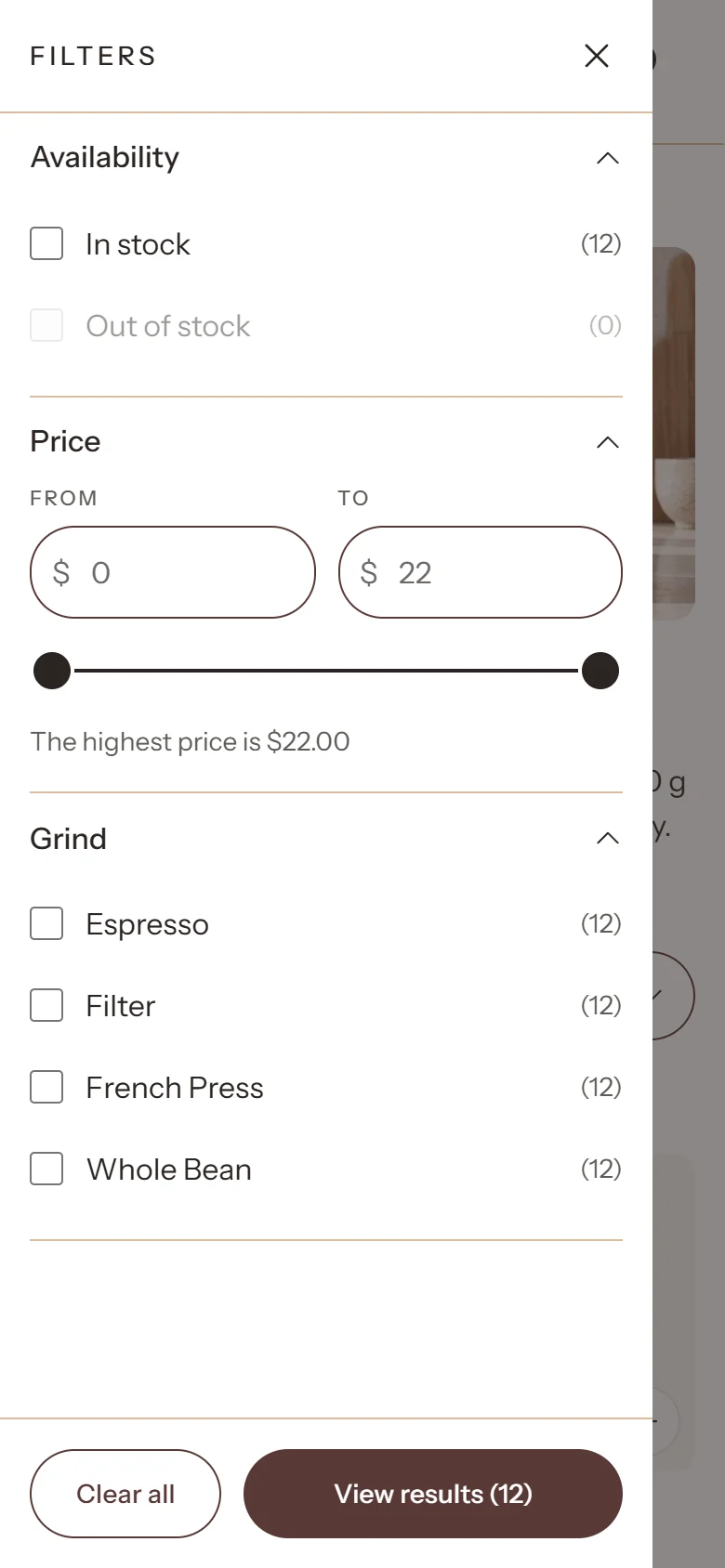
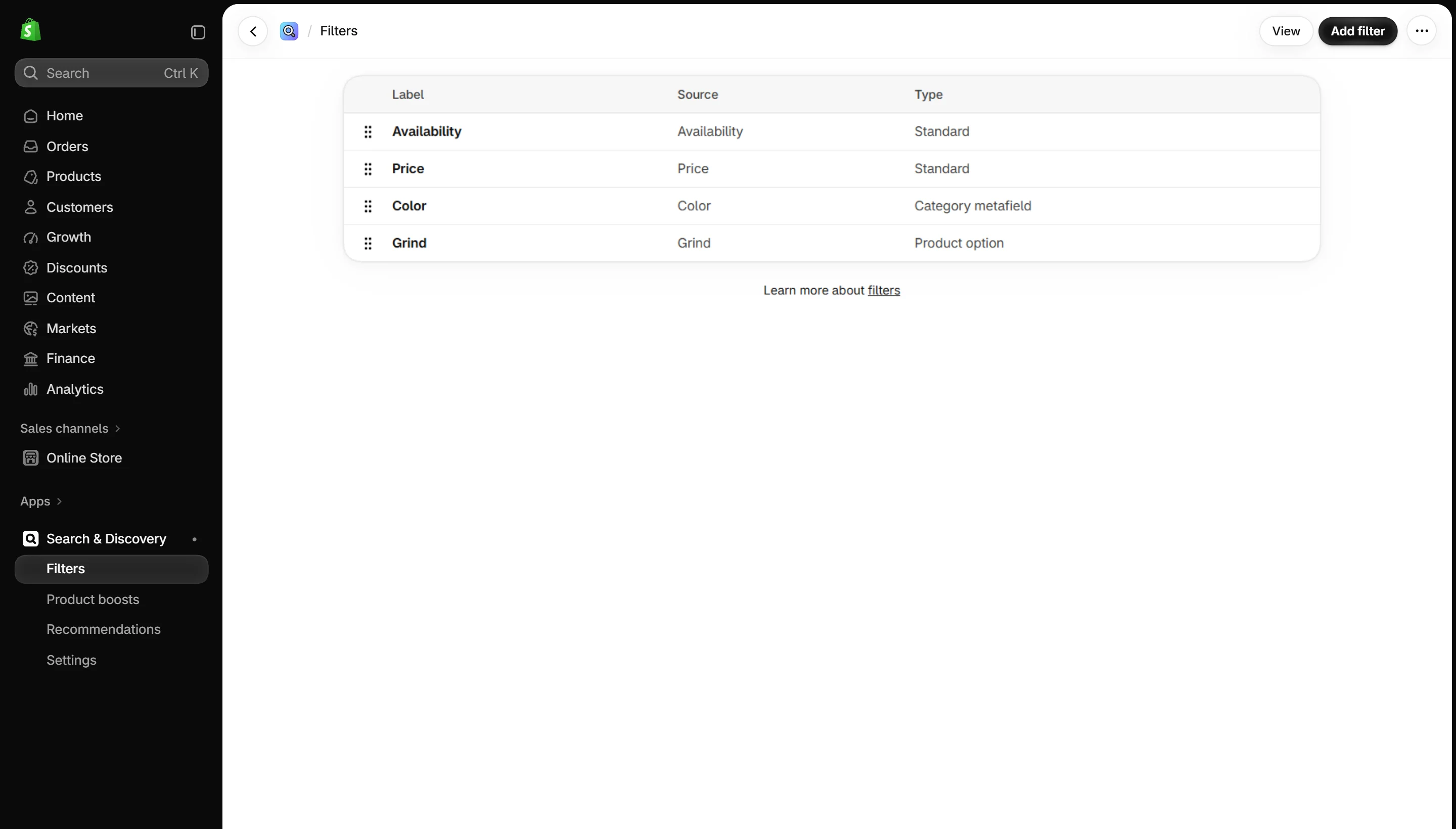
Turn on filters
- Install the free Shopify Search & Discovery app.
- In the app, open Filters and add filters such as Availability, Price, Product type and your metafields (for example Origin or Roast level).
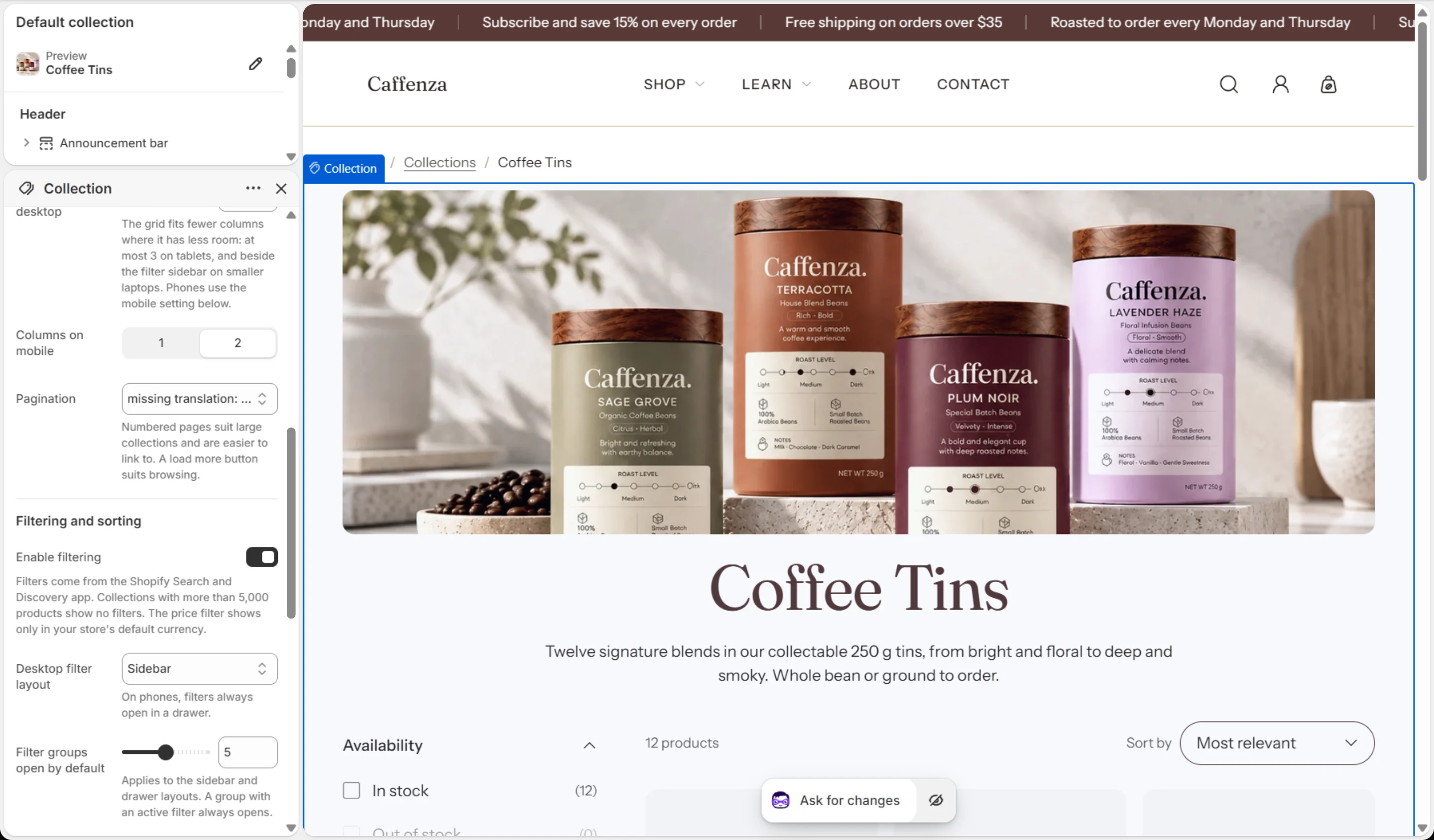
- In the theme editor, open a collection and turn on Enable filtering.
Note
Filters do not show on collections with more than 5,000 products.
Promo tiles
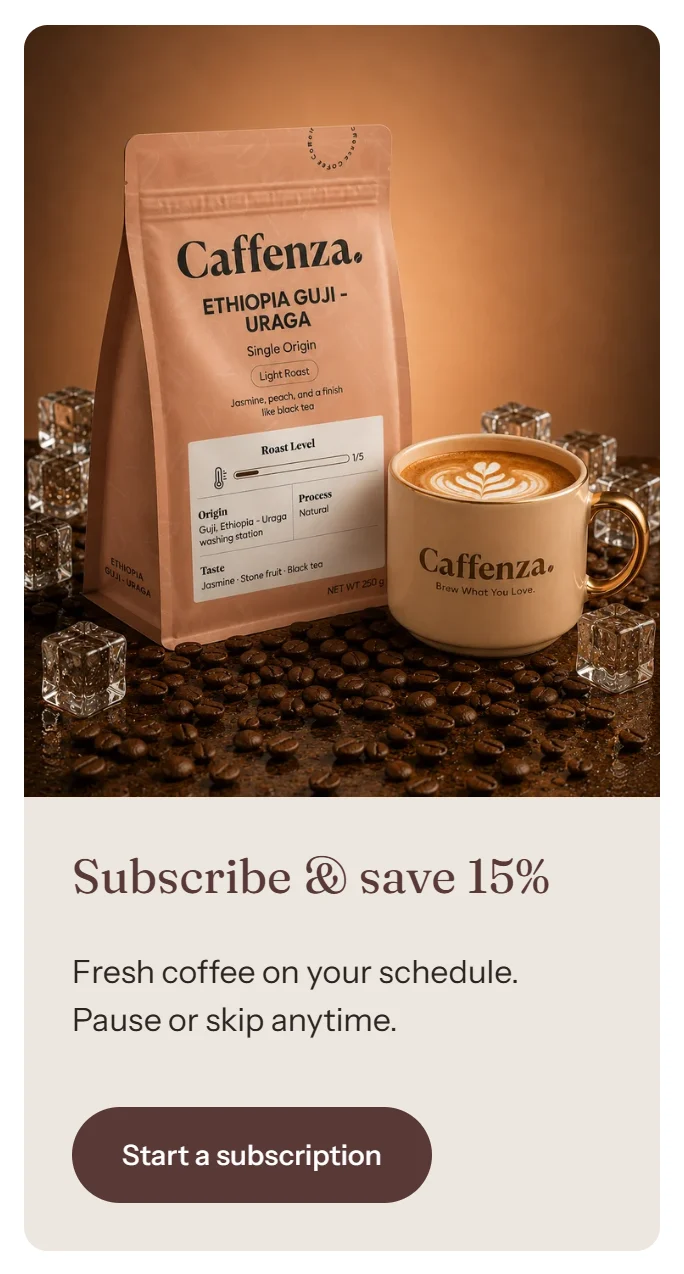
Add a Promo tile block to place an image or message between products, for example “Try our subscription”. Choose its position in the grid and whether it spans one or two columns.
Screenshots
Settings
| Setting | Options | What it does |
|---|---|---|
| Section appearance | ||
| Color scheme | Color scheme | |
| Settings | ||
| Heading size | Small · Medium · Large · Extra large | |
| Heading alignment | Left · Center · Right | |
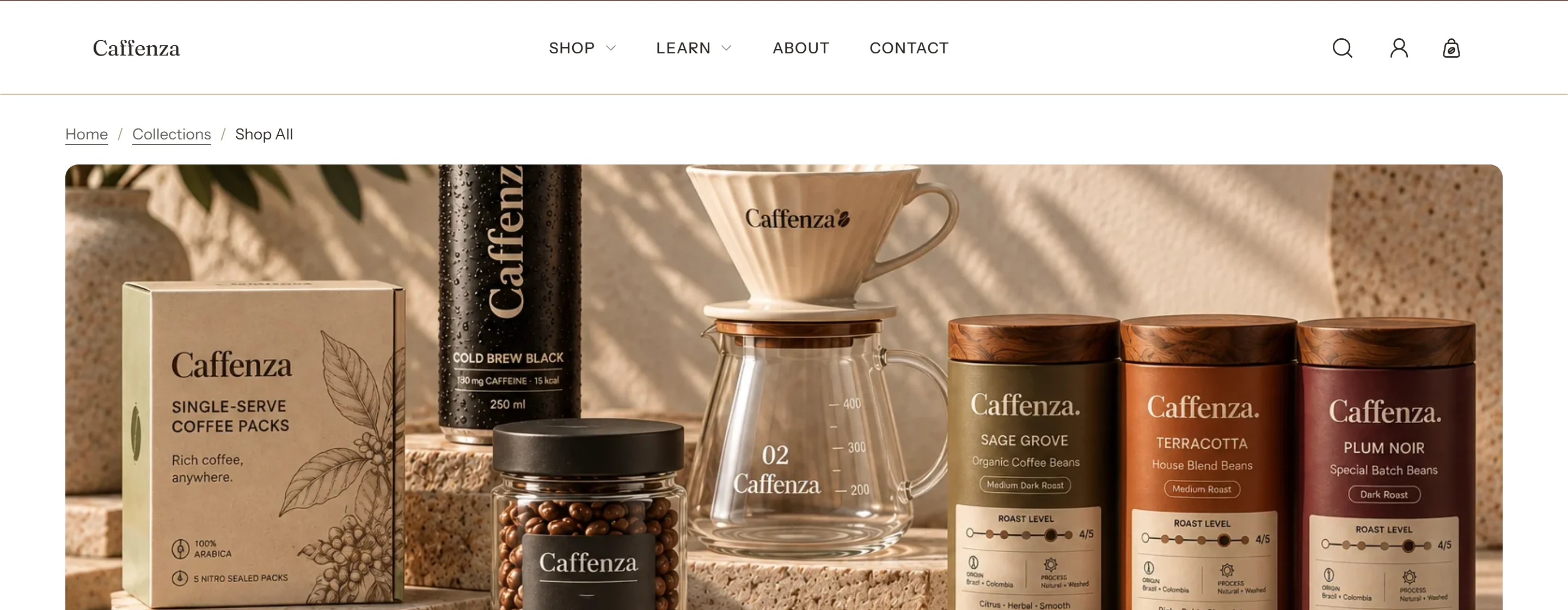
| Show image | On / Off | Shows the image set on the collection in Shopify admin as a wide banner above the title. Collections without an image show just the title. |
| Show description | On / Off | |
| Card style | Brew specs · Pairs with | "Brew specs" shows the spec cells set in Theme settings. "Pairs with" shows the companion product. |
| Products per page | 8–48 | Editorial images repeat on every page. |
| Columns on desktop | 2–5 | The grid fits fewer columns where it has less room: at most 3 on tablets, and beside the filter sidebar on smaller laptops. Phones use the mobile setting below. |
| Columns on mobile | 1 · 2 | |
| Pagination | Numbered · Load more button | Numbered pages suit large collections and are easier to link to. A load more button suits browsing. |
| Filtering and sorting | ||
| Enable filtering | On / Off | Filters come from the Shopify Search and Discovery app. Collections with more than 5,000 products show no filters. The price filter shows only in your store's default currency. |
| Desktop filter layout | Sidebar · Filter bar · Drawer | On phones, filters always open in a drawer. |
| Filter groups open by default | 0–10 | Applies to the sidebar and drawer layouts. A group with an active filter always opens. |
| Values shown before "Show more" | 5–20 | |
| Show product counts | On / Off | |
| Show active filters | On / Off | |
| Show the filter name in active filters | On / Off | |
| Enable sorting | On / Off | |
| Keep filters and sorting in view | On / Off | The sidebar or filter bar stays on screen while shoppers scroll. On phones, the filter and sort row does. |
Blocks
Click Add block under the section in the sidebar. Drag blocks to change their order.
Promo tile up to 4
| Setting | Options | What it does |
|---|---|---|
| Position in grid | 1–24 | 1 puts the tile first. Tiles show on the first page only, among its products; a position past the last product puts the tile at the end. |
| Columns to span | 1 · 2 | On phones a tile never spans more columns than the grid has. A two-column tile that lands in the last column moves down to the next row. |
| Color scheme | Color scheme | |
| Image | Image | |
| Heading | Text (bold, italic, links) | Italicized words switch to the Accent font from Theme settings → Typography. They stay italic and keep the color of the text around them. |
| Heading size | Small · Medium · Large · Extra large | |
| Heading level | H1 · H2 · H3 · H4 · H5 · H6 | Adjust for page structure — one H1 per page. Size is controlled separately. |
| Text | Rich text | |
| Text size | Small · Medium · Large | |
| Button label | Text | |
| Link | Link | |
| Button style | Primary · Secondary · Ghost · Link | |
| Button size | Small · Medium · Large | |
| Open in a new tab | On / Off |
This section also accepts Custom Liquid blocks and app blocks. It also has the shared Animate on scroll and Section spacing settings.