Collections list page
The page that shows all your collections.
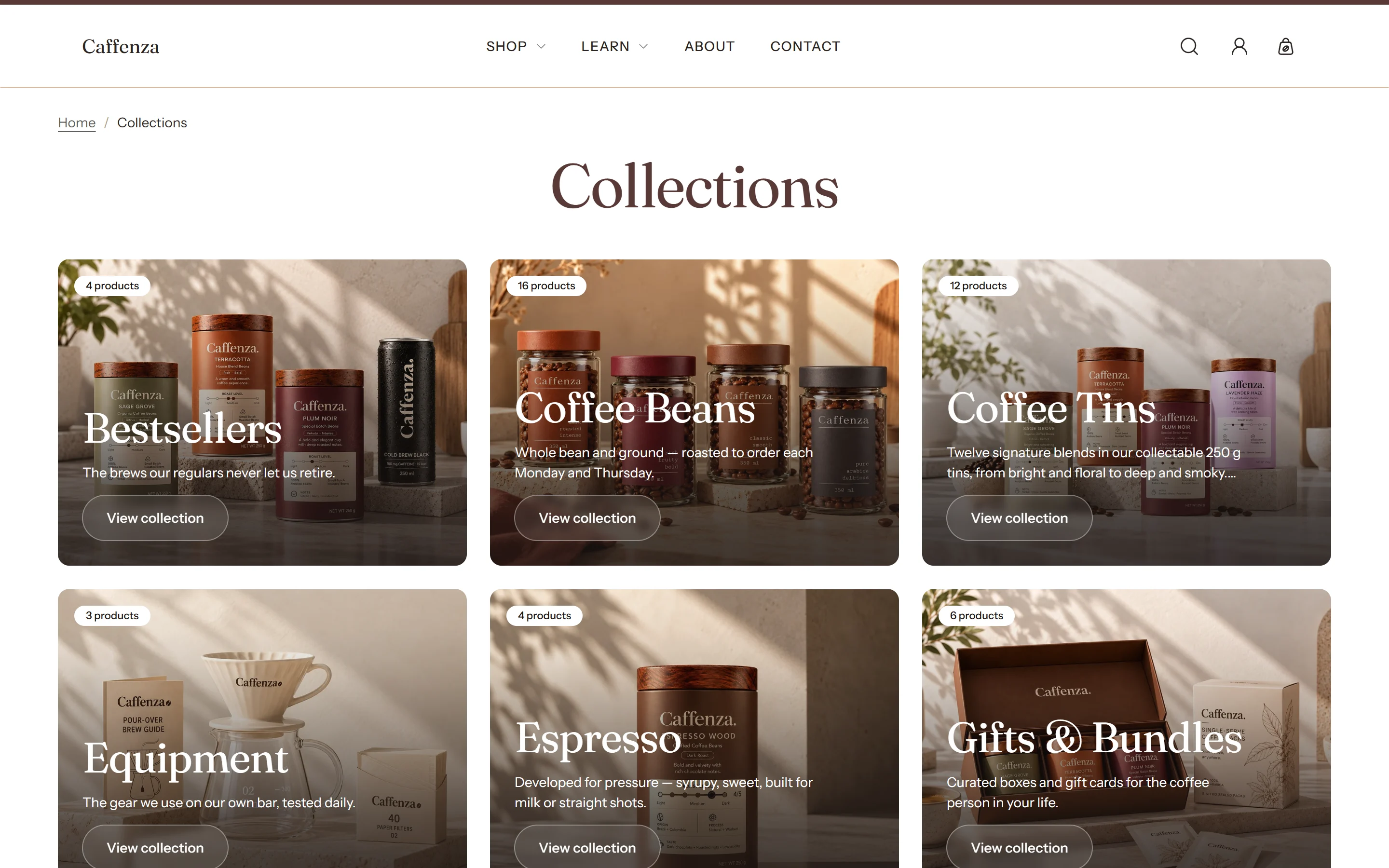
Shoppers reach this page at /collections. Choose it in the editor under Collections → Collections list.
Screenshots
Settings
| Setting | Options | What it does |
|---|---|---|
| Section appearance | ||
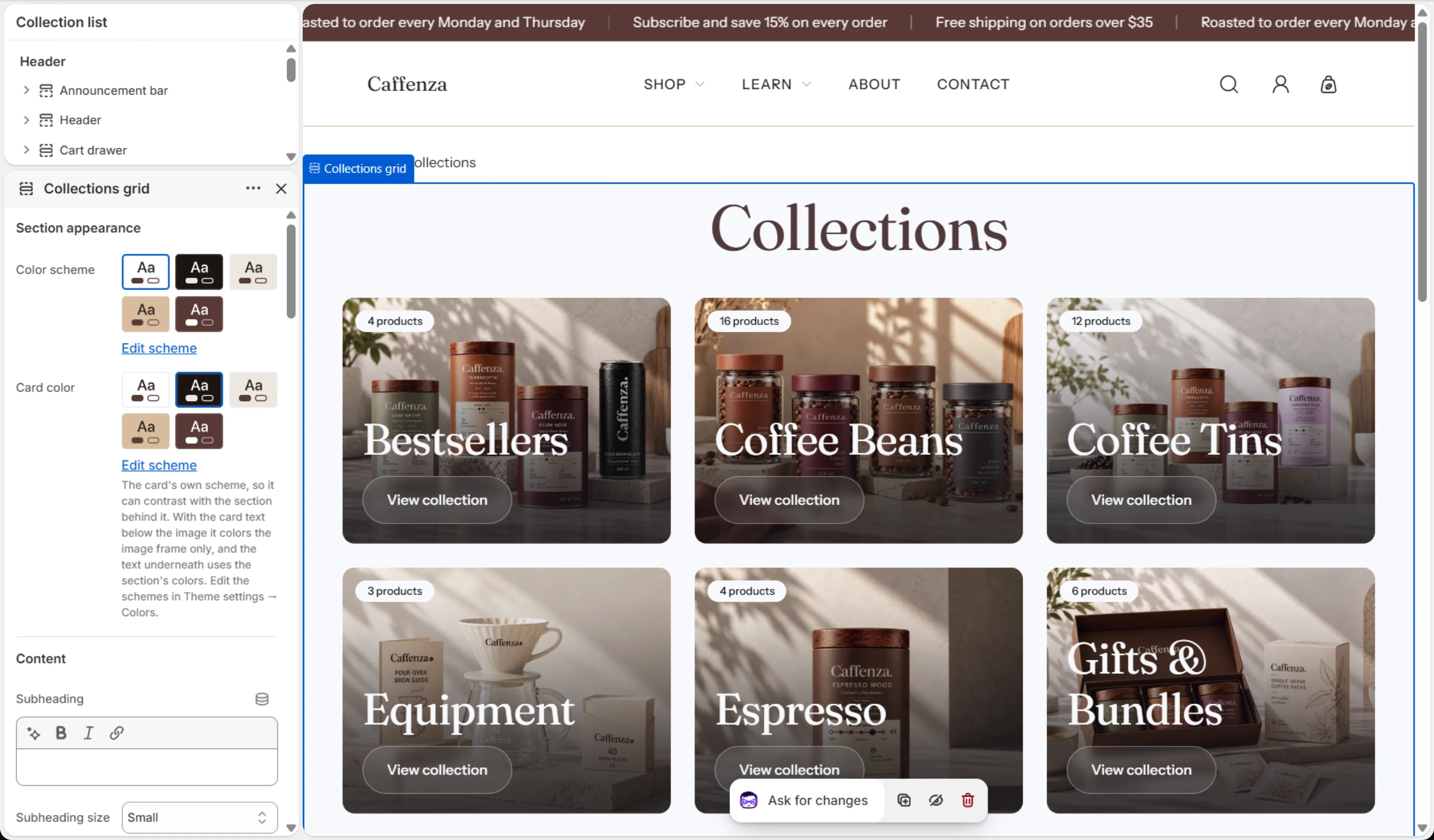
| Color scheme | Color scheme | |
| Card color | Color scheme | The card's own scheme, so it can contrast with the section behind it. With the card text below the image it colors the image frame only, and the text underneath uses the section's colors. Edit the schemes in Theme settings → Colors. |
| Content | ||
| Subheading | Text (bold, italic, links) | |
| Subheading size | Small · Medium · Large | |
| Heading | Text (bold, italic, links) | Leave blank to show the page title. Italicized words switch to the Accent font from Theme settings → Typography. |
| Heading size | Small · Medium · Large · Extra large | |
| Heading level | H1 · H2 · H3 · H4 · H5 · H6 | Adjust for page structure — one H1 per page. Size is controlled separately. |
| Text | Rich text | |
| Header alignment | Left · Center | |
| Text size | Small · Medium · Large | |
| Settings | ||
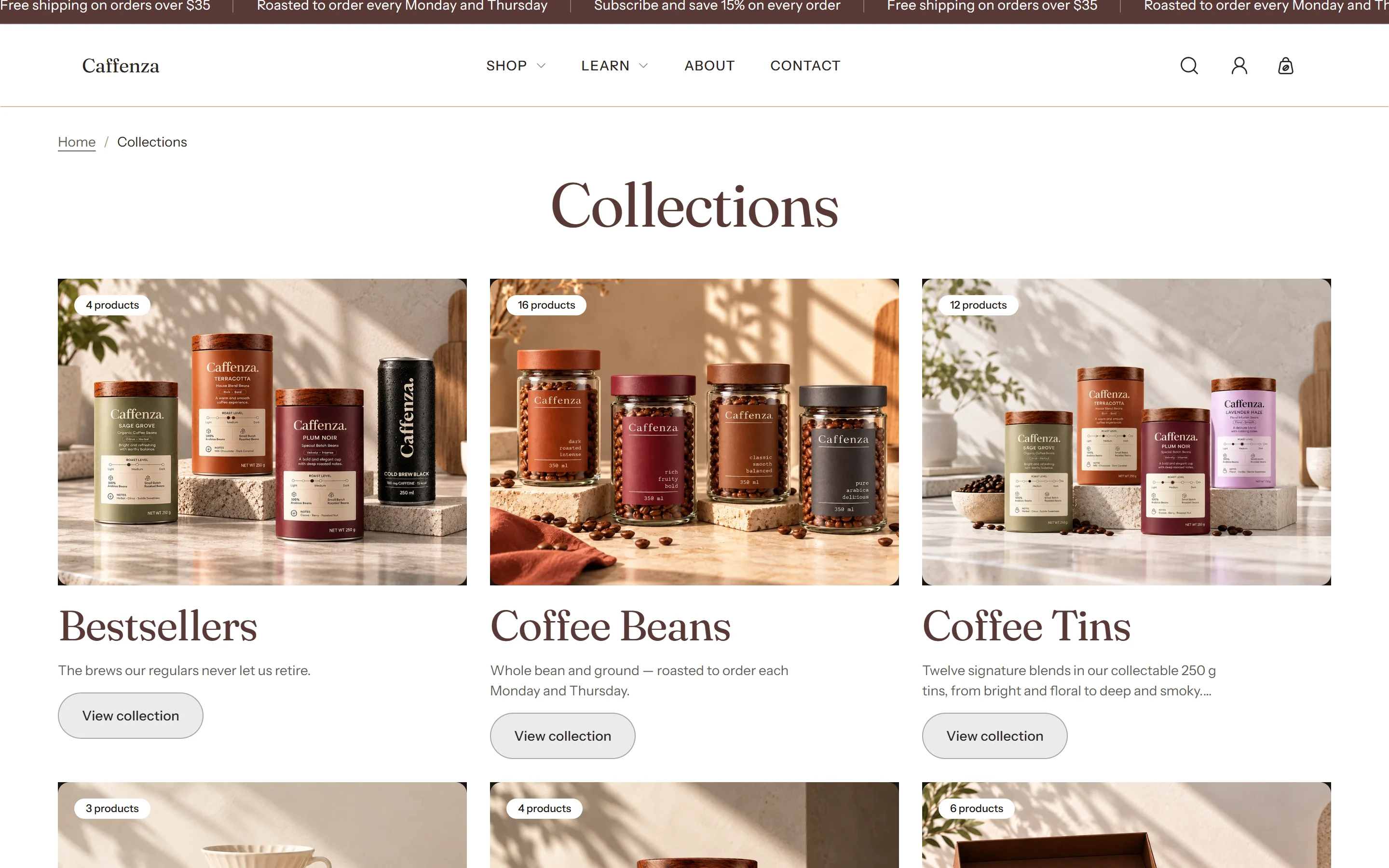
| Card text position | Over the image · Below the image | Over the image places each collection's name, description and button on the photo itself. Below the image places them underneath it, on the page background. |
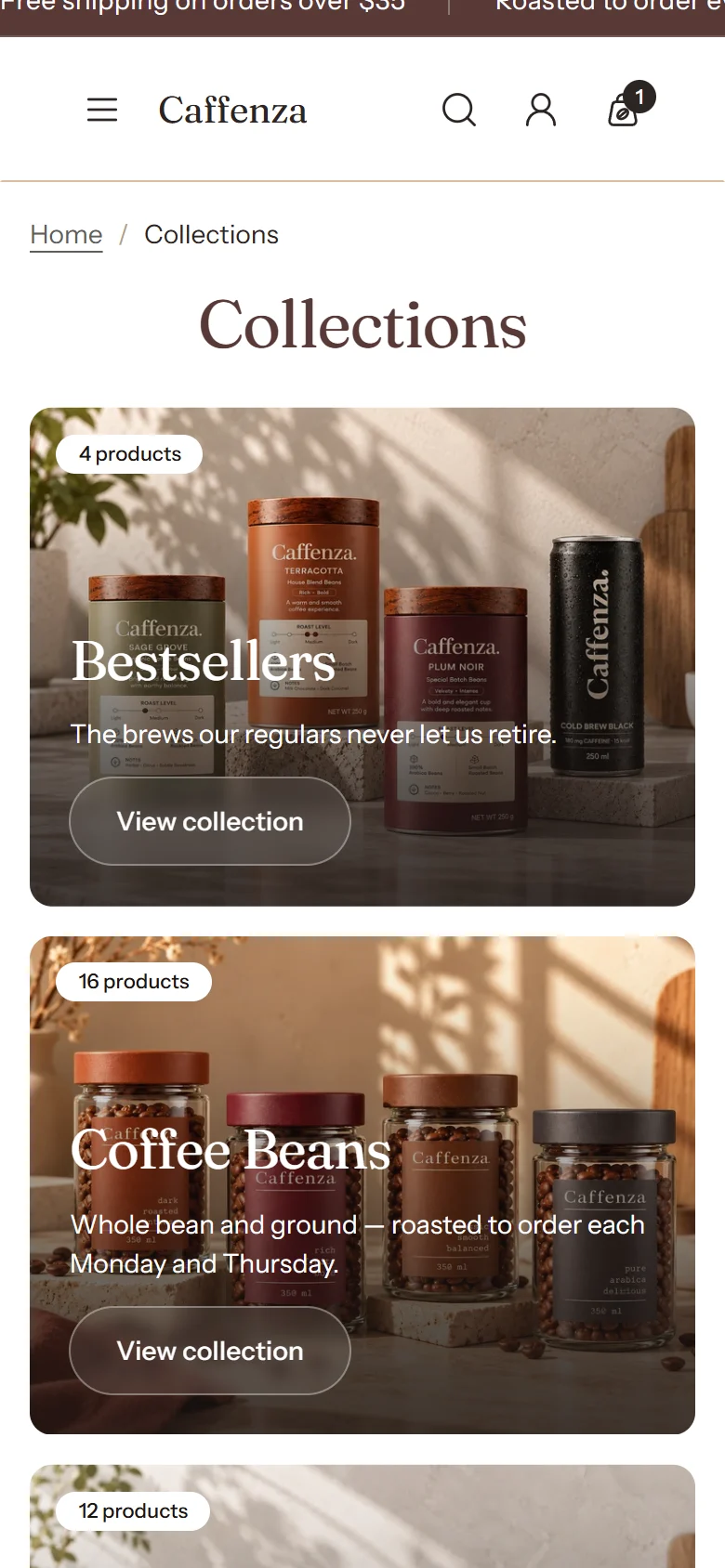
| Card text position (mobile) | Same as desktop · Over the image · Below the image | Lets phones place the card text differently from desktop. Over the image is tight on a phone at two columns — there is roughly a name and a button of room — so below the image usually reads better there. |
| Columns on desktop | 2–4 | Tablets step this down to 2 columns automatically. Phones use the mobile setting below. |
| Columns on mobile | 1 · 2 | Phones show one card per row by default. Two fits more on screen, but each card is half as wide, so the description and the product peek are dropped to keep the name and button readable. |
| Media aspect ratio | Square · Portrait · Landscape | Applies to every card, and every card is the same size. |
| Mobile aspect ratio | Same as desktop · Square · Portrait · Landscape | Lets phones use a different card shape from desktop. Square or portrait usually suits a narrow screen better than landscape. |
| Card content alignment | Left · Center | Aligns the name, description, button and product peek on every card. The button and the peek keep the same distance from each other whichever you choose. |
| Collection name size | Small · Medium · Large · Extra large | Larger sizes suit short collection names. Long names wrap onto a second line. |
| Show description | On / Off | Uses each collection's own description, shortened to two lines. |
| Show product count | On / Off | |
| Product count position | Top left · Top right · Bottom left · Bottom right | Which corner of the image the product count sits in. It stays on the image whichever card text position you choose. |
| Show product peek | On / Off | Shows the first three products from each collection as small overlapping images. This reads every collection's products while the page builds, so it can slow a store with many collections — check your page speed before leaving it on. |
| Show button on each card | On / Off | |
| Button label | Text | Shown on the button on each card. Leave blank to use "View collection". |
| Button style | Primary · Secondary · Ghost · Link | |
| Button size | Small · Medium · Large | |
| Overlay color | Color | Tints the gradient that sits over each card image. Leave blank to use the card color's own background. |
| Overlay opacity | 0–100 % | Tints the media with the overlay color so text stays readable. Lower it with care — check your text contrast. |
| Collections per page | 4–24 | How many collections each page of the grid shows before the pagination row. |
| Pagination | Numbered · Load more button | Numbered pages suit large collections and are easier to link to. A load more button suits browsing. |
| Animations | ||
It also has the shared Animate on scroll and Section spacing settings.