404, password and gift card pages
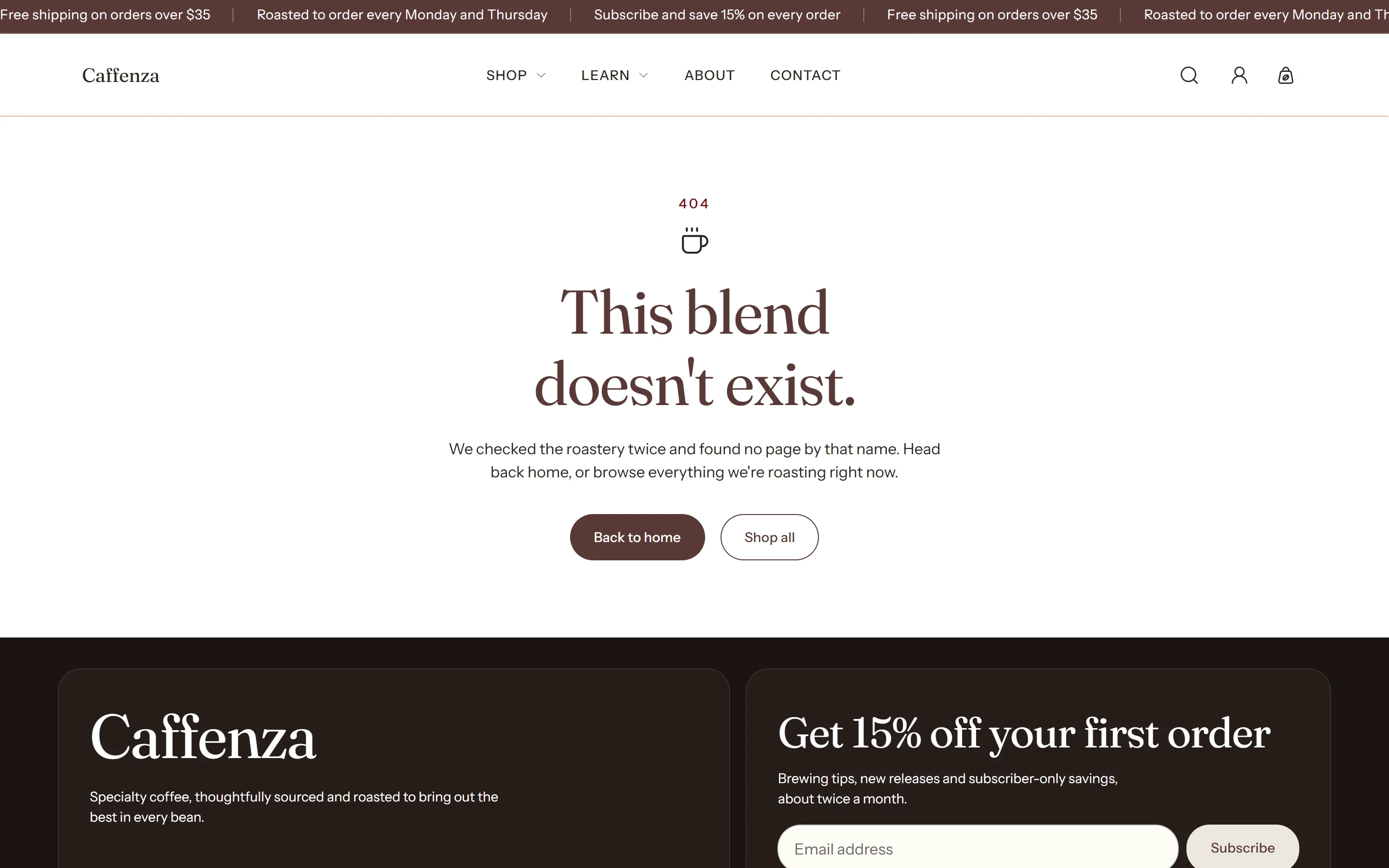
Page not found, the store password page and the gift card page.
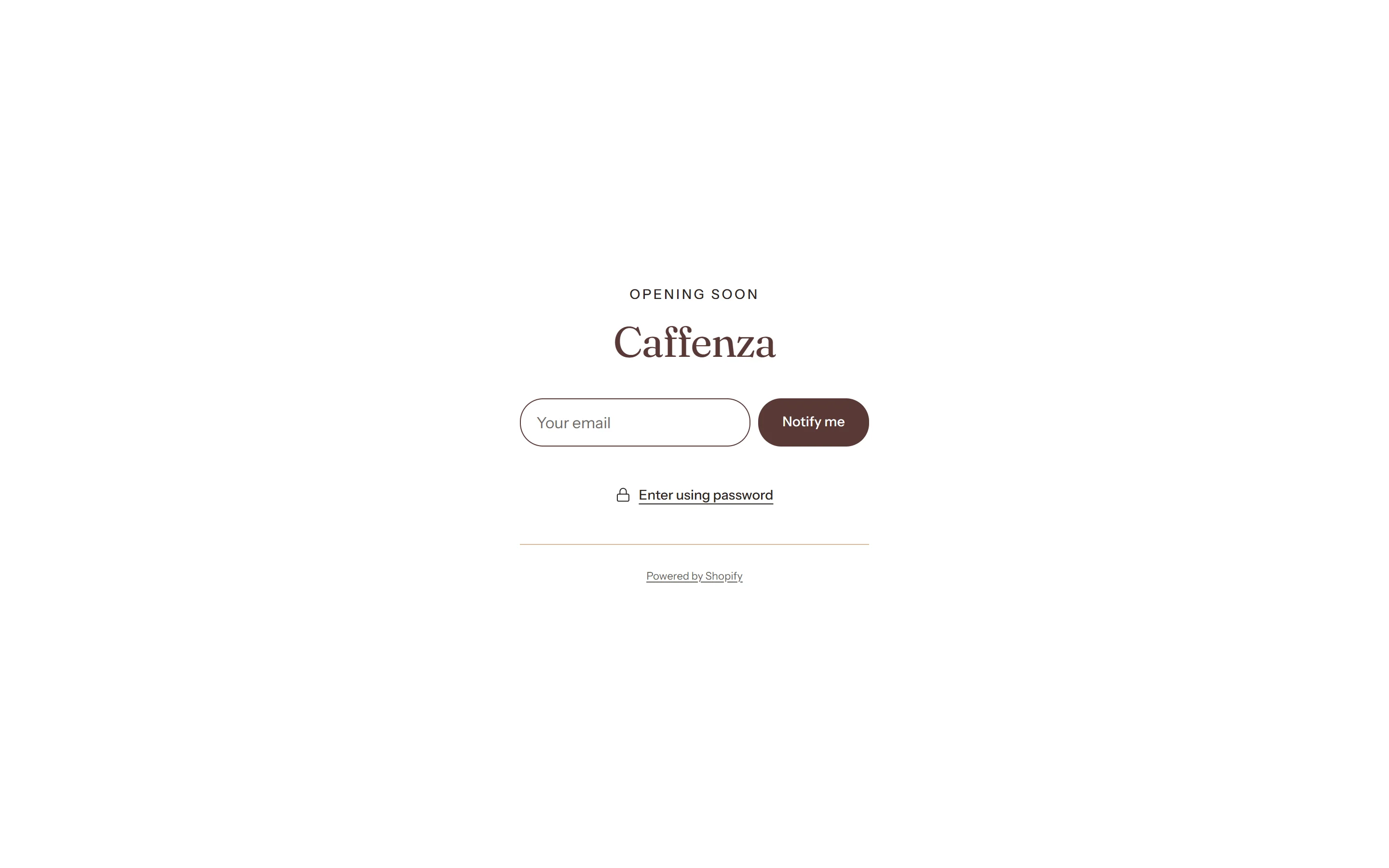
Your store shows the password page while it is locked in Online Store → Preferences → Password protection. Use it as a “coming soon” page with a newsletter signup.
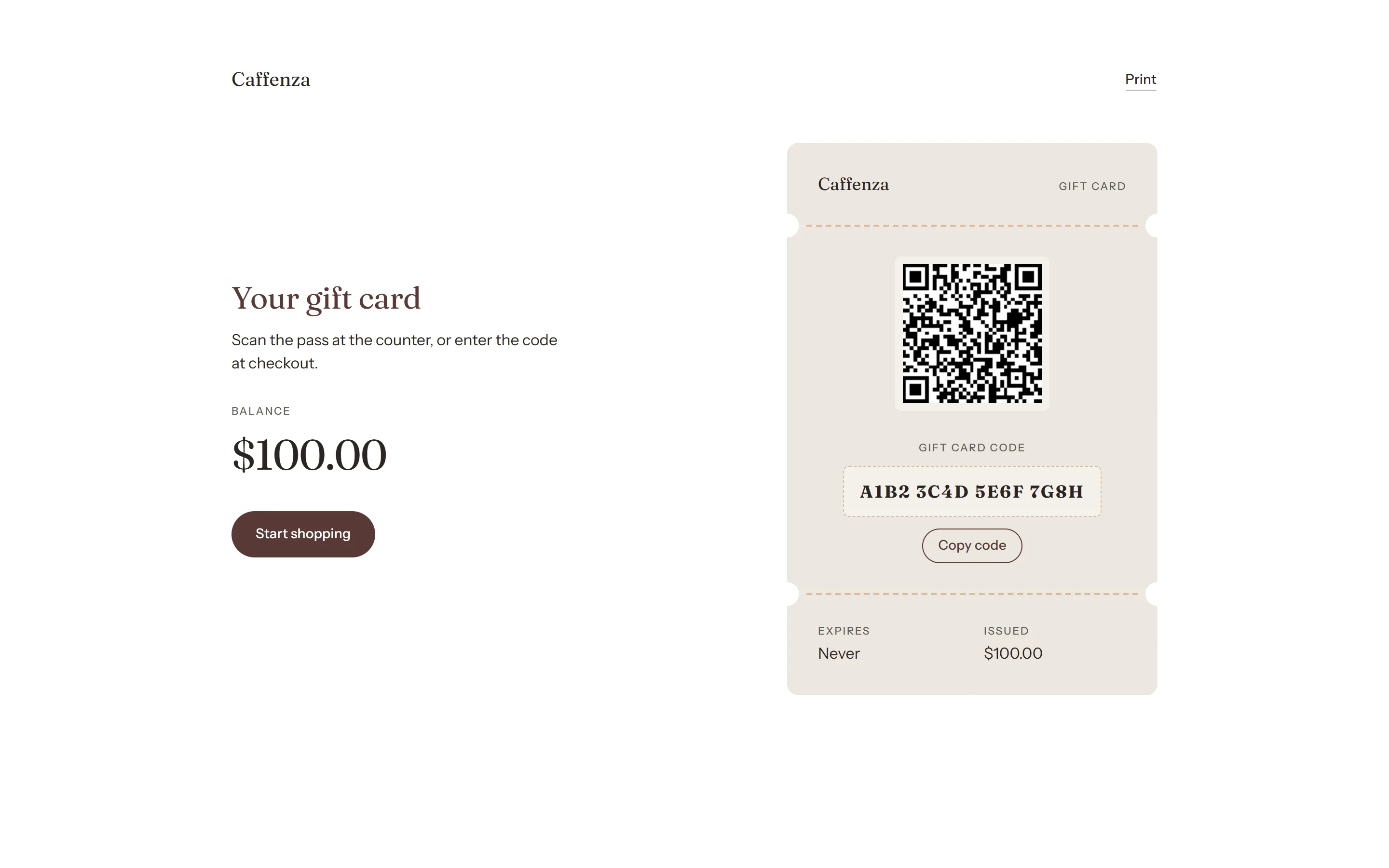
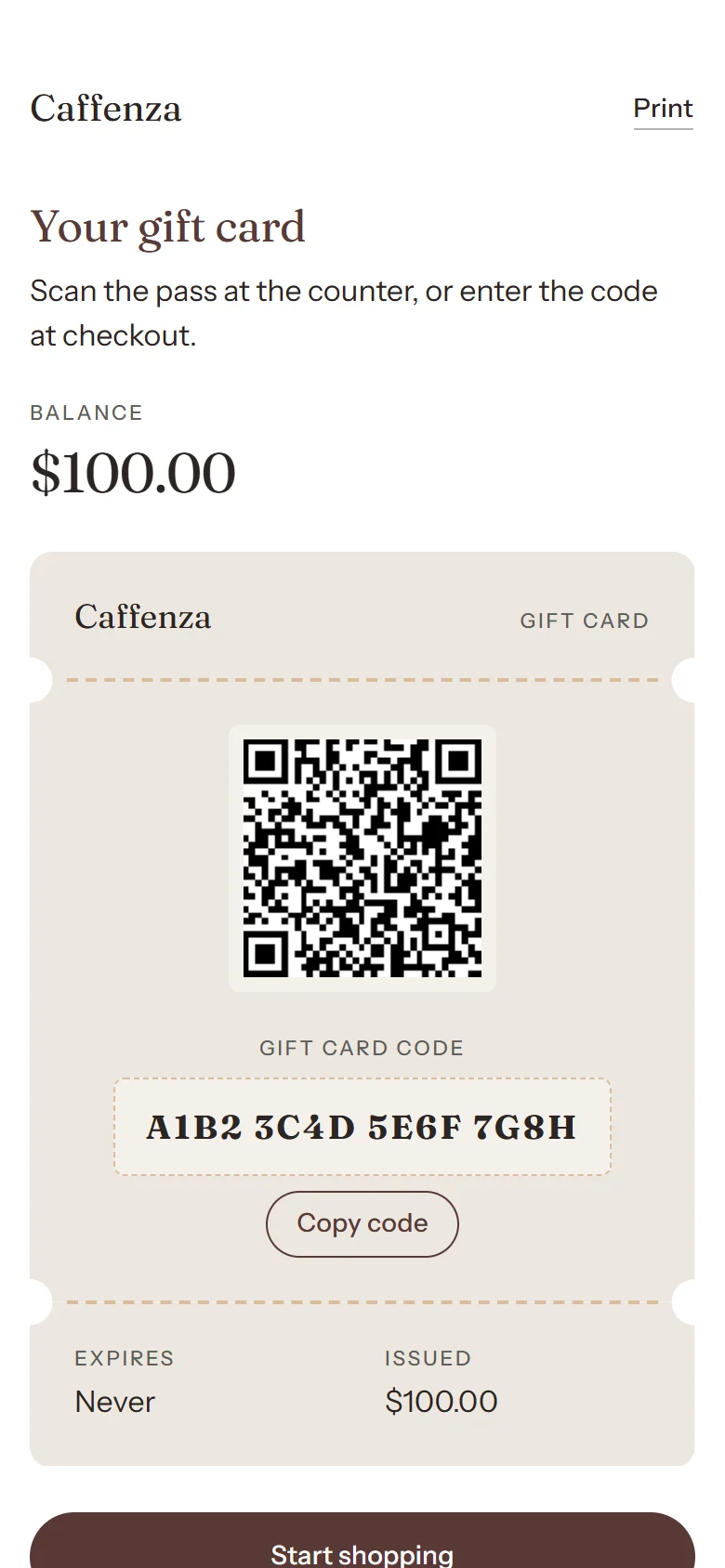
The gift card page is what customers see when they open a gift card they received. It shows the balance, code, QR code and an Apple Wallet button.
Screenshots
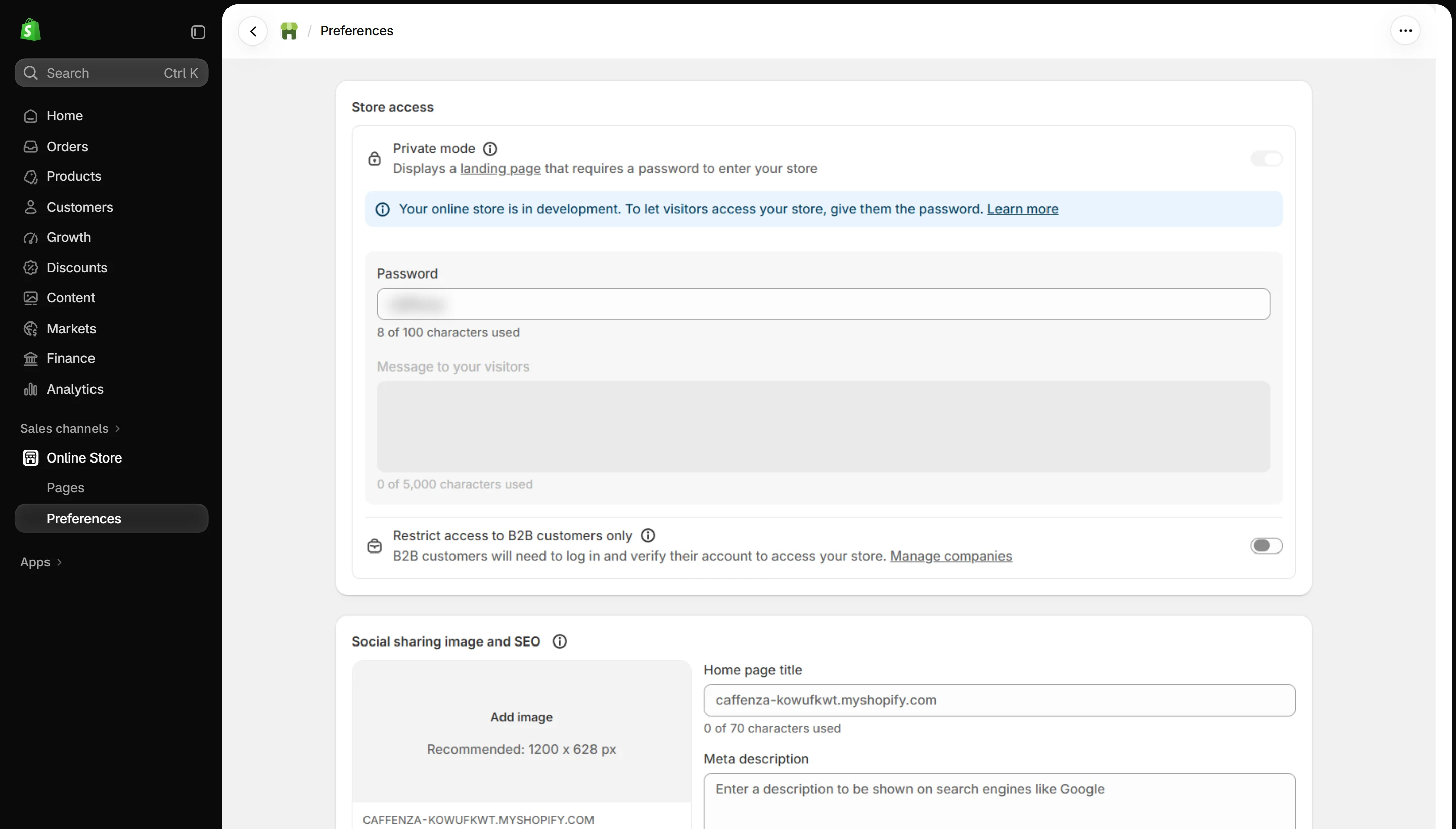
Not found settings
| Setting | Options | What it does |
|---|---|---|
| Section appearance | ||
| Color scheme | Color scheme | |
| Settings | ||
| Subheading | Text (bold, italic, links) | |
| Subheading size | Small · Medium · Large | |
| Icon | None · Award · Bag · Coffee bean · Book · Building · Coffee cup · Envelope · Globe · Headset · Leaf · Lock · Refresh · Shield check · Star · Truck | |
| Custom image | Image | Replaces the icon. Shown at the icon width. |
| Icon width | 16–64 px | |
| Heading | Text (bold, italic, links) | Italicized words switch to the Accent font from Theme settings → Typography. They stay italic and keep the color of the text around them. |
| Heading size | Small · Medium · Large · Extra large | |
| Text | Rich text | |
| Text size | Small · Medium · Large | |
| Buttons | ||
| Button label | Text | |
| Link | Link | Leave empty to link to your home page. |
| Button style | Primary · Secondary · Ghost · Link | |
| Button size | Small · Medium · Large | |
| Open in a new tab | On / Off | |
| Second button label | Text | |
| Link | Link | |
| Second button style | Primary · Secondary · Ghost · Link | |
| Second button size | Small · Medium · Large | |
| Open second button in a new tab | On / Off | |
| Animations | ||
It also has the shared Animate on scroll and Section spacing settings.
Password settings
| Setting | Options | What it does |
|---|---|---|
| Section appearance | ||
| Color scheme | Color scheme | |
| Settings | ||
| Subheading | Text (bold, italic, links) | |
| Subheading size | Small · Medium · Large | |
| Newsletter | ||
| Show newsletter signup | On / Off | |
| Success message | Text | |
| Error message | Text | |
| Social media | ||
| Show social media icons | On / Off | |
| Animations | ||
It also has the shared Animate on scroll and Section spacing settings.
Gift card settings
| Setting | Options | What it does |
|---|---|---|
| Section appearance | ||
| Color scheme | Color scheme | |
| Settings | ||
| Show store name | On / Off | |
| Logo | Image | Shown in place of the store name. Leave empty to use the logo from Theme settings → Logos and favicon, or the store name if there is none. |
| Print button label | Text | Leave empty to hide the Print button. |
| Heading | Text (bold, italic, links) | Italicized words switch to the Accent font from Theme settings → Typography. They stay italic and keep the color of the text around them. |
| Heading size | Small · Medium · Large · Extra large | |
| Text | Rich text | Hidden while the gift card is expired or disabled. A notice takes its place. |
| Text size | Small · Medium · Large | |
| Balance label | Text | |
| Show gift message | On / Off | |
| Pass | ||
| Card color | Color scheme | The gift card pass's own scheme, so it can contrast with the page behind it. Edit the schemes in Theme settings → Colors. |
| Pass label | Text | |
| Show QR code | On / Off | Hidden automatically while the gift card is expired or disabled. |
| Code label | Text | |
| Copy button label | Text | Leave empty to use the default label, Copy code. |
| Expiry label | Text | |
| Issued value label | Text | Leave both the expiry and issued value labels empty to hide that row of the pass. |
| Buttons | ||
| Button label | Text | |
| Link | Link | Leave empty to link to your home page. The buttons are hidden while the gift card is expired or disabled. |
| Button style | Primary · Secondary · Ghost · Link | |
| Button size | Small · Medium · Large | |
| Open in a new tab | On / Off | |
| Show Apple Wallet button | On / Off | |
| Animations | ||
It also has the shared Animate on scroll and Section spacing settings.