Contact page
Contact form and contact details.
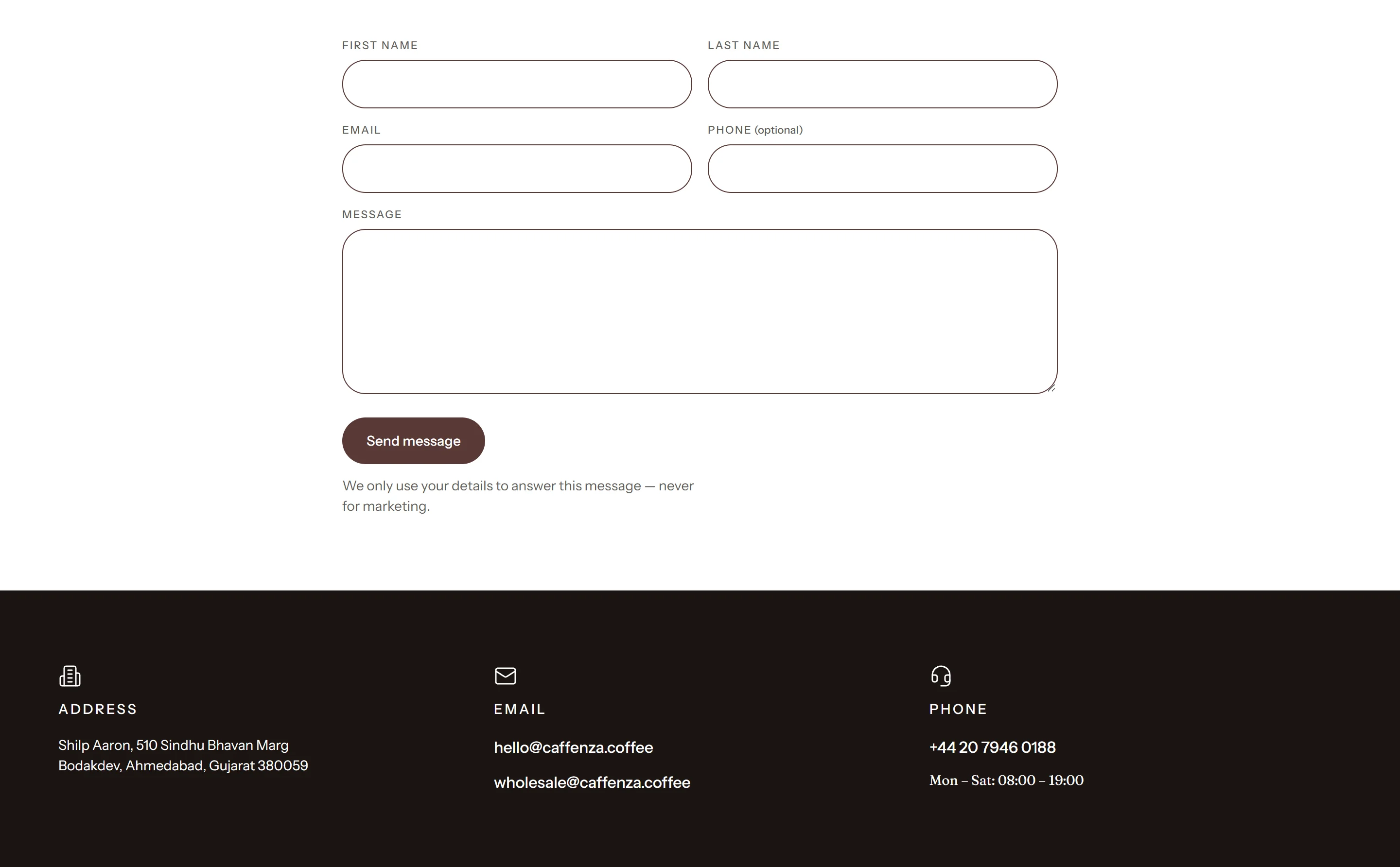
- Create a page called Contact in Online Store → Pages.
- Set its Theme template to
contact. - Customize the Contact form and Contact details sections in the editor.
Messages are sent to your store’s contact email (Settings → Notifications → Sender email and Settings → Store details).
Screenshots
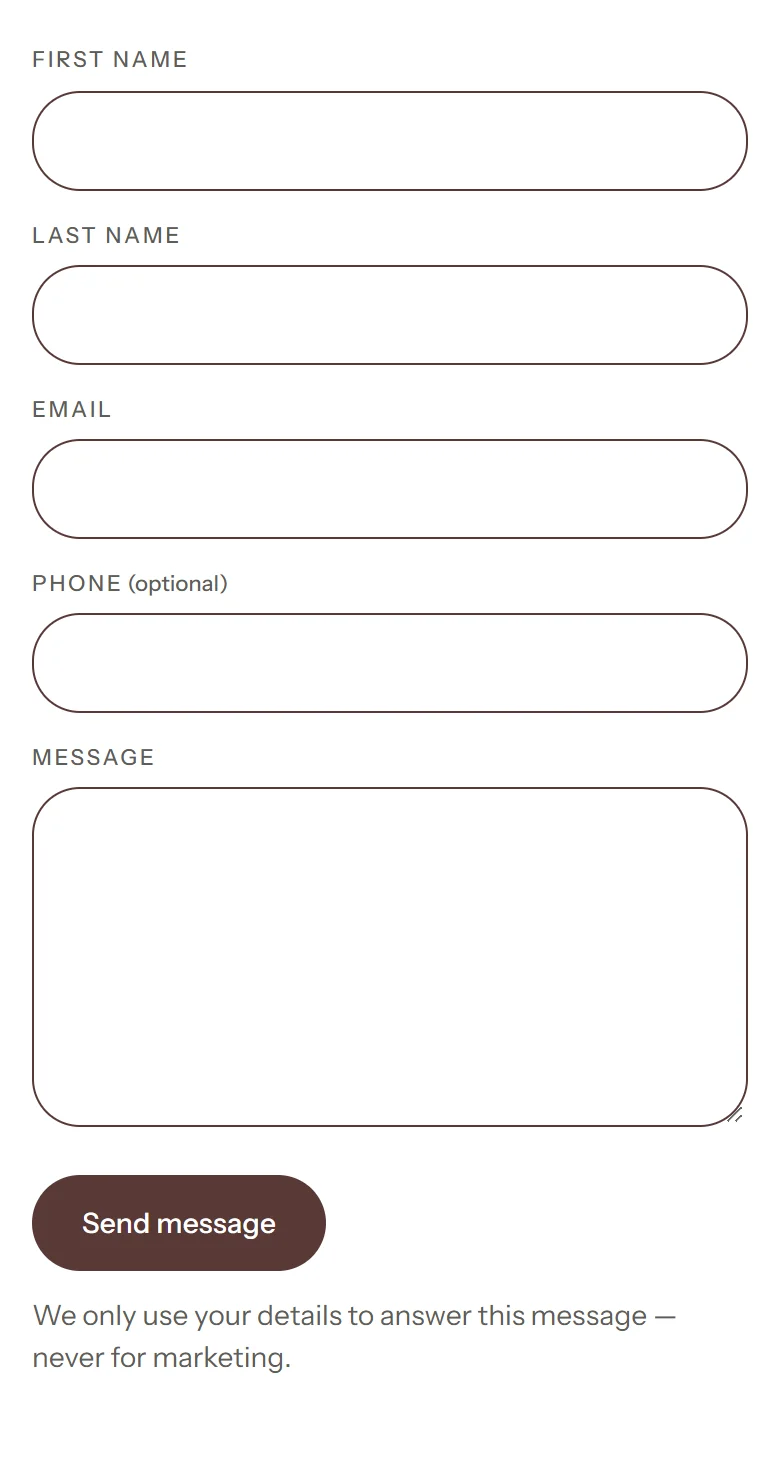
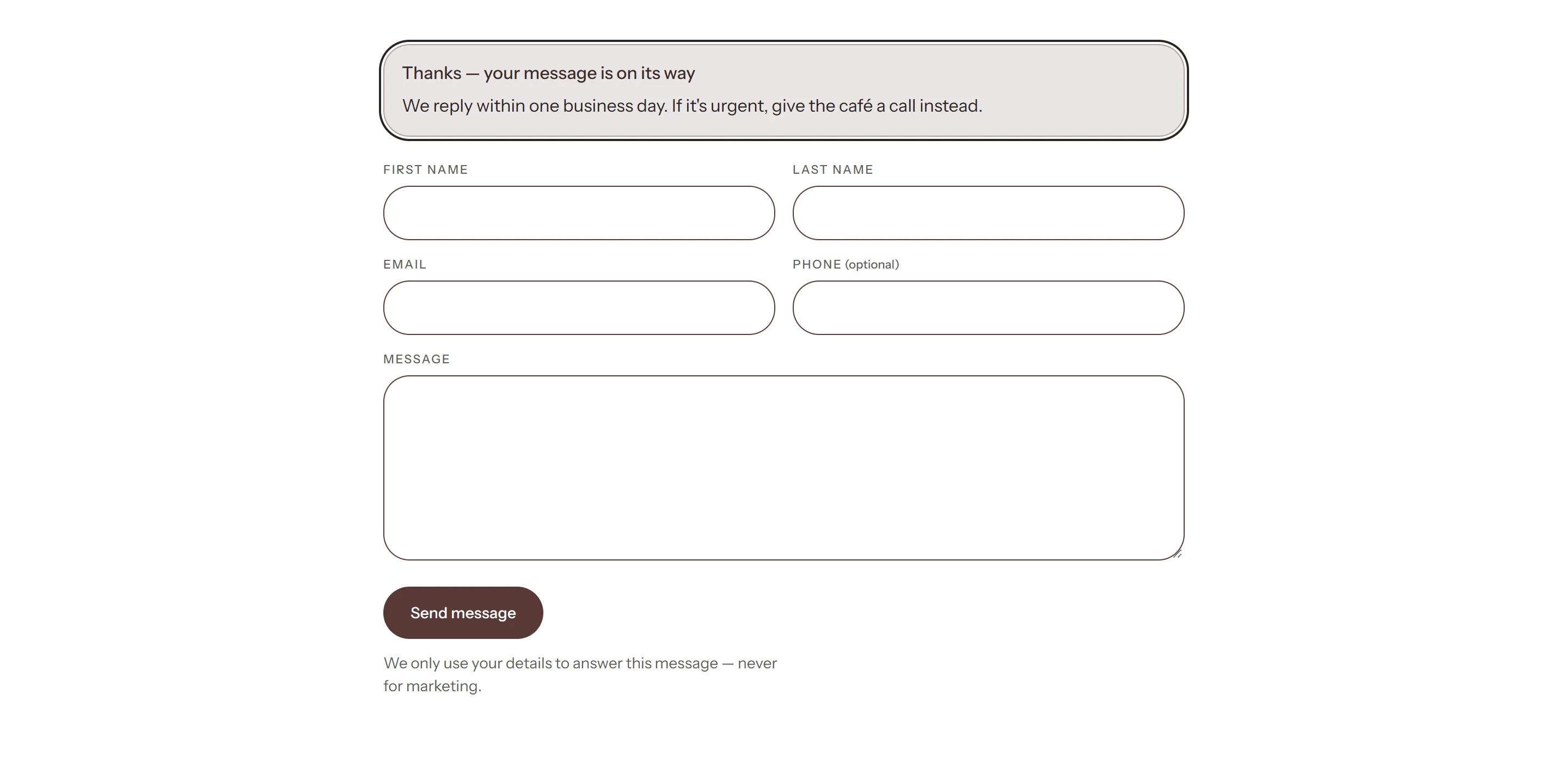
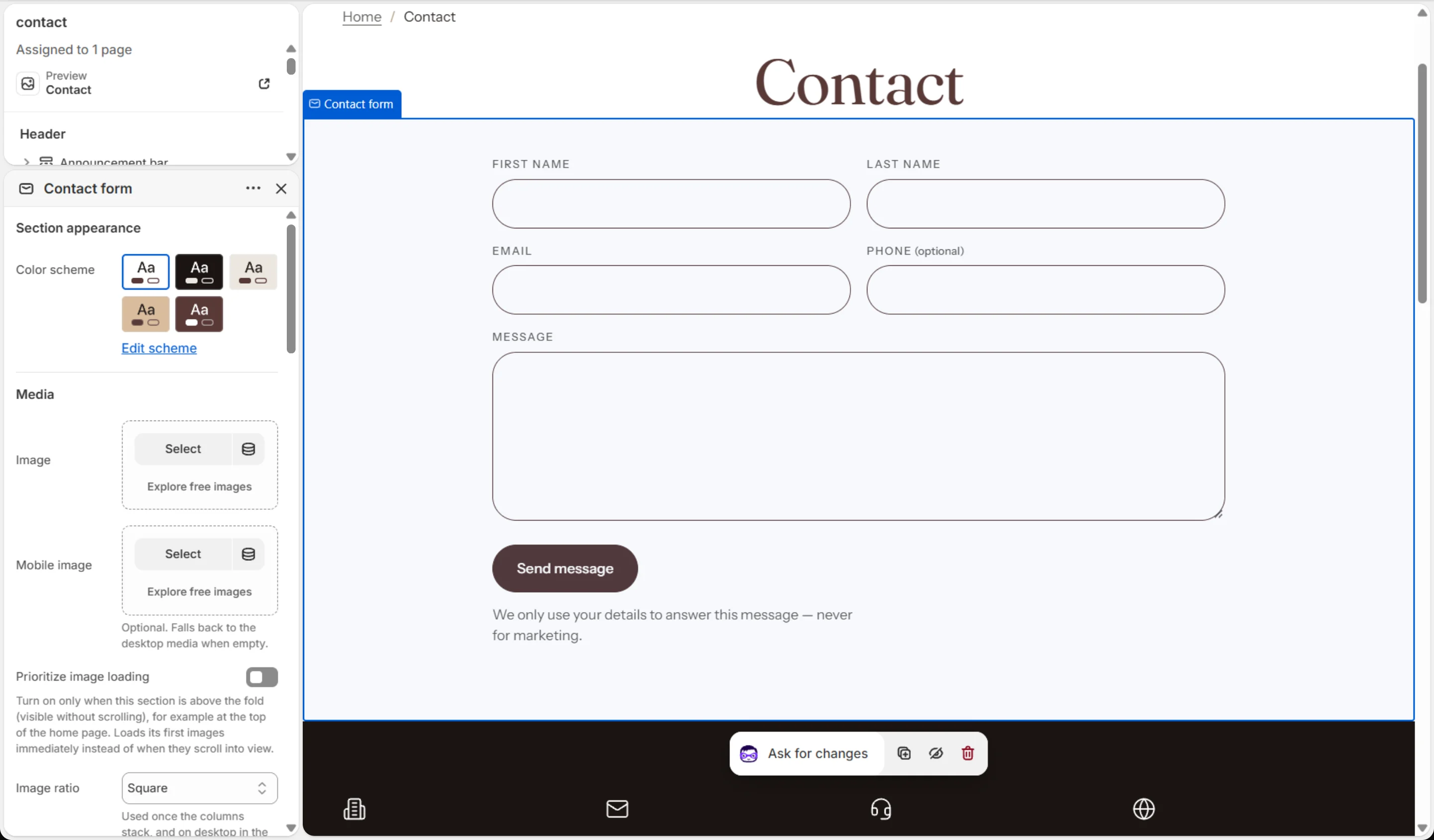
Contact form settings
| Setting | Options | What it does |
|---|---|---|
| Section appearance | ||
| Color scheme | Color scheme | |
| Panel color scheme | Color scheme | The color of the panel holding the form. Applies to the Joined card layout only. |
| Media | ||
| Image | Image | |
| Mobile image | Image | Optional. Falls back to the desktop media when empty. |
| Prioritize image loading | On / Off | Turn on only when this section is above the fold (visible without scrolling), for example at the top of the home page. Loads its first images immediately instead of when they scroll into view. |
| Image ratio | Portrait · Square · Landscape · Adapt to image | Used once the columns stack, and on desktop in the Open split layout. In the Joined card the photograph fills the card height on desktop. |
| Image width | Small · Medium · Large | How the row is shared between the form and the photograph. Large gives them half each. |
| Image placement | Image first · Image second | |
| Form position | Top · Middle · Bottom | Lines the form up with the top, middle or bottom of the image beside it. Applies on desktop when an image is set. |
| Form alignment | Left · Center · Right | Where the form sits in the band. Applies on desktop when no image is set — with an image the form already has a column of its own. |
| Settings | ||
| Content alignment | Left · Center · Right | Aligns the subheading, heading and text above the form. |
| Layout | Joined card · Open split | Joined card puts the photograph and the form in one rounded card. Open split sets them apart on the section background. |
| Panel padding | Compact · Standard · Roomy | |
| Show phone field | On / Off | |
| Make phone required | On / Off | |
| Submit button label | Text | |
| Note below the form | Text (bold, italic, links) | |
| Success heading | Text | Shown above the form after a visitor sends a message successfully. The form stays on screen. |
| Success message | Rich text | |
| Mobile layout | ||
| Mobile content alignment | Left · Center · Right | |
| Mobile image placement | Image first · Image second · Hide image | Whether the photograph sits above or below the form once the columns stack, or is hidden on phones to shorten the page. |
| Mobile image ratio | Same as desktop · Portrait · Square · Landscape | A stacked photograph is as wide as the screen, so it rarely wants the shape chosen for a narrow desktop column. |
| Panel padding | Compact · Standard · Roomy | |
| Animations | ||
Contact form blocks
Click Add block under the section in the sidebar. Drag blocks to change their order.
Subheading
| Setting | Options | What it does |
|---|---|---|
| Subheading | Text (bold, italic, links) | |
| Subheading size | Small · Medium · Large |
Heading
| Setting | Options | What it does |
|---|---|---|
| Heading | Text (bold, italic, links) | Italicized words switch to the Accent font from Theme settings → Typography. They stay italic and keep the color of the text around them. |
| Heading size | Small · Medium · Large · Extra large | |
| Heading level | H1 · H2 · H3 · H4 · H5 · H6 | Adjust for page structure — one H1 per page. Size is controlled separately. |
Text
| Setting | Options | What it does |
|---|---|---|
| Text | Rich text | |
| Text size | Small · Medium · Large |
This section also accepts Custom Liquid blocks and app blocks. It also has the shared Animate on scroll and Section spacing settings.
Contact details settings
| Setting | Options | What it does |
|---|---|---|
| Section appearance | ||
| Color scheme | Color scheme | |
| Settings | ||
| Card style | Cards · Plain | |
| Columns on desktop | 2 · 3 · 4 | |
| Columns on mobile | 1 · 2 | |
| Column content alignment | Left · Center | |
| Animations | ||
Contact details blocks
Click Add block under the section in the sidebar. Drag blocks to change their order.
Detail
| Setting | Options | What it does |
|---|---|---|
| Icon | None · Award · Bag · Coffee bean · Book · Building · Coffee cup · Envelope · Globe · Headset · Leaf · Lock · Refresh · Shield check · Star · Truck | |
| Custom image | Image | Replaces the icon. Shown at the icon width. |
| Icon width | 16–64 px | |
| Subheading | Text (bold, italic, links) | |
| Subheading size | Small · Medium · Large | |
| Text | Rich text | |
| Text size | Small · Medium · Large | |
| Text | Shown as a link. Enter the address only — the mailto: link is built for you. | |
| Second email | Text | |
| Phone | Text | Shown as a link. Enter the number as you want it read — the tel: link is built for you. |
| Link text | Text | |
| Link | Link | |
| Open in a new tab | On / Off | |
| Caption | Text (bold, italic, links) | |
| Show social media icons | On / Off | Uses the accounts set in Theme settings → Social media. Nothing is shown until at least one is filled in. |
This section also accepts Custom Liquid blocks and app blocks. It also has the shared Animate on scroll and Section spacing settings.