Coffee product details (metafields)
Add origin, process, roast level, tasting notes and brew guides to your products.
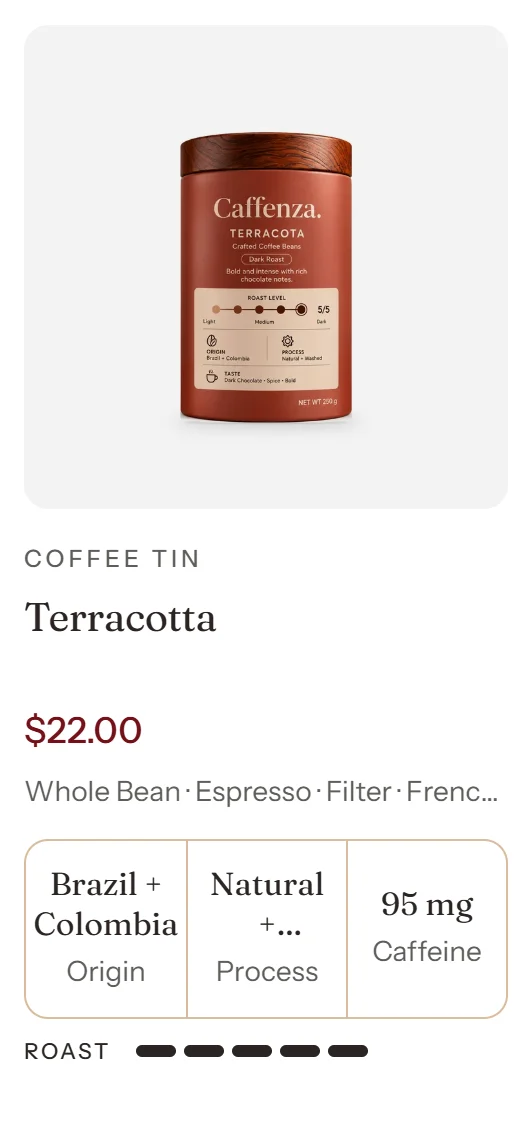
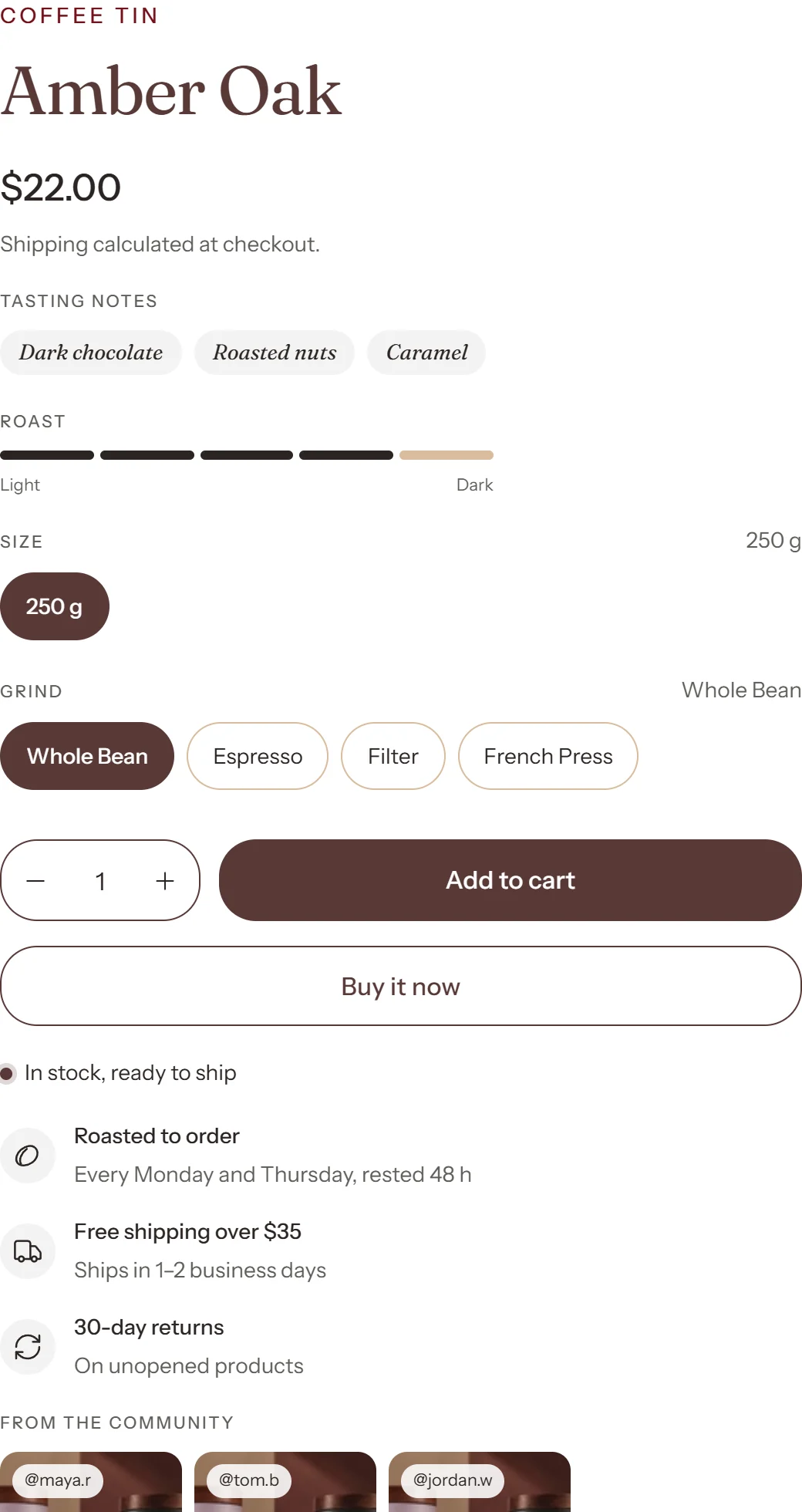
Caffenza shows coffee details such as origin, process, caffeine, roast level and tasting notes on product cards and product pages. These details are saved on each product as metafields: extra fields you add to products in Shopify admin.
Step 1 · Create the metafield definitions
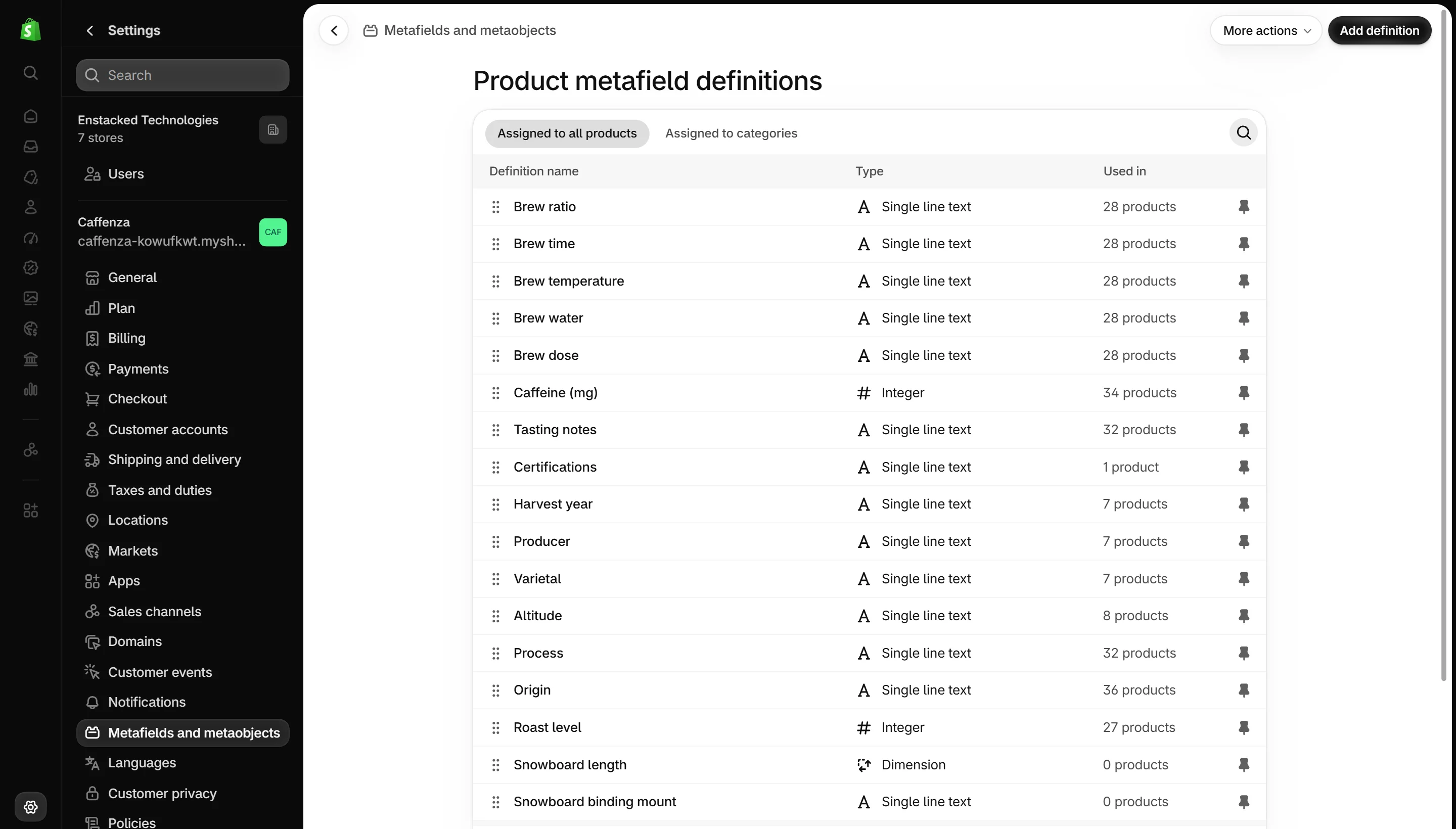
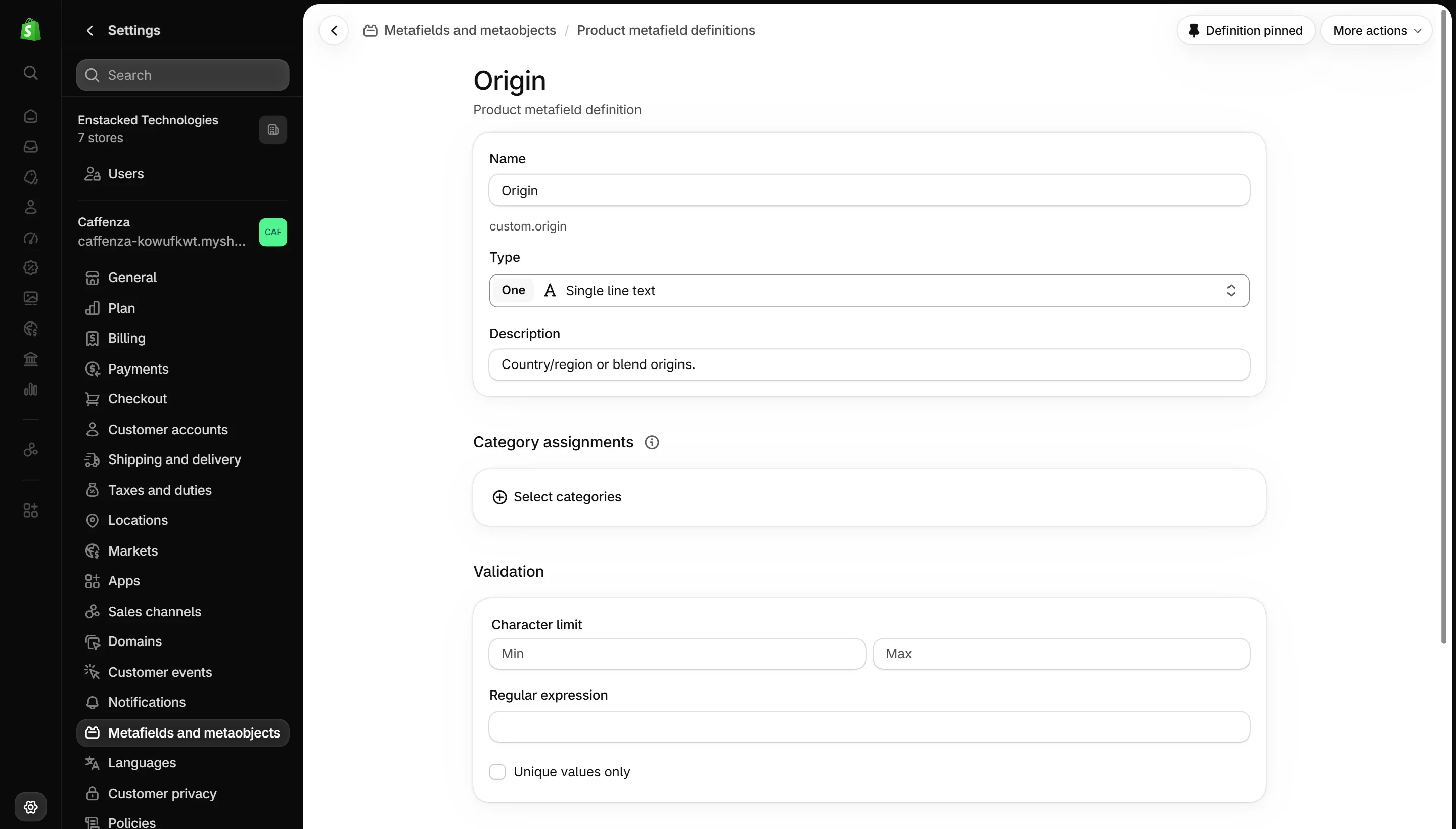
- In Shopify admin, go to Settings → Metafields and metaobjects → Products.
- Click Add definition.
- Enter the name and the Namespace and key exactly as in the table below, and choose the type.
- Click Save. Repeat for each field you want.
| Namespace and key | Type | Shown as |
|---|---|---|
custom.origin | Single line text | Card spec “Origin” and the Origin fact on the product page |
custom.process | Single line text | Card spec “Process”, product fact |
custom.caffeine_mg | Integer | Card spec “Caffeine”, with mg after it |
custom.roast_level | Integer (1–5) | Roast level meter on cards and product page |
custom.tasting_notes | Single line text (or a list) | Detail line on Simple cards, tasting note tags |
custom.altitude | Single line text | Product fact “Altitude” |
custom.varietal | Single line text | Product fact “Varietal” |
custom.producer | Single line text | Product fact “Producer” |
custom.harvest_year | Single line text | Product fact “Harvest” |
custom.brew_dose | Single line text | Brew guide “Dose”, for example 18 g |
custom.brew_water | Single line text | Brew guide “Water”, for example 300 ml |
custom.brew_temp | Single line text | Brew guide “Temperature” |
custom.brew_time | Single line text | Brew guide “Time” |
custom.brew_ratio | Single line text | Brew guide “Ratio”, for example 1:16 |
caffenza.companion_product | Product reference | “Pairs with” card style |
caffenza.card_badge | Single line text | Your own badge on the card, for example Bestseller |
caffenza.origin_badge | Single line text | Origin badge on the card |
caffenza.card_eyebrow | Single line text | Small label above the product name (falls back to product type) |
custom.product_icon_image | List of files | Dynamic icons under the product title |
custom.product_icon_label | List of single line text | Labels for those icons, in the same order |
Step 2 · Fill in the values
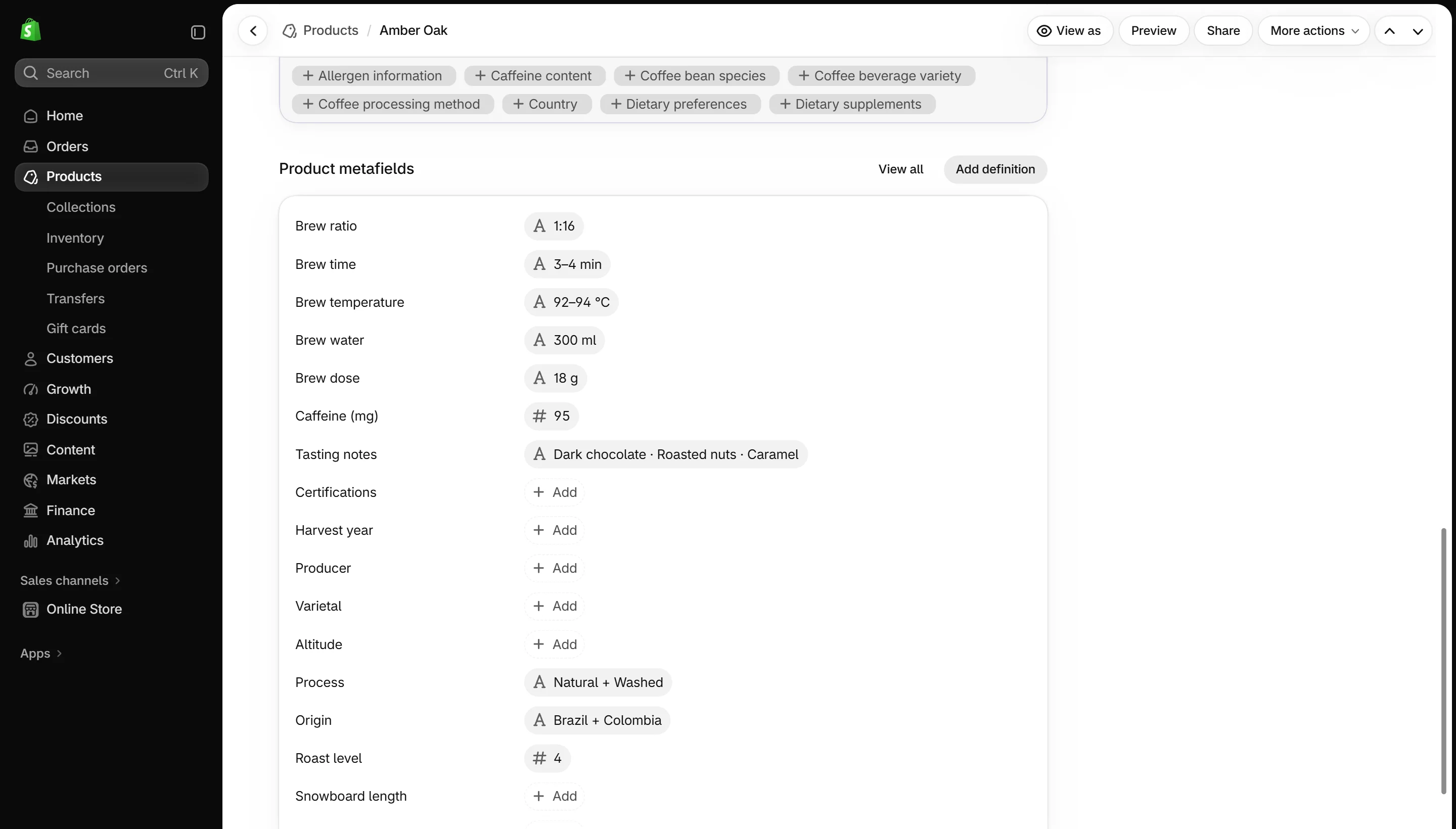
Open a product in Products. Scroll down to Metafields, fill in the fields and save.
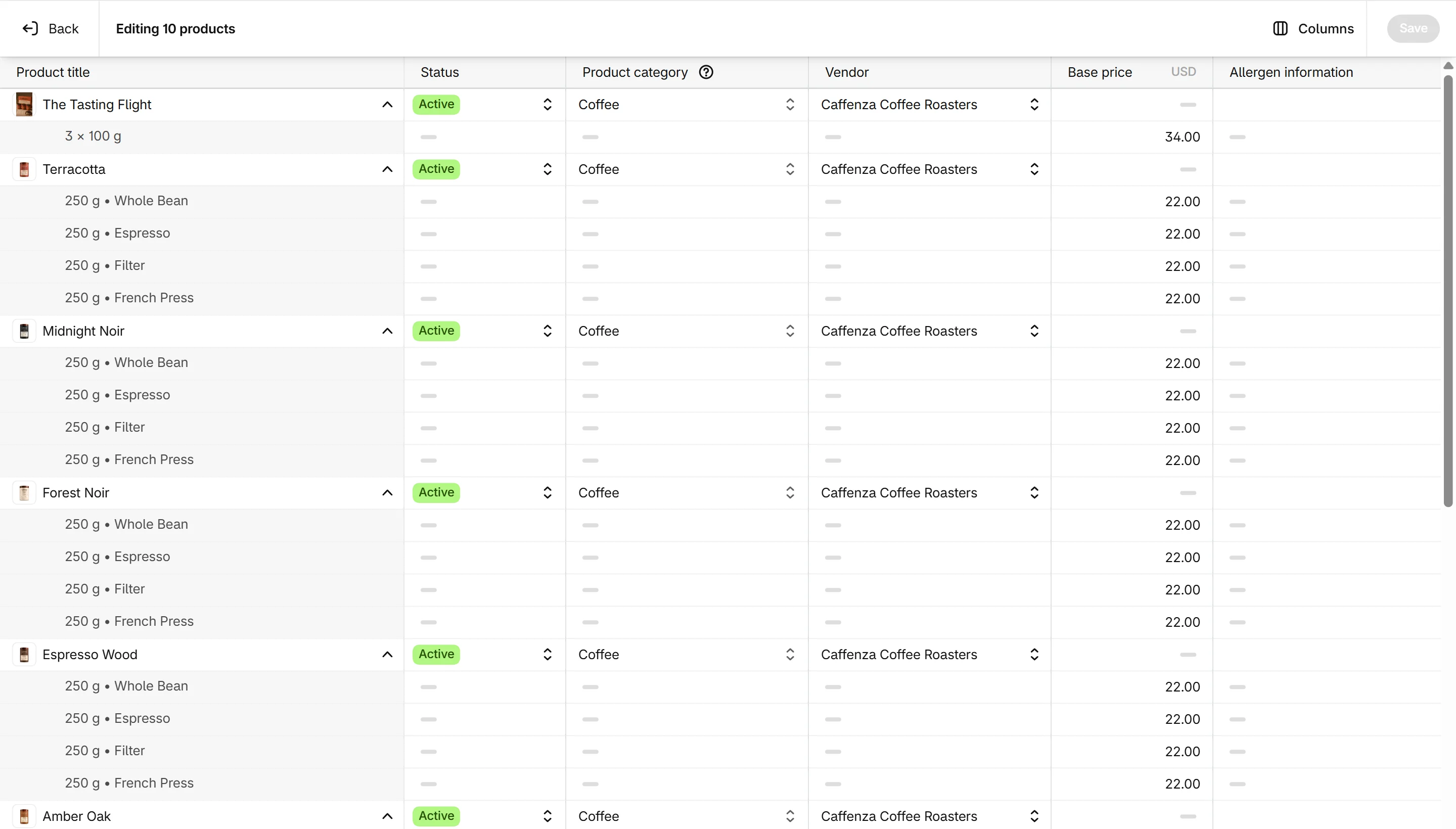
Use a spreadsheet to fill many products at once: export products, fill the metafield columns, and import the file again. Or use the bulk editor in Products → select products → Bulk edit.
Step 3 · Connect them to the theme
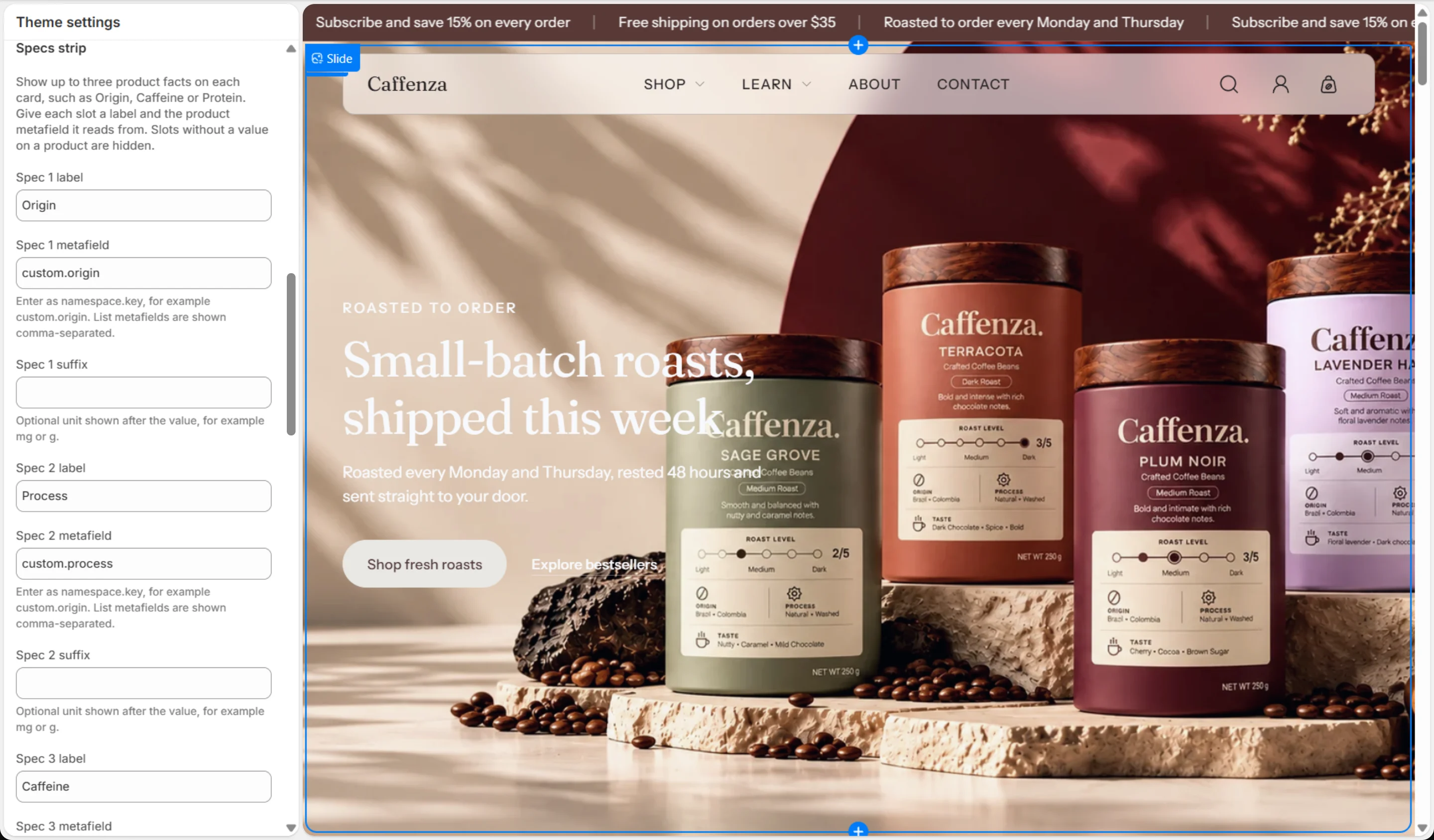
The product template already uses these keys, so most details appear on their own. To change what cards show, open Theme settings → Product card and enter a different metafield in Spec 1–3, Meter metafield or Detail metafield. See Product cards.
In sections and blocks, click the dynamic source icon next to a field to connect any metafield.
Not selling coffee?
The same fields work for any product. For tea, use specs like Region, Oxidation and Steep time. For a bakery, use Allergens, Weight and Shelf life. Only the labels and metafields change.
Screenshots