Café menu
Show your drinks and food with prices, sizes and dietary labels.
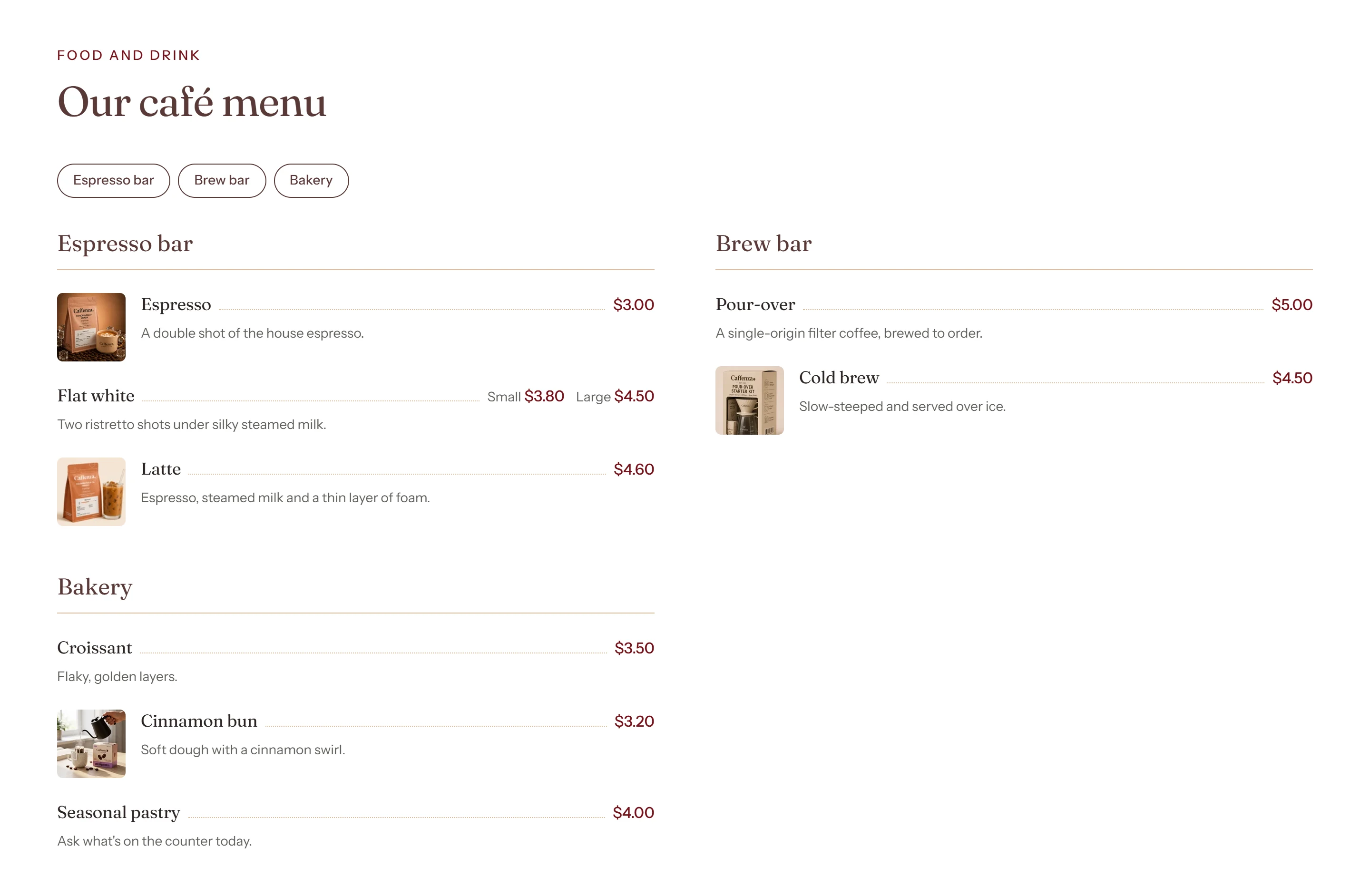
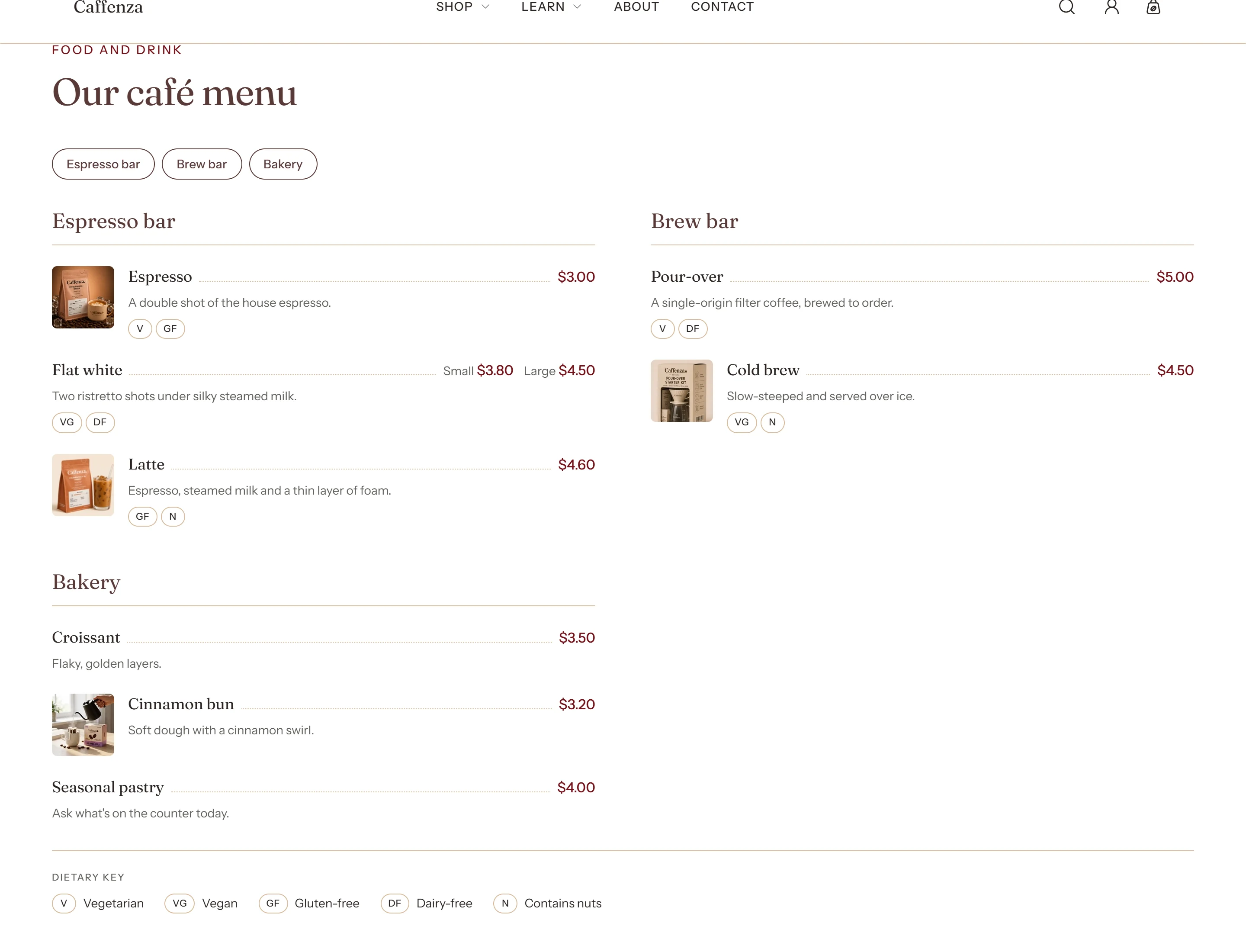
The Café menu section lists drinks and food like a printed menu, grouped into categories such as Espresso, Filter, Tea and Pastries. It works for cafés, bakeries and roasteries with a shop.
How to add it
- In Shopify admin, go to Online Store → Themes and click Customize.
- Open the page from the page picker at the top of the editor.
- In the sidebar, click Add section and choose Café menu.
- Fill in the content, then click Save.
Add menu items
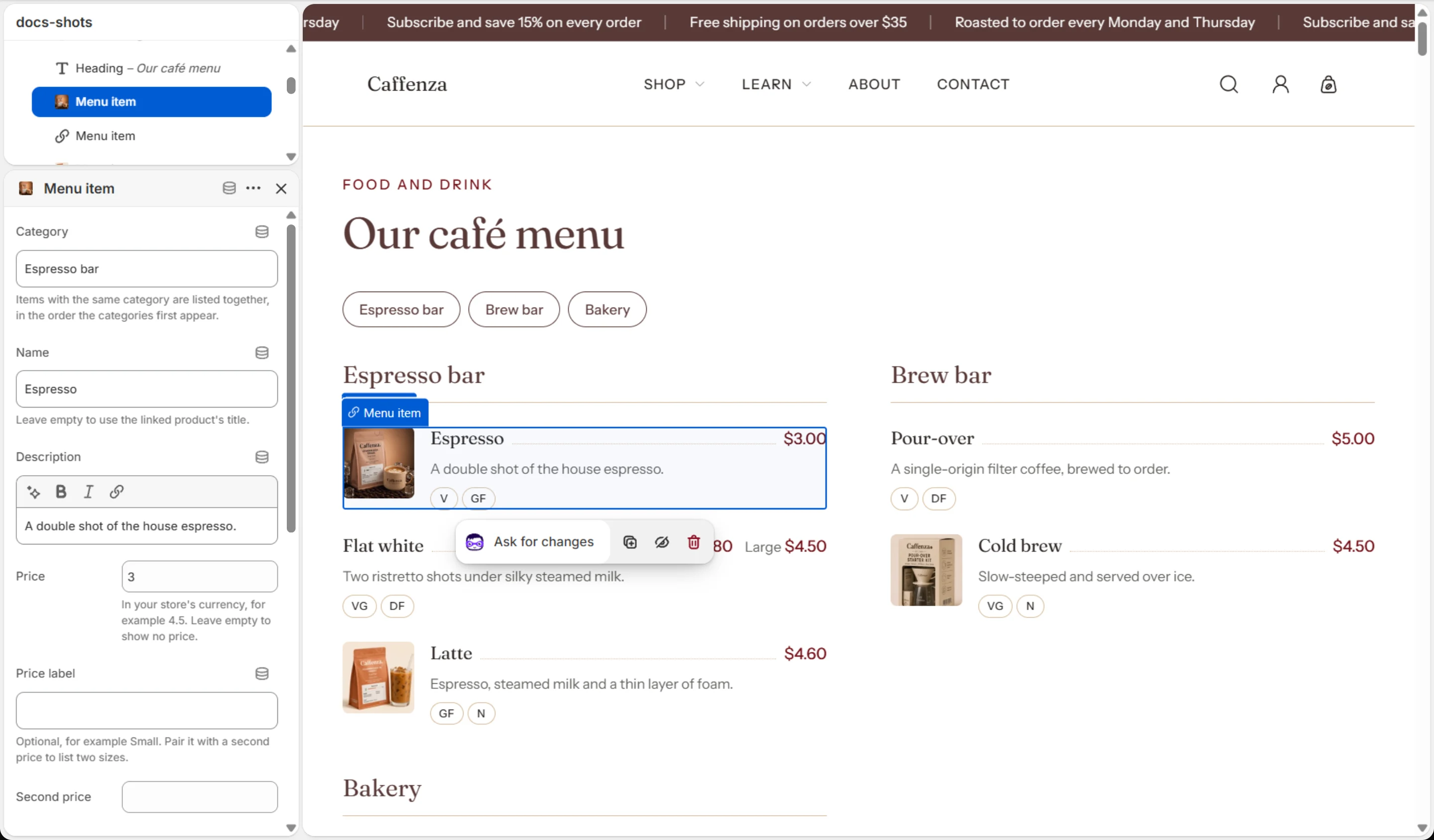
- Click Add block → Menu item.
- Enter a Category, for example
Espresso. Items with the same category are listed together. - Add the name, a short description and the price. For two sizes, add a Price label (Small) and a Second price with its label (Large).
- Tick dietary labels such as Vegan or Gluten-free. A key that explains them can show under the menu.
Tip
Link a menu item to a product (for example a bag of the same beans) and its name becomes a link to that product. The price on the menu stays the one you typed.
Important
Food allergen information is a legal requirement in many countries. Use Note under the menu to tell guests how to ask about allergens.
Screenshots
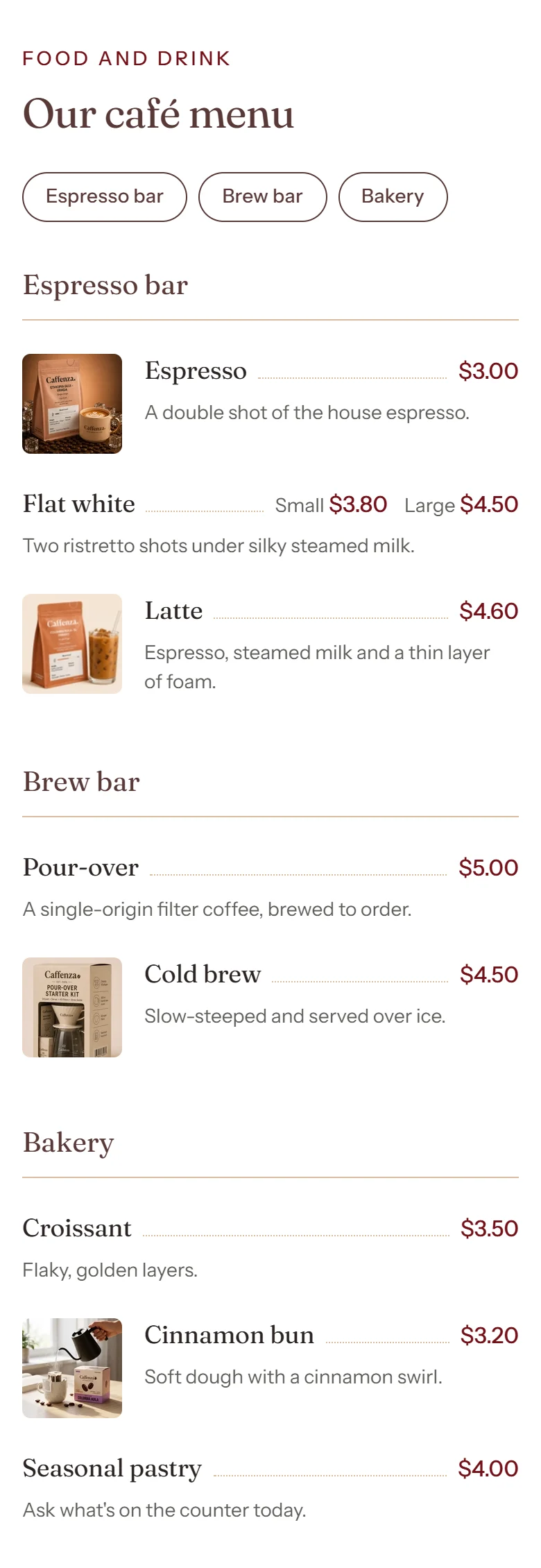
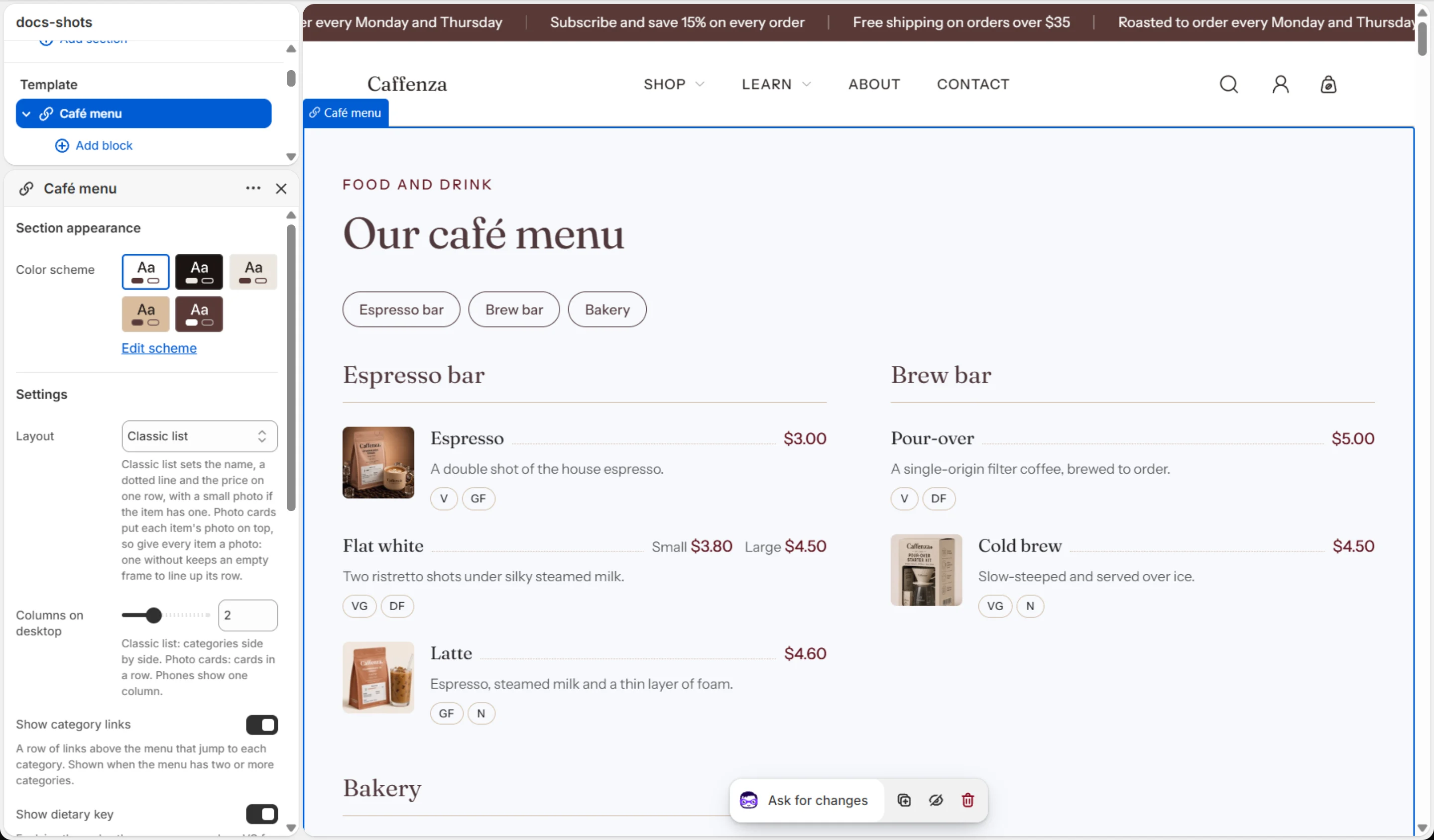
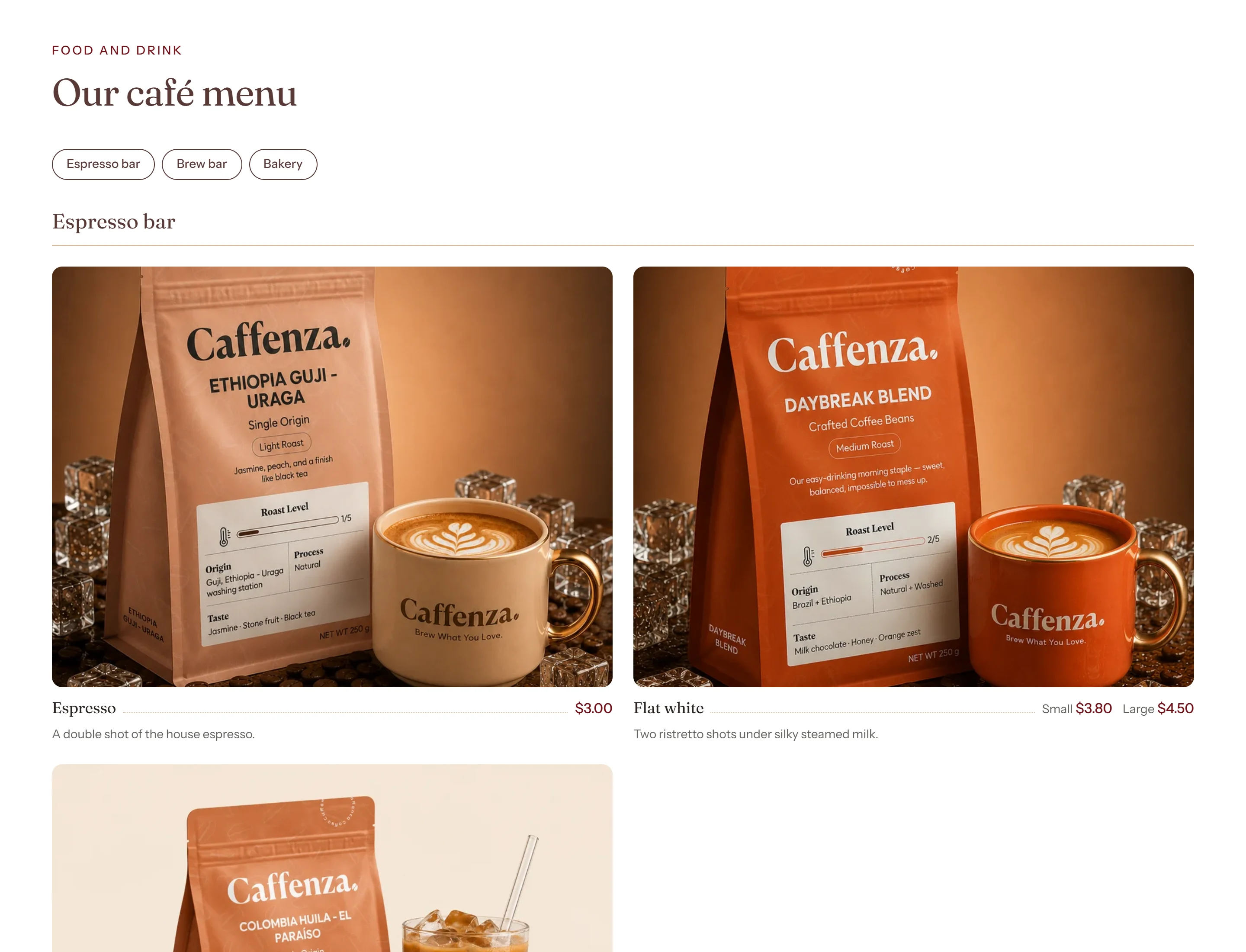

Settings
| Setting | Options | What it does |
|---|---|---|
| Section appearance | ||
| Color scheme | Color scheme | |
| Settings | ||
| Layout | Classic list · Photo cards | Classic list sets the name, a dotted line and the price on one row, with a small photo if the item has one. Photo cards put each item's photo on top, so give every item a photo: one without keeps an empty frame to line up its row. |
| Columns on desktop | 1–4 | Classic list: categories side by side. Photo cards: cards in a row. Phones show one column. |
| Columns on mobile | 1 · 2 | |
| Show category links | On / Off | A row of links above the menu that jump to each category. Shown when the menu has two or more categories. |
| Show dietary key | On / Off | Explains the codes the menu uses, such as VG for vegan. Lists only codes that appear on an item. |
| Note under the menu | Text (bold, italic, links) | For example, how to ask about allergens. |
Blocks
Click Add block under the section in the sidebar. Drag blocks to change their order.
Subheading up to 2
| Setting | Options | What it does |
|---|---|---|
| Subheading | Text (bold, italic, links) | |
| Subheading size | Small · Medium · Large |
Heading up to 1
| Setting | Options | What it does |
|---|---|---|
| Heading | Text (bold, italic, links) | Italicized words switch to the Accent font from Theme settings → Typography. They stay italic and keep the color of the text around them. |
| Heading size | Small · Medium · Large · Extra large | |
| Heading level | H1 · H2 · H3 · H4 · H5 · H6 | Adjust for page structure — one H1 per page. Size is controlled separately. |
Text up to 1
| Setting | Options | What it does |
|---|---|---|
| Text | Rich text | |
| Text size | Small · Medium · Large |
Menu item
| Setting | Options | What it does |
|---|---|---|
| Category | Text | Items with the same category are listed together, in the order the categories first appear. |
| Name | Text | Leave empty to use the linked product's title. |
| Description | Text (bold, italic, links) | |
| Price | Number | In your store's currency, for example 4.5. Leave empty to show no price. |
| Price label | Text | Optional, for example Small. Pair it with a second price to list two sizes. |
| Second price | Number | |
| Second price label | Text | |
| Image | Image | |
| Product | Product | Optional. The name links to this product, and its image is used when the item has none. The price stays the one set here. |
| Dietary | ||
| Vegetarian | On / Off | |
| Vegan | On / Off | |
| Gluten-free | On / Off | |
| Dairy-free | On / Off | |
| Contains nuts | On / Off | |
It also has the shared Animate on scroll and Section spacing settings.