Update the theme
Get new features and fixes without losing your work.
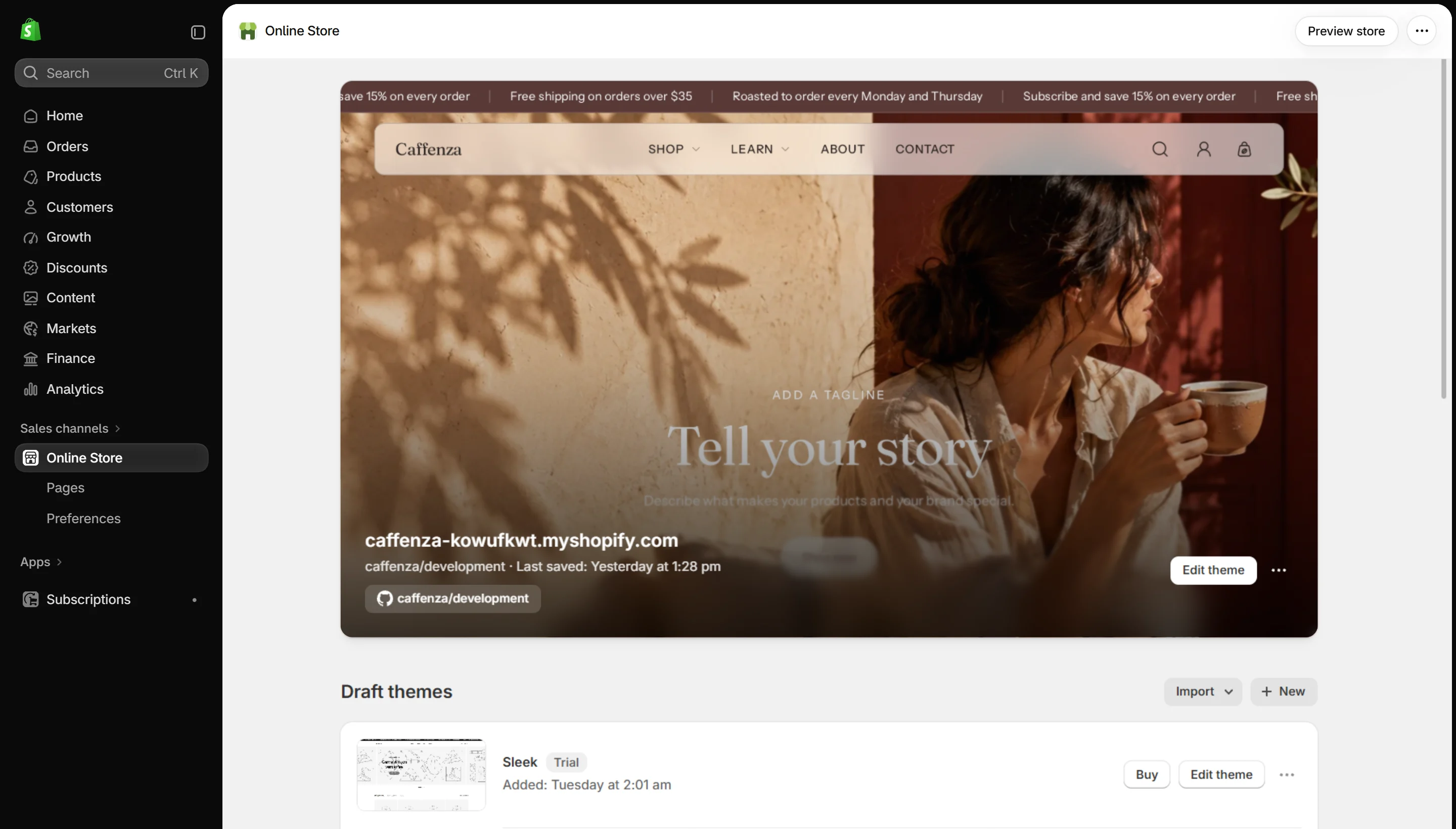
When a new version of Caffenza is available, Shopify shows a notice in Online Store → Themes.
How updating works
- Click Update (or View update) on the notice.
- Shopify adds the new version to your Theme library as a copy. Your live theme does not change yet.
- Settings and content you set in the theme editor are carried over to the new copy.
- Preview the new copy, check your key pages, then Publish it.
Important
Changes made by editing theme code (Edit code) are not carried over. Keep a list of code edits so you or your developer can apply them again.
Before you update
- Read the changelog to see what changed.
- Duplicate your live theme so you always have a backup.
- After publishing, check the home page, a product page, a collection and the cart.