Install the theme
Add Caffenza to your store, preview it safely and publish it.
Add the theme to your store
You can add Caffenza from the Shopify Theme Store or by uploading the theme file you received.
From the Shopify Theme Store
- Open the Caffenza page in the Shopify Theme Store.
- Click Try theme to test it for free, or Buy theme to purchase it.
- The theme is added to the Theme library in Online Store → Themes. It is not live yet.
By uploading a ZIP file
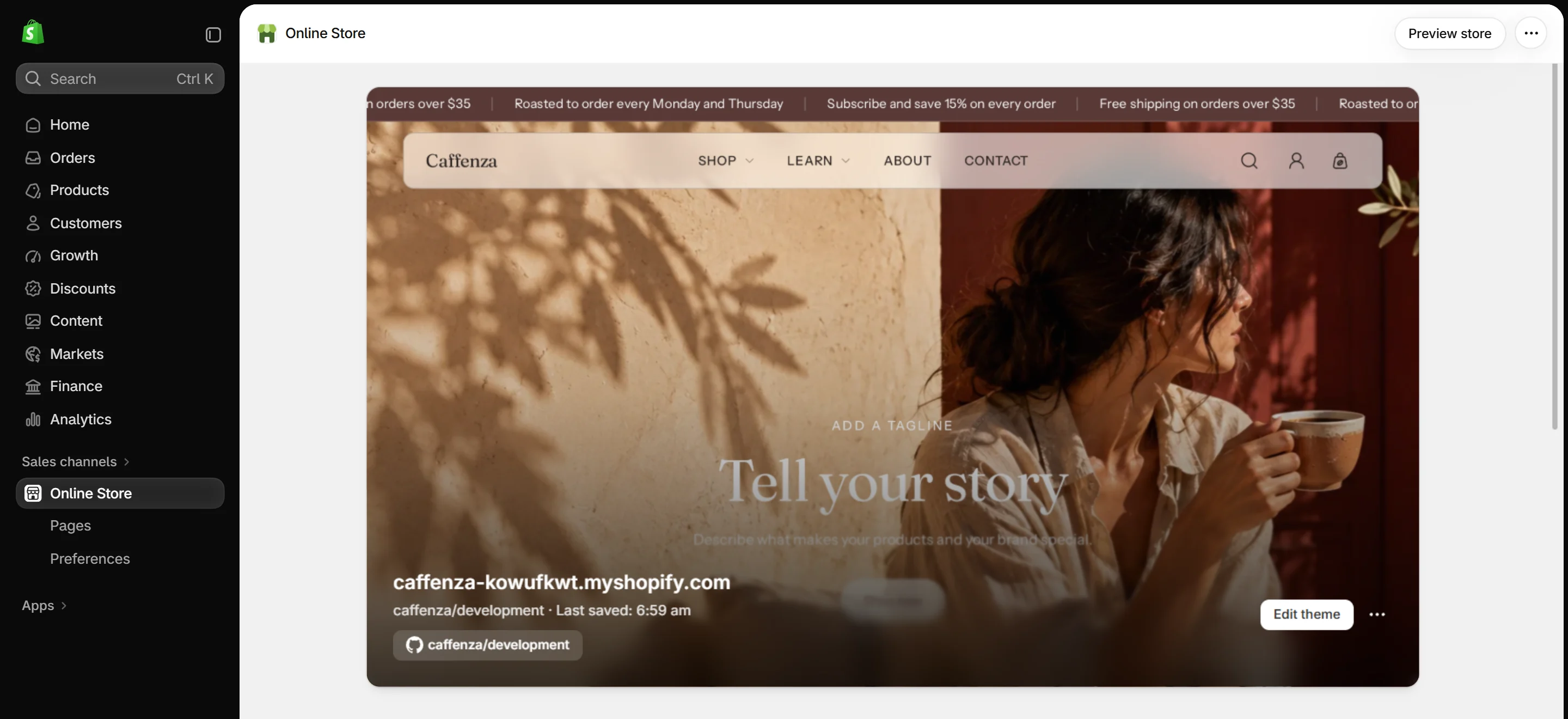
- In Shopify admin, go to Online Store → Themes.
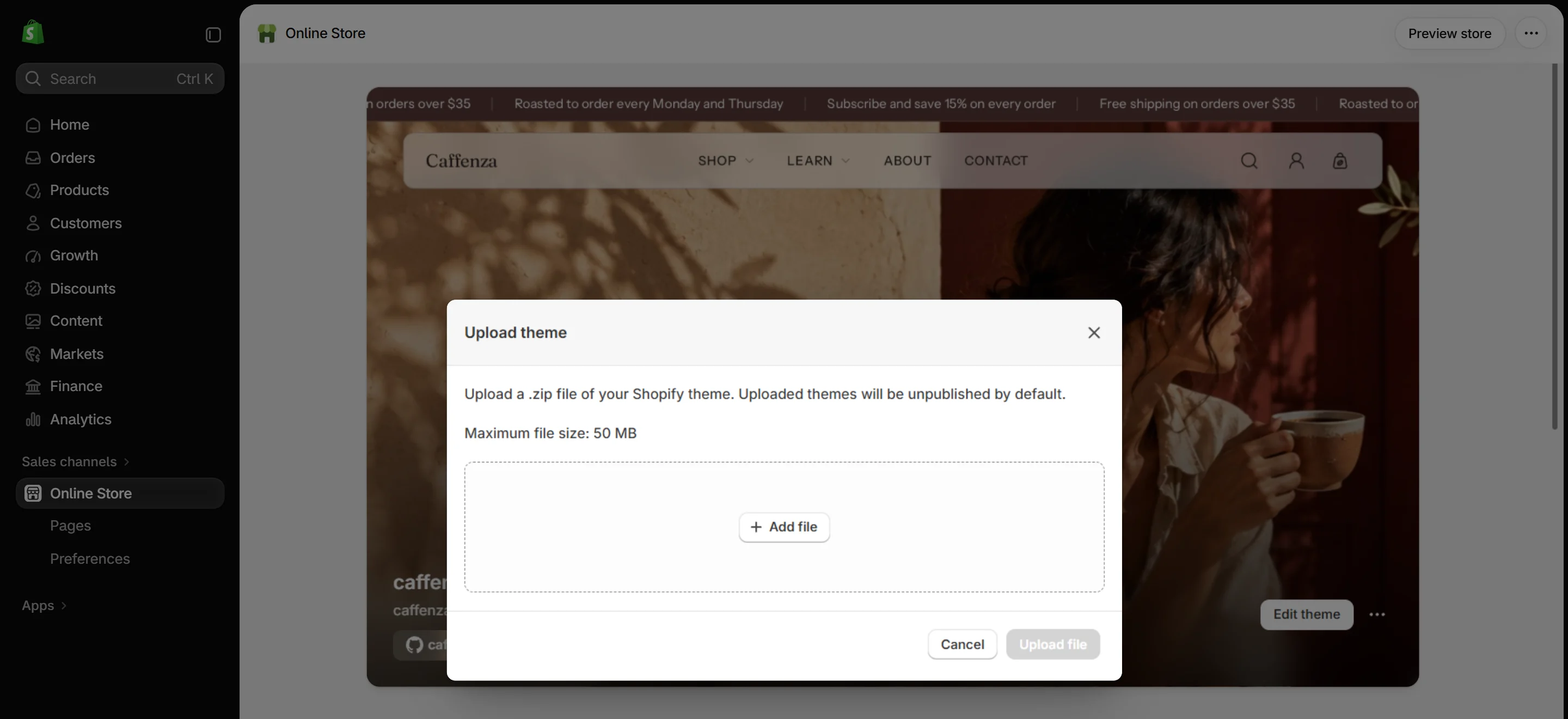
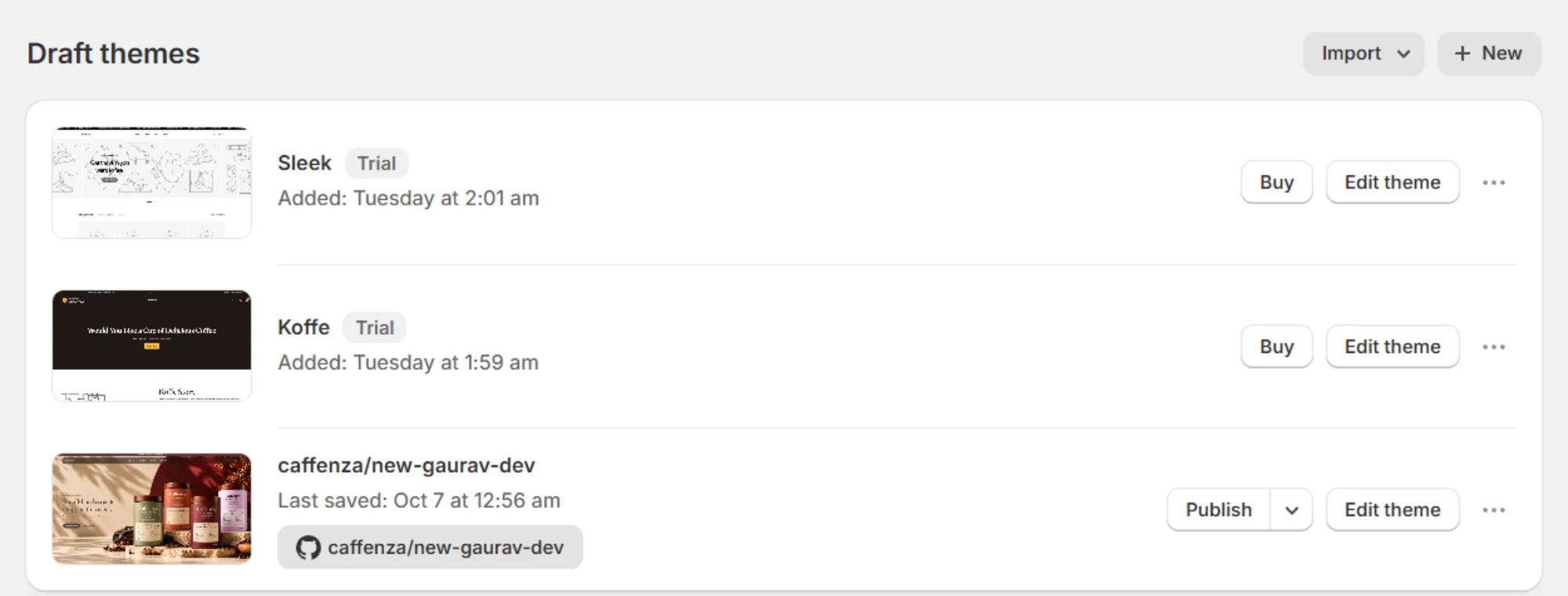
- In the Theme library, click Add theme → Upload zip file.
- Choose the Caffenza ZIP file. Do not unzip it first.
- Wait for the upload to finish. The theme appears in your Theme library.
Preview before you publish
Click Customize on the theme in your library. You can change everything and preview it while shoppers still see your current theme. Use … → Preview to share a preview link with your team.
Publish the theme
- In the Theme library, click … → Publish next to Caffenza.
- Confirm. Caffenza is now your live theme. Your old theme stays in the library.
Tip
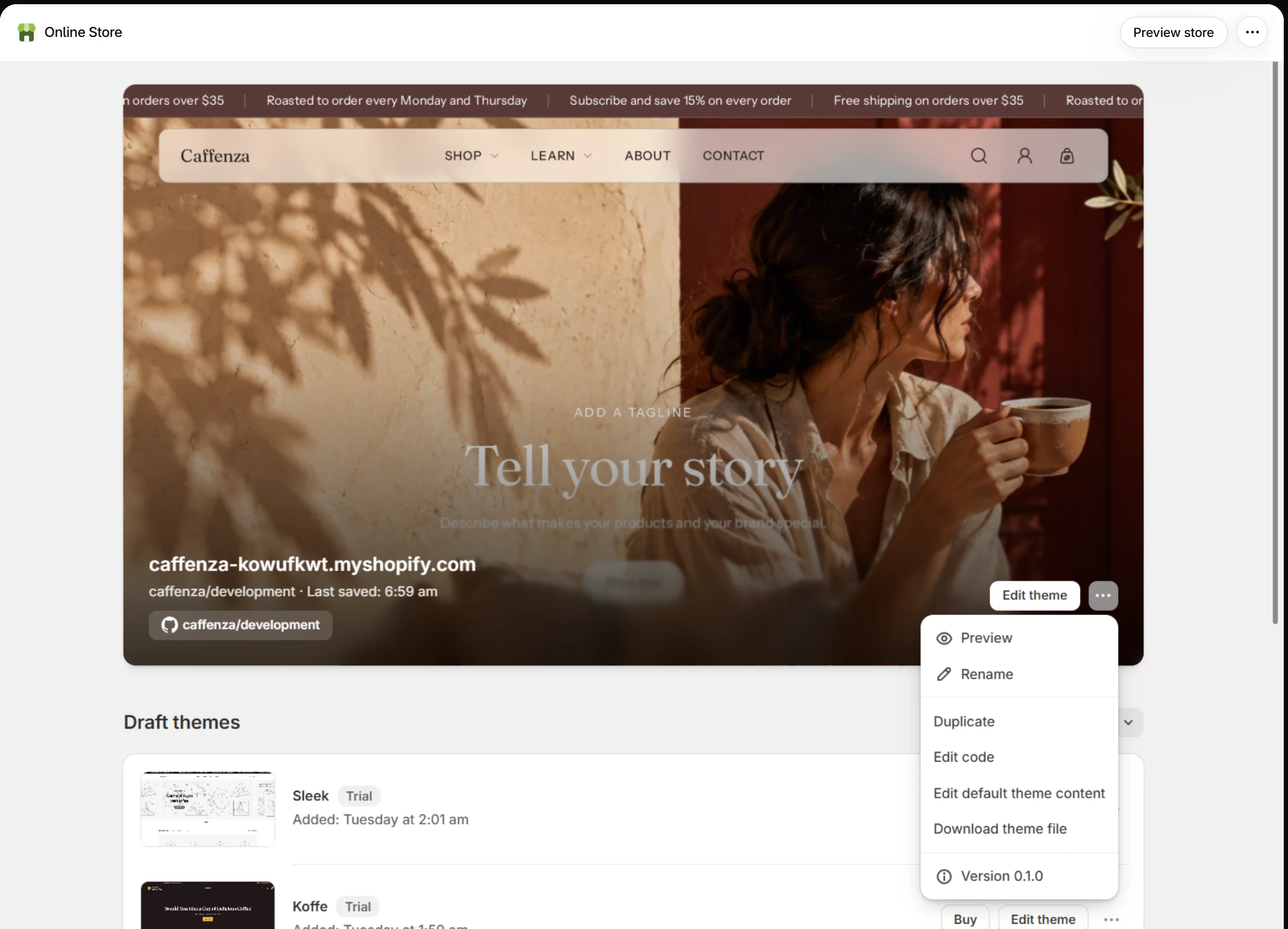
Before you make big changes to a live theme, click … → Duplicate to keep a backup copy.
First-time setup checklist
- Upload your logo and favicon. Logos and favicon
- Set your colors and fonts. Colors, Typography
- Create your main menu and footer menus. Menus
- Add coffee details to products. Coffee product details
- Choose your cart type. Cart settings
- Add your social links and policies. Social media, Policies
- Build your home page with sections. Theme editor basics
Screenshots