Footer
Brand card, newsletter, link columns, legal links and payment icons.
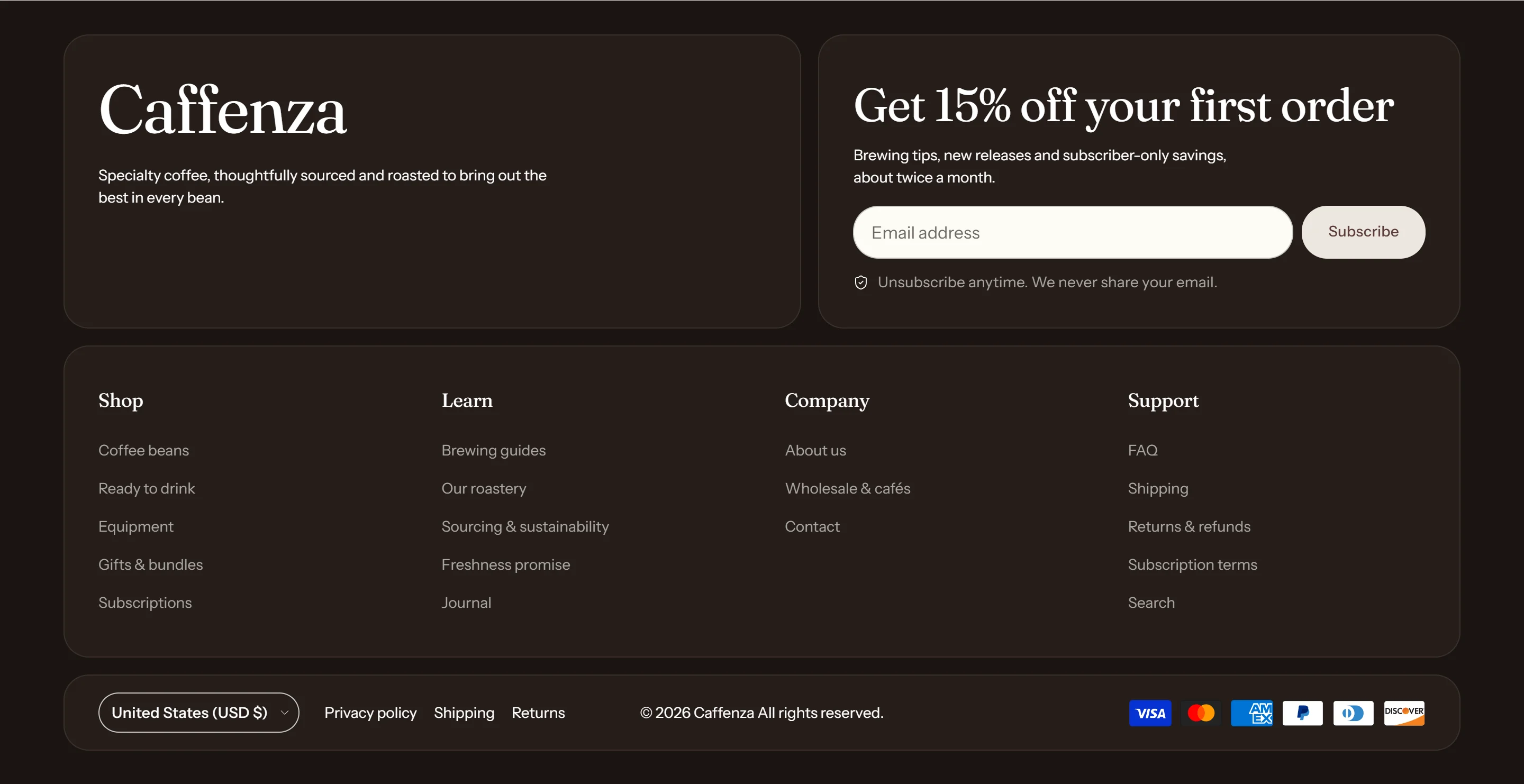
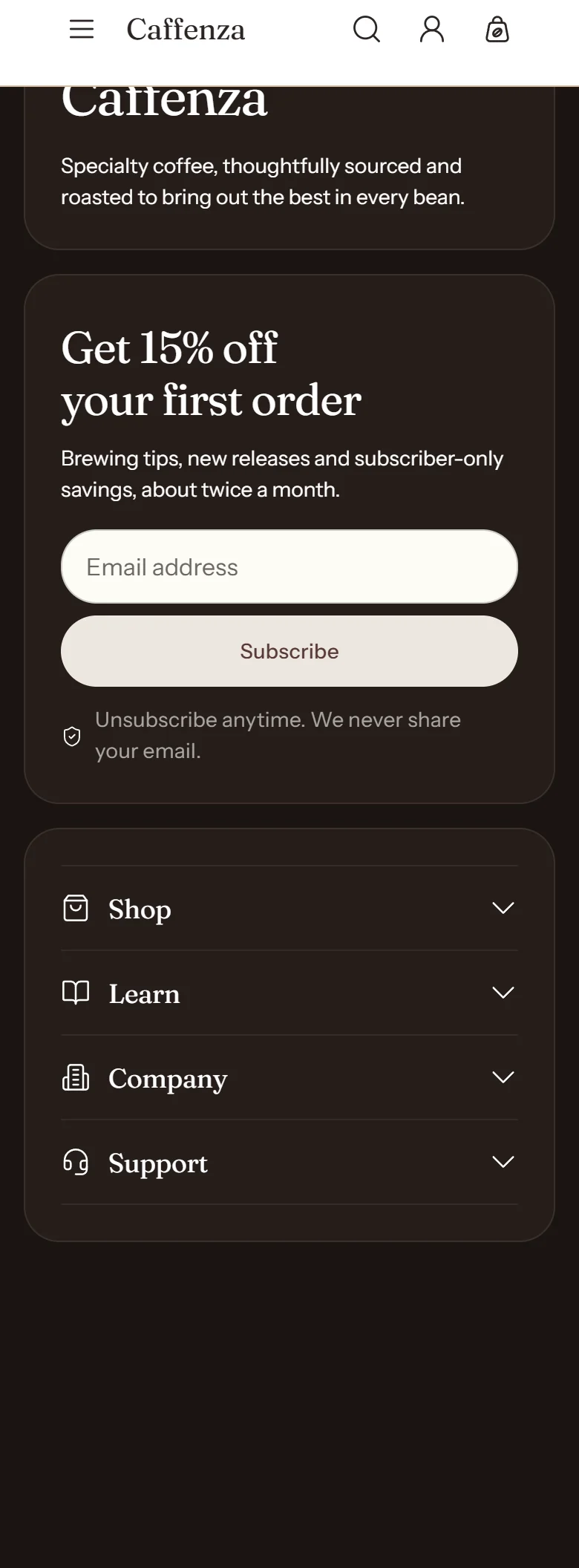
The footer shows on every page. It has a brand card (logo, tagline, social icons), a newsletter card, up to four link columns and a bottom bar with copyright, legal links and payment icons.
Add link columns
- Create a menu for each column in Content → Menus, for example Shop, About and Help.
- In the theme editor, click Footer → Add block → Link column.
- Pick the menu and give the column a heading.
Tip
Leave Legal menu empty and the footer links your published store policies automatically.
Screenshots

Settings
| Setting | Options | What it does |
|---|---|---|
| Section appearance | ||
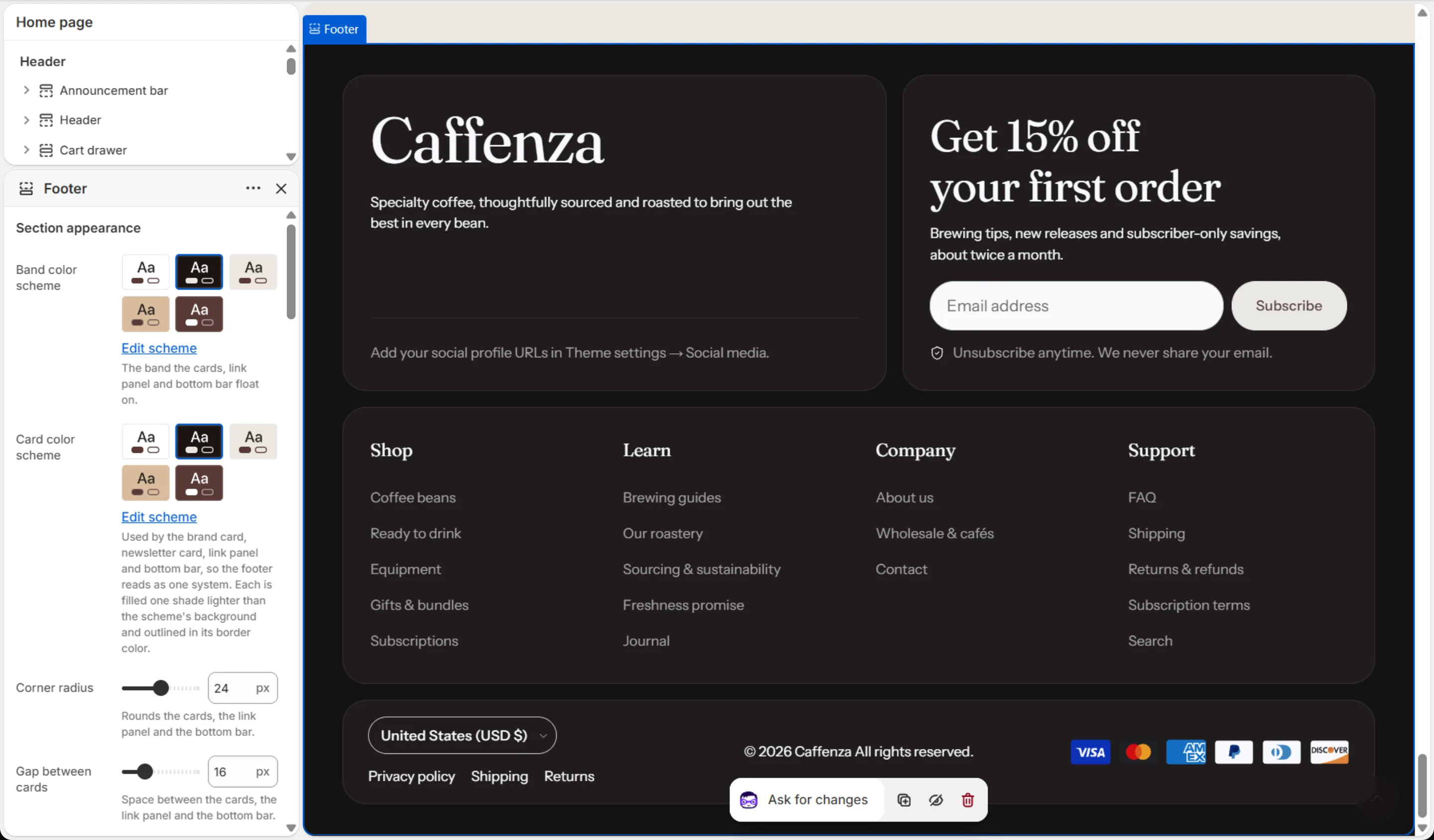
| Band color scheme | Color scheme | The band the cards, link panel and bottom bar float on. |
| Card color scheme | Color scheme | Used by the brand card, newsletter card, link panel and bottom bar, so the footer reads as one system. Each is filled one shade lighter than the scheme's background and outlined in its border color. |
| Corner radius | 0–48 px | Rounds the cards, the link panel and the bottom bar. |
| Gap between cards | 8–40 px | Space between the cards, the link panel and the bottom bar. |
| Brand card | ||
| Logo | Image | Optional. Leave empty to use the inverse logo, then the default logo, from Theme settings → Logos and favicon. |
| Logo width | 60–300 px | Applies to the footer only. The header logo has its own width in Theme settings. |
| Tagline | Rich text | |
| Show social media icons | On / Off | Social profile URLs are set in Theme settings → Social media. |
| Social heading | Text | Optional. Leave empty to show the icons on their own. |
| Show Follow on Shop button | On / Off | Lets customers follow your store in the Shop app. Set up the Shop channel first, or the button has nothing to connect to. |
| Newsletter | ||
| Show newsletter signup | On / Off | |
| Newsletter position | Before content · After content | Whether the signup sits before or after the copy. |
| Content alignment | Left · Center · Right | |
| Subheading | Text (bold, italic, links) | |
| Subheading size | Small · Medium · Large | |
| Heading | Text (bold, italic, links) | Italicized words switch to the Accent font from Theme settings → Typography. They stay italic and keep the color of the text around them. |
| Heading size | Small · Medium · Large · Extra large | |
| Heading level | H1 · H2 · H3 · H4 · H5 · H6 | Adjust for page structure — one H1 per page. Size is controlled separately. |
| Text | Rich text | |
| Text size | Small · Medium · Large | |
| Field icon | None · Envelope · Coffee bean · Coffee cup | |
| Reassurance note | Text | |
| Note icon | None · Shield check · Lock · Leaf | |
| Success message | Text | |
| Error message | Text | Shown when the address is rejected, for example when it is not a valid email. |
| Link panel | ||
| Show watermark | On / Off | A large, faint store name behind the link columns. Decorative only. |
| Watermark text | Text | Optional. Leave empty to use your store name. |
| Bottom bar | ||
| Legal menu | Menu | Optional. Leave empty to link your published store policies. Create a menu in Navigation to choose your own. |
| Copyright suffix | Text | Added after the year and store name, for example “All rights reserved.” |
| Show payment icons | On / Off | |
| Animations | ||
Blocks
Click Add block under the section in the sidebar. Drag blocks to change their order.
Link column up to 4
| Setting | Options | What it does |
|---|---|---|
| Heading | Text | |
| Menu | Menu | |
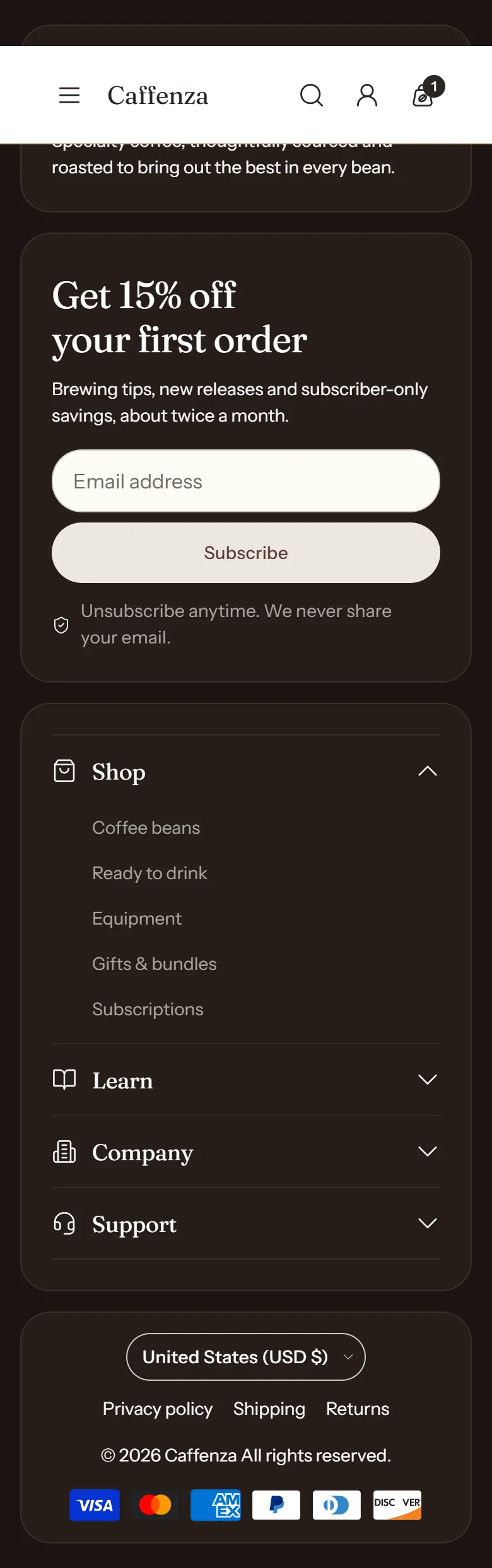
| Icon | None · Award · Bag · Coffee bean · Book · Building · Coffee cup · Envelope · Globe · Headset · Leaf · Lock · Refresh · Shield check · Star · Truck | Shown beside the heading on mobile, where columns collapse into accordions. |
This section also accepts Custom Liquid blocks and app blocks. It also has the shared Animate on scroll and Section spacing settings.