Theme editor basics
Sections, blocks, color schemes and dynamic sources in two minutes.
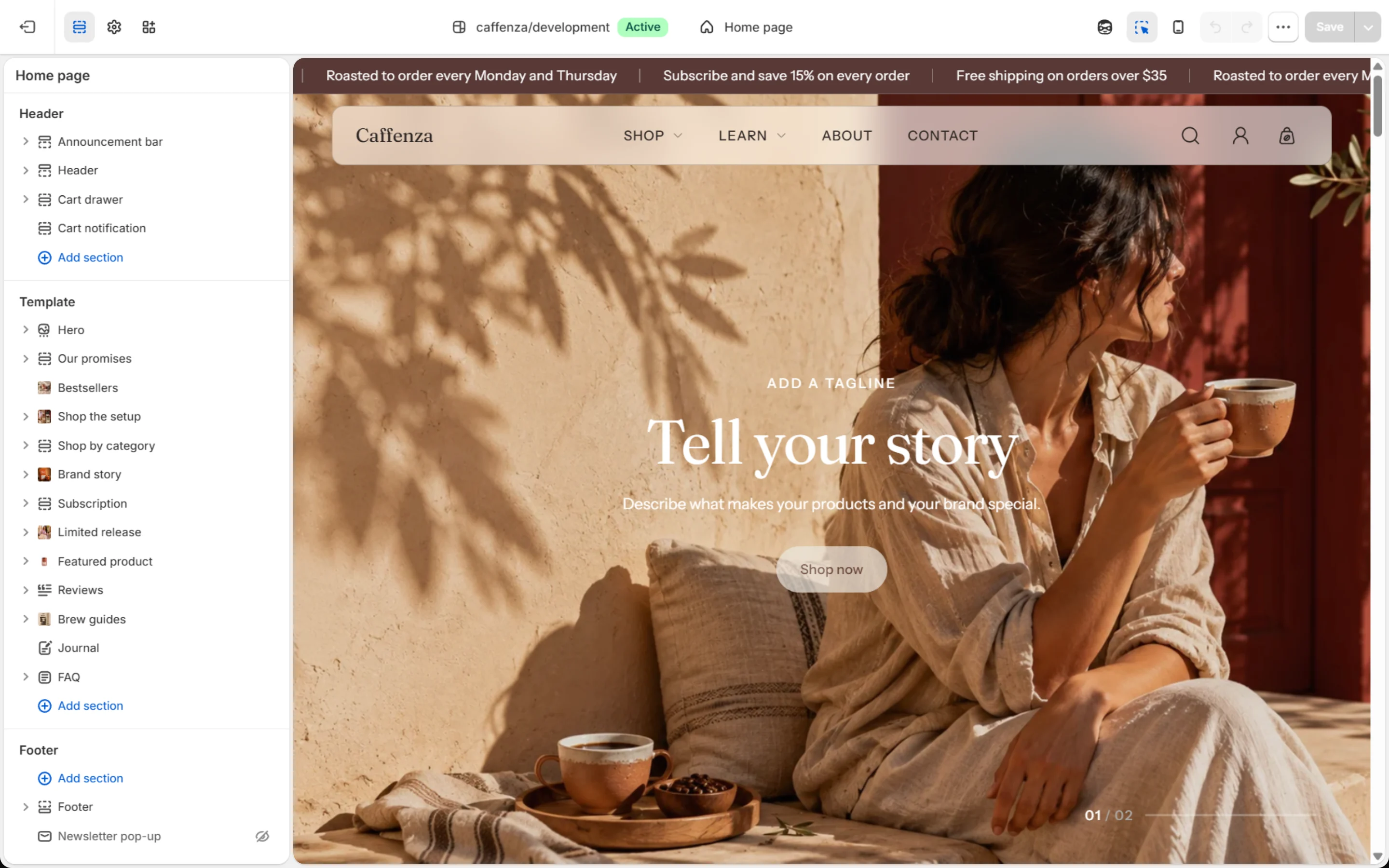
All Caffenza customization happens in the theme editor: Online Store → Themes → Customize.
The four things you will use most
| Term | What it means |
|---|---|
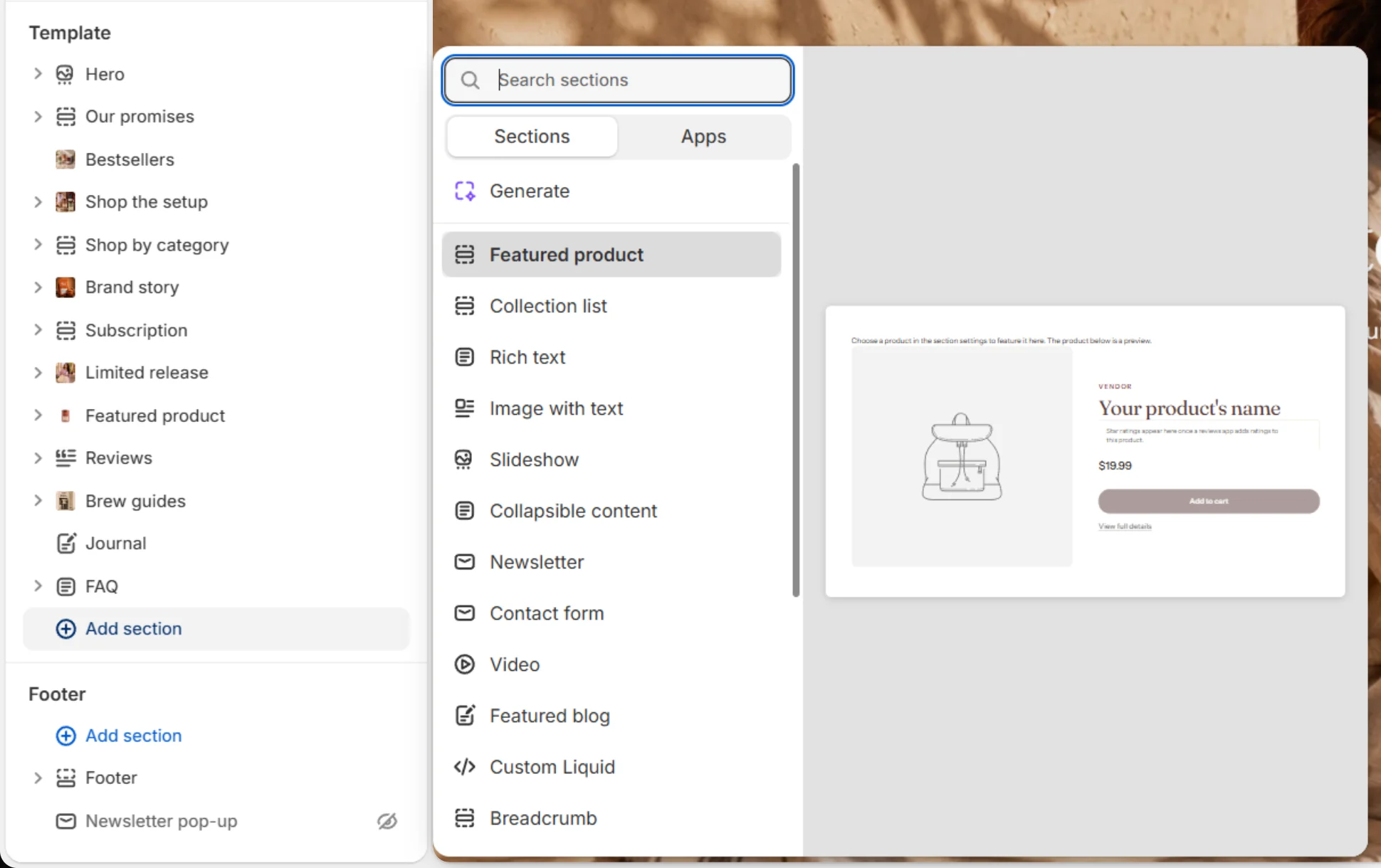
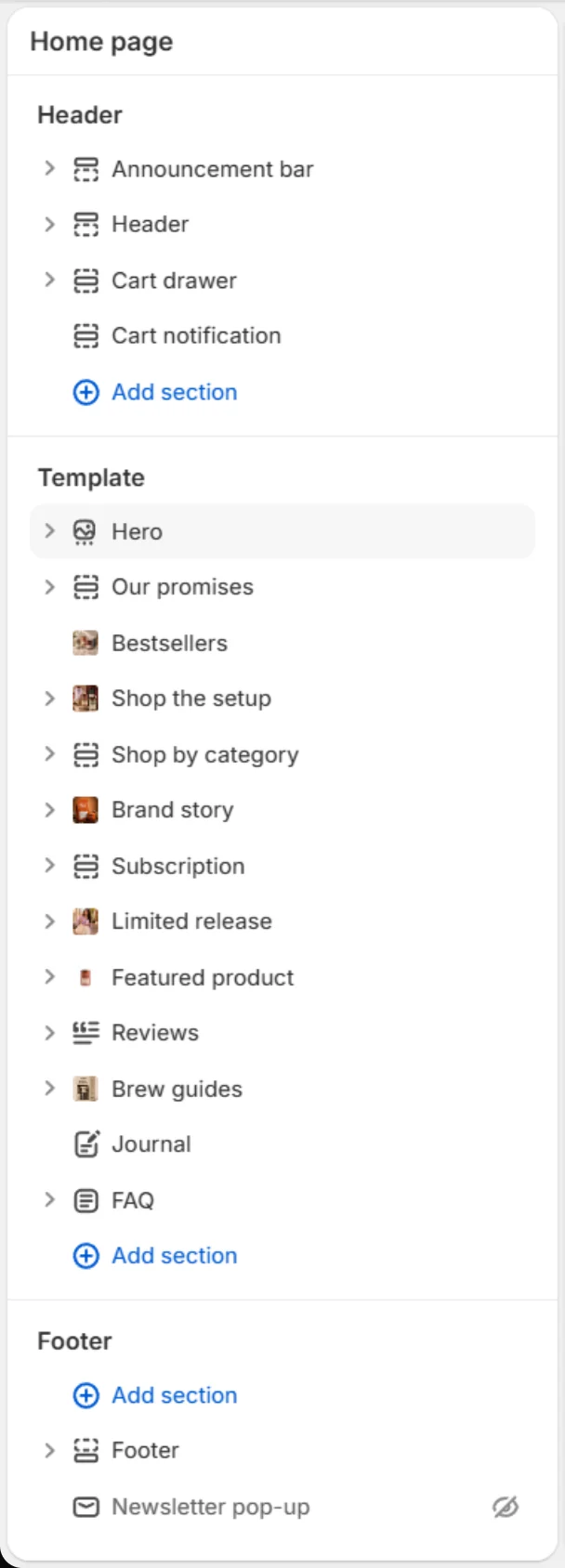
| Section | A full-width part of a page, such as Slideshow or Featured products. Add, hide, reorder or remove sections in the left sidebar. |
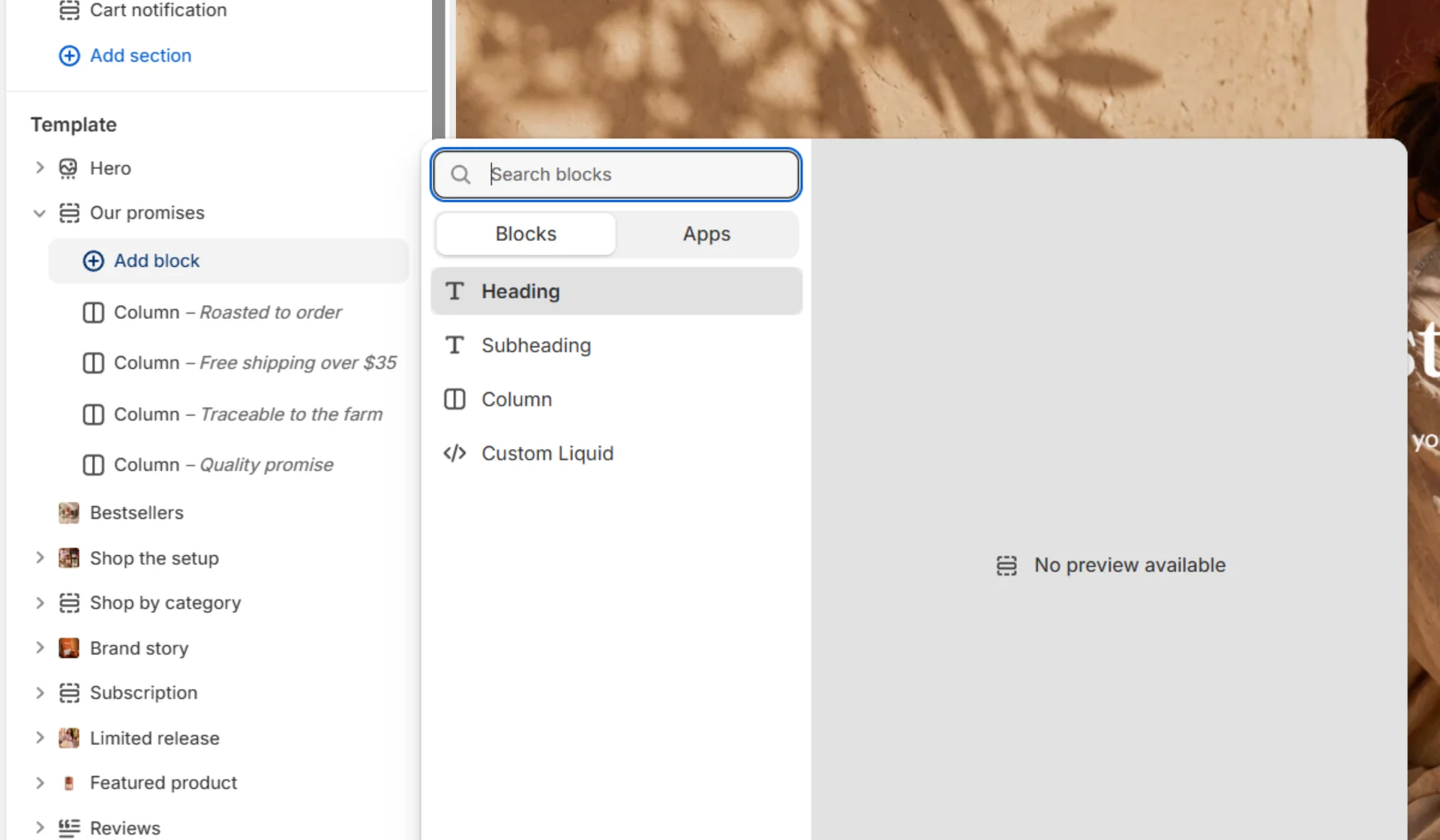
| Block | A piece inside a section, such as a slide, a question or a button. Click Add block under a section. |
| Theme settings | Store-wide options (the paint-brush icon): colors, fonts, product cards, cart. |
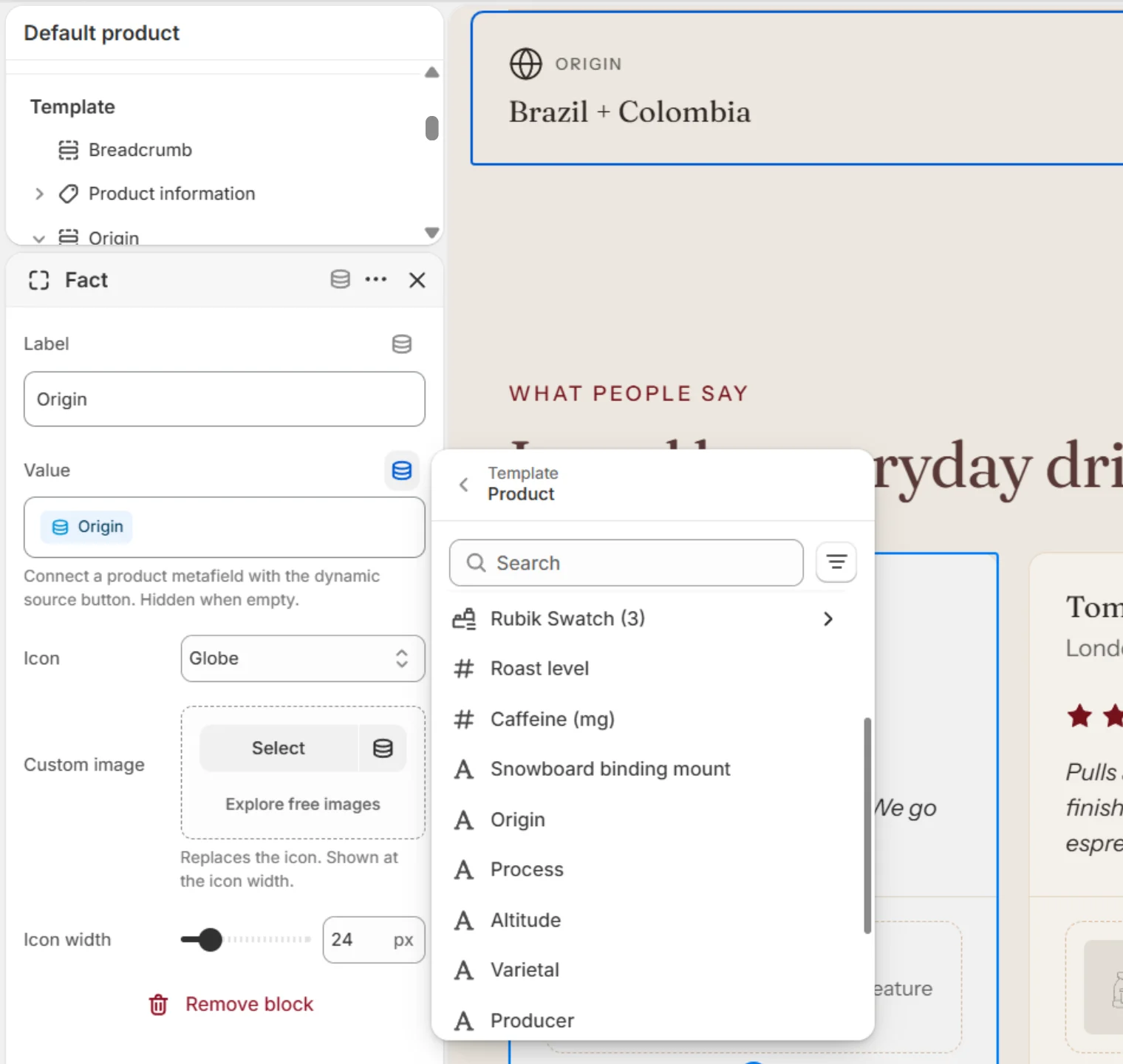
| Dynamic source | The small database icon next to a setting. It connects the setting to product or page data (metafields), so each product shows its own value. |
Change the page you are editing
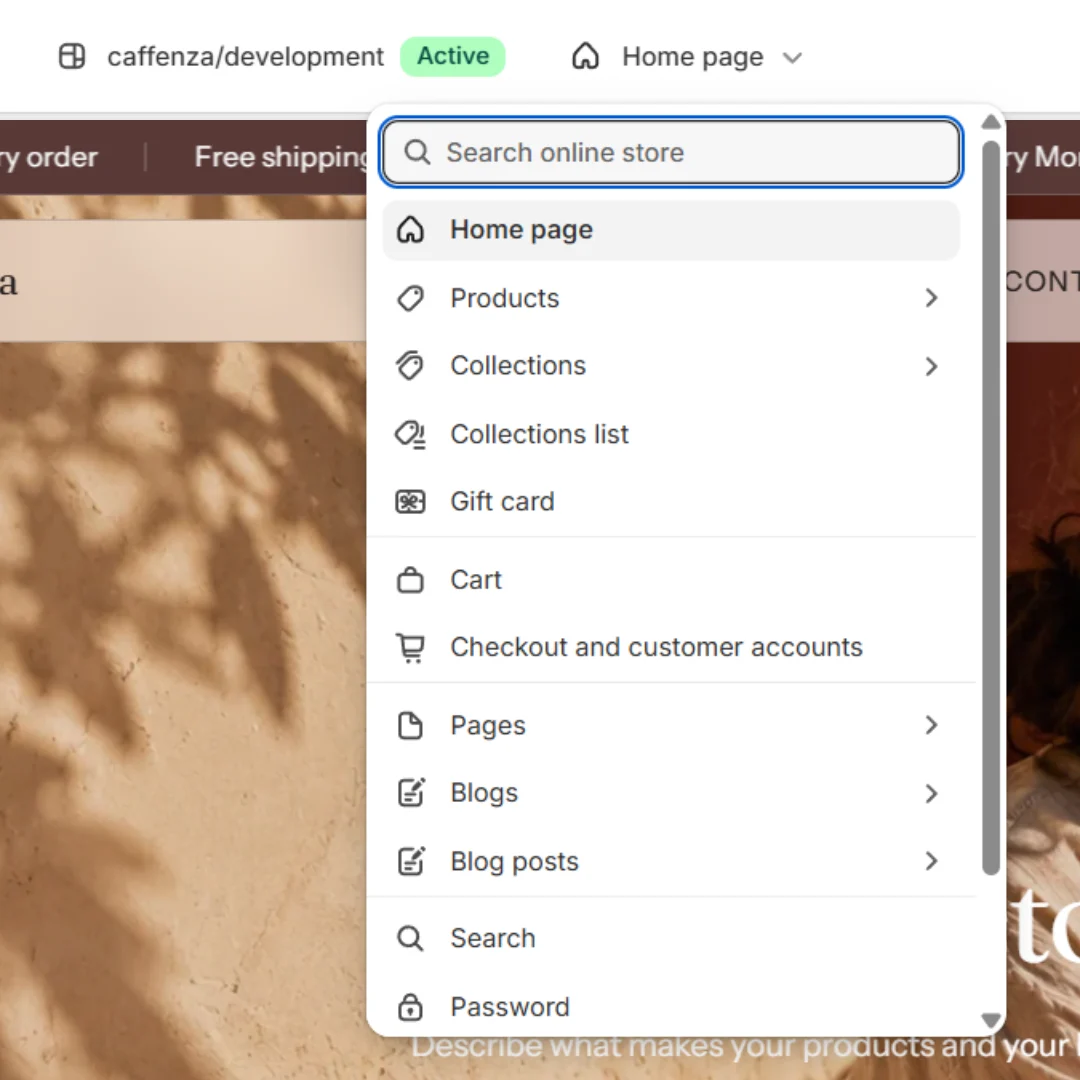
Use the page picker at the top of the editor to switch between Home page, Products, Collections, Blog posts, Pages and more.
Header and footer groups
The header area (announcement bar, header, cart drawer, cart notification) and the footer area (footer, newsletter pop-up) are shared by every page. Change them once and every page updates.
Hide instead of delete
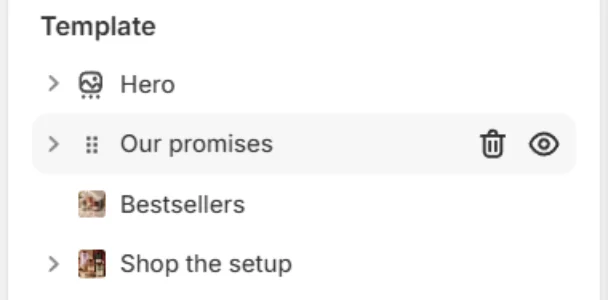
Click the eye icon next to a section or block to hide it. Hidden content keeps its settings, so you can bring it back later.
Tip
Italic words in headings switch to the Accent font. Select a word in a heading and press Ctrl/Cmd + I to use it.
Screenshots