Scroll story
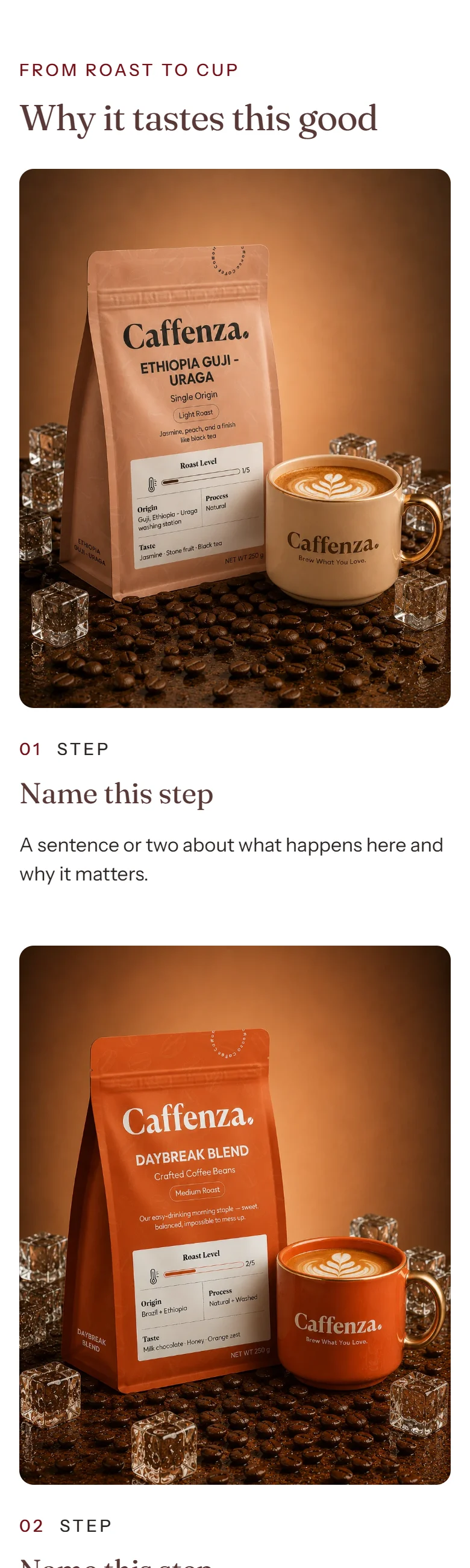
Steps with images that change as shoppers scroll.
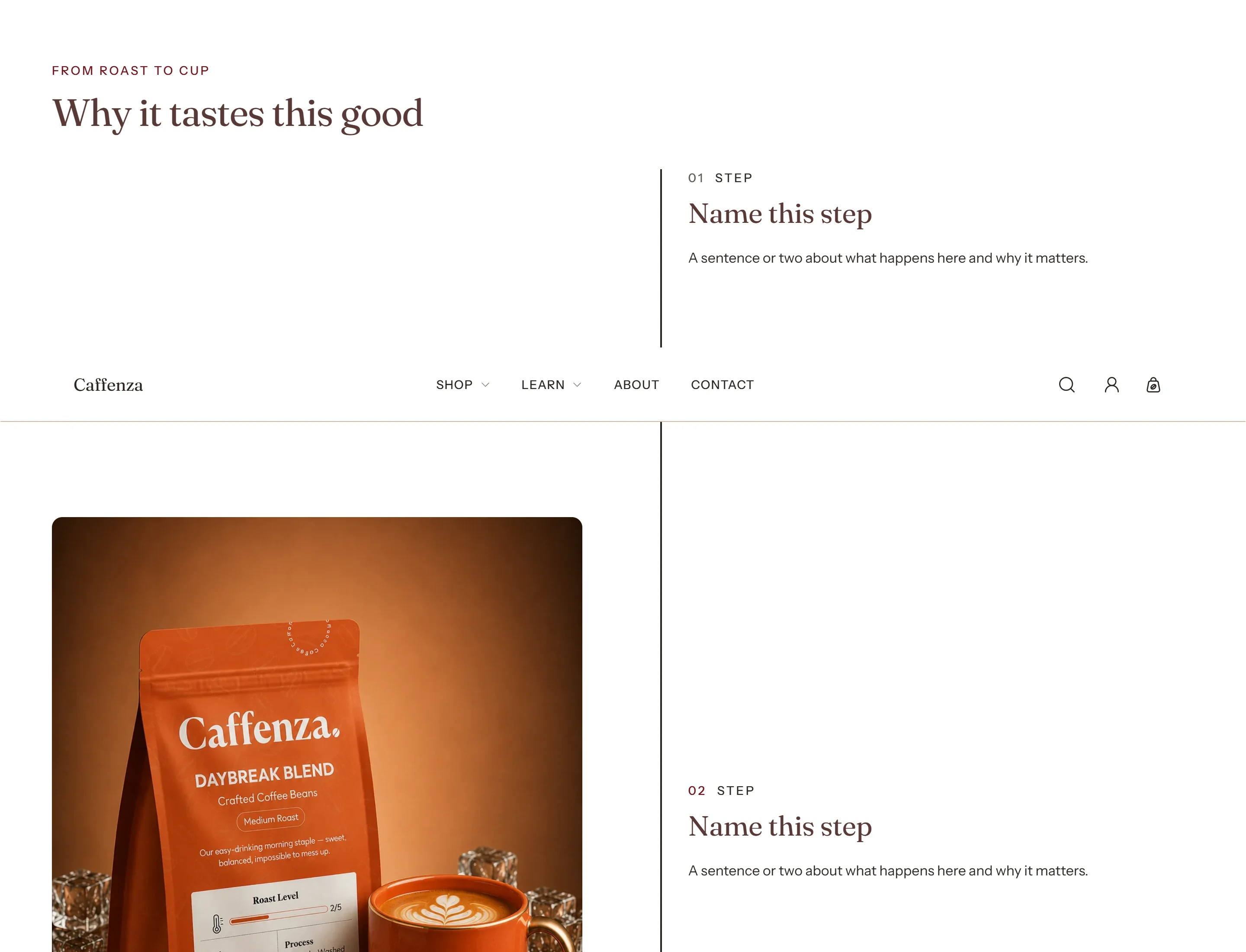
Take shoppers from farm to cup in a few steps.
How to add it
- In Shopify admin, go to Online Store → Themes and click Customize.
- Open the page from the page picker at the top of the editor.
- In the sidebar, click Add section and choose Scroll story.
- Fill in the content, then click Save.
Tips
- On product pages, a step can use the product’s own photo by number.
Screenshots
Settings
| Setting | Options | What it does |
|---|---|---|
| Section appearance | ||
| Color scheme | Color scheme | |
| Settings | ||
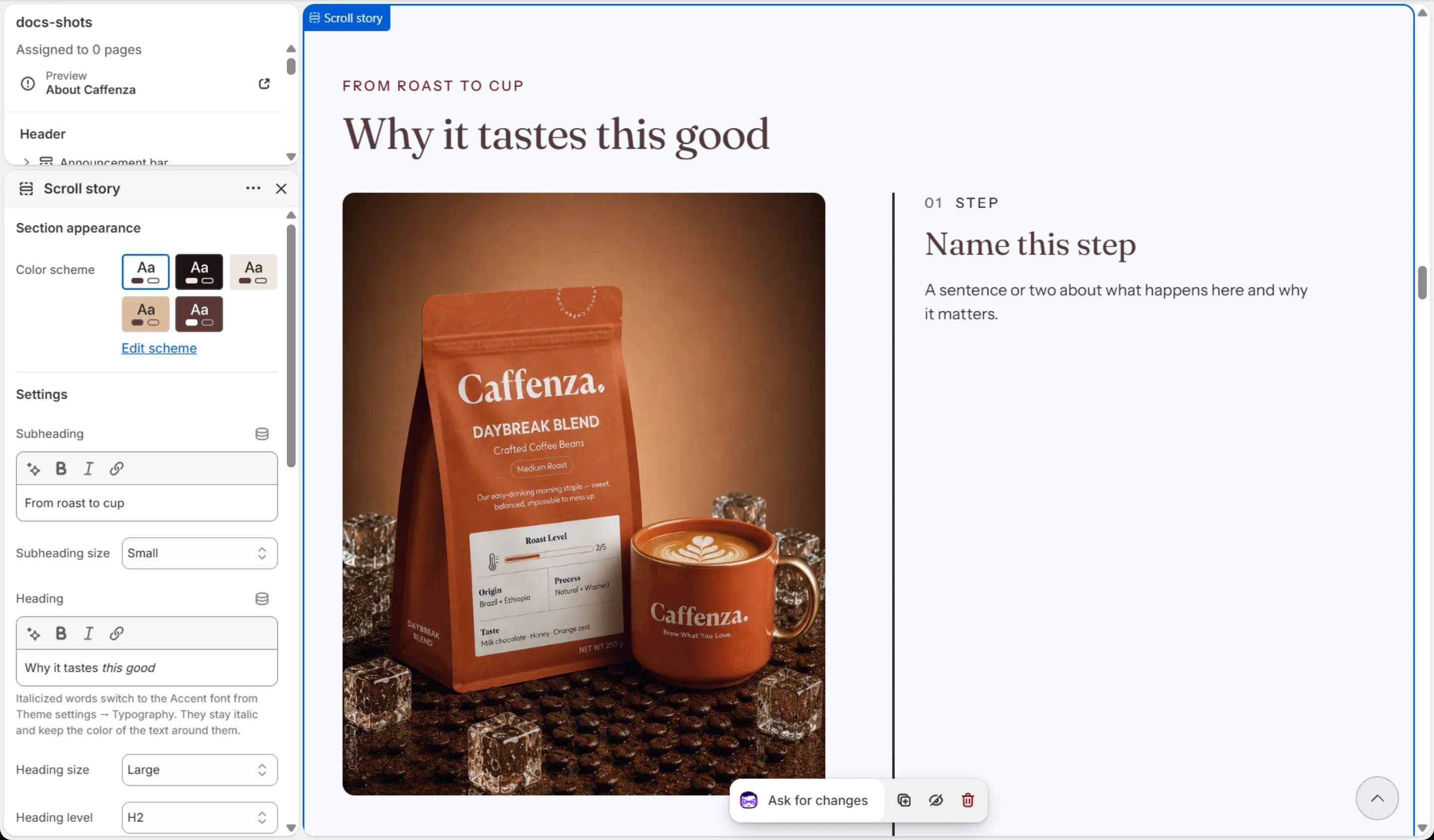
| Subheading | Text (bold, italic, links) | |
| Subheading size | Small · Medium · Large | |
| Heading | Text (bold, italic, links) | Italicized words switch to the Accent font from Theme settings → Typography. They stay italic and keep the color of the text around them. |
| Heading size | Small · Medium · Large · Extra large | |
| Heading level | H1 · H2 · H3 · H4 · H5 · H6 | Adjust for page structure — one H1 per page. Size is controlled separately. |
| Text | Rich text | |
| Text size | Small · Medium · Large | |
| Step heading size | Small · Medium · Large | |
| Show step numbers | On / Off | |
| Image ratio | Portrait · Square · Landscape | |
| Image position | First · Last | |
| Animations | ||
Blocks
Click Add block under the section in the sidebar. Drag blocks to change their order.
Step
| Setting | Options | What it does |
|---|---|---|
| Image | Image | |
| Product image | 0–10 | On product pages, used when no image is chosen: the product's own photo at this position (1 is the first). 0 turns it off. |
| Label | Text (bold, italic, links) | |
| Heading | Text (bold, italic, links) | Italicized words switch to the Accent font from Theme settings → Typography. They stay italic and keep the color of the text around them. |
| Text | Rich text |
It also has the shared Animate on scroll and Section spacing settings.