


Best Way to Integrate Shopify and Xero: A 12-Step 2026 Setup Guide
 Mansi Purohit

Summarize this blog post with:
TL;DR
The best way to integrate Shopify and Xero depends on where you sell and how much you sell.
For most stores, install the free Shopify integration by Xero from the Xero App Store, not the Shopify App Store.
It posts a daily summary of sales per payment gateway so payouts reconcile cleanly.
One thing to know before you start: the native integration does not handle US sales tax. If you file US sales tax, you either pull that data from Shopify separately or use a third-party tool like A2X or Link My Books.
Introduction
Most Shopify and Xero guides skip the part that actually causes problems.
They walk you through connecting the two, then leave you to discover on your own that your tax figures do not add up, or that your Xero “inventory” is not tracking stock at all.
This guide covers the connection properly, and it is honest about what the integration does not do.
The Shopify integration by Xero imports a summary of sales and purchases into Xero but does not account for sales tax in the US. Sales tax data needs to be downloaded directly from Shopify for reporting and filing.
Read that twice if you sell in the US. It is the single most common reason merchants think their integration is “broken” when it is working exactly as designed.
What Is Shopify Xero Integration?
Shopify and Xero integration connects your store to your accounting software so sales data flows across automatically instead of being keyed in by hand.
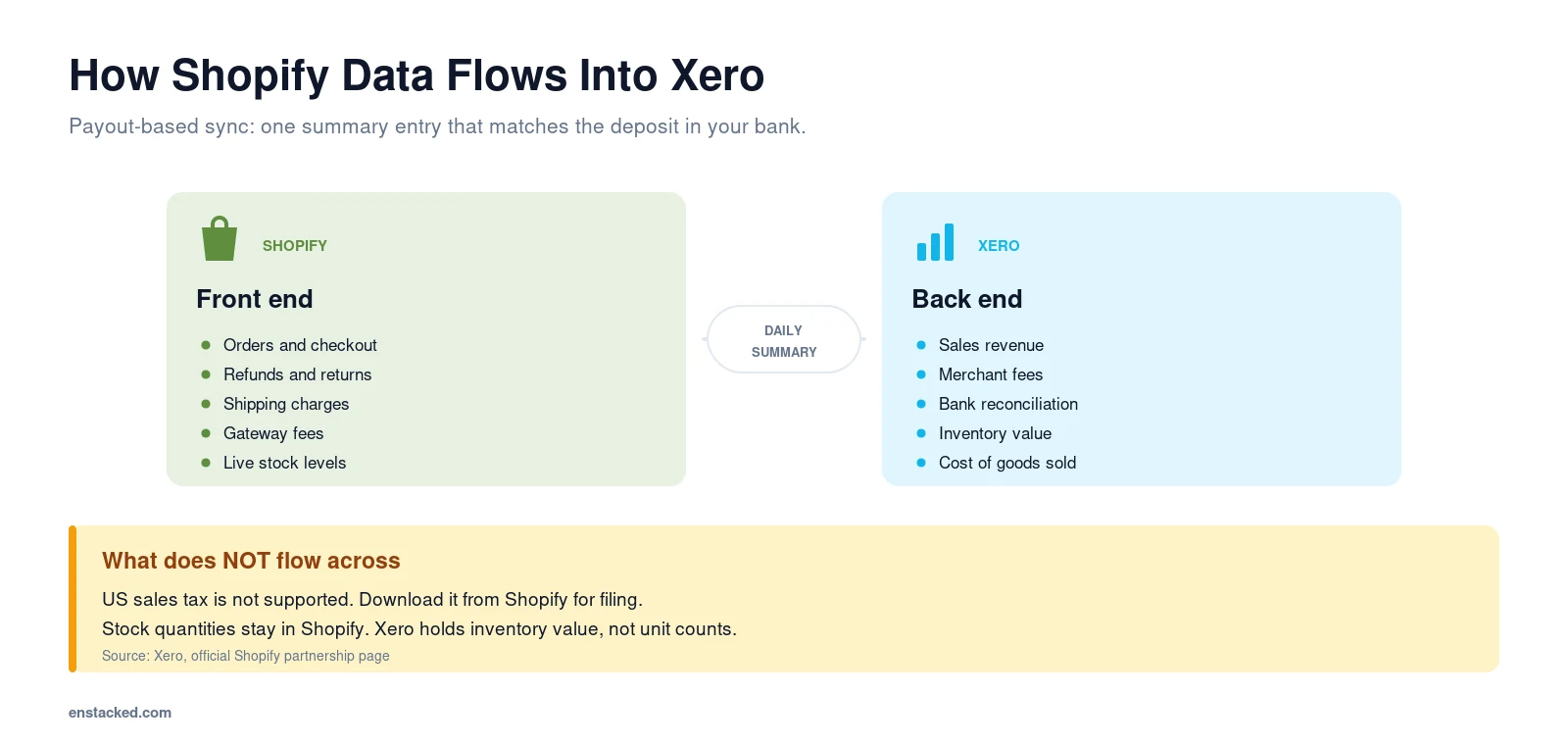
Shopify runs the front end: products, orders, checkout, and live stock levels. Xero runs the back end: bookkeeping, bank reconciliation, tax reporting, and financial statements.
Connected properly, your Shopify sales, refunds, shipping income, and gateway fees land in Xero every day, already split so they match the deposits hitting your bank.
One Myth Worth Clearing Up First
Plenty of articles claim the integration keeps “inventory levels updated in both systems”. That is not what happens.
Shopify remains the single source of truth for stock quantities. Xero deals with the financial side: inventory value as an asset and cost of goods sold as an expense.
If you need live stock quantities in Xero, that requires a separate inventory app, not the Shopify connector.
Also read: 10 Best Shopify Plugins in 2026
The Concept That Makes Everything Else Make Sense
Before you connect anything, understand this distinction. It explains almost every reconciliation problem merchants run into.
Order-Based vs Payout-Based Accounting
Order-based means every Shopify order becomes its own invoice in Xero. Sounds tidy. In practice it floods your ledger and nothing matches your bank.
Payout-based means Shopify’s actual deposit into your bank account becomes one summary entry, broken into sales, refunds, shipping, fees, and tax.
Payout-based is what you want. Here is why: Shopify does not deposit what you sold. It deposits what you sold, minus refunds, minus processing fees, on a delay.
If your books say you earned $10,000 and your bank received $9,614, order-based accounting gives you no clean way to explain the gap. Payout-based shows it on one line.
The Three Ways to Connect Shopify and Xero
There is no single “best” route. There is a right route for your situation.
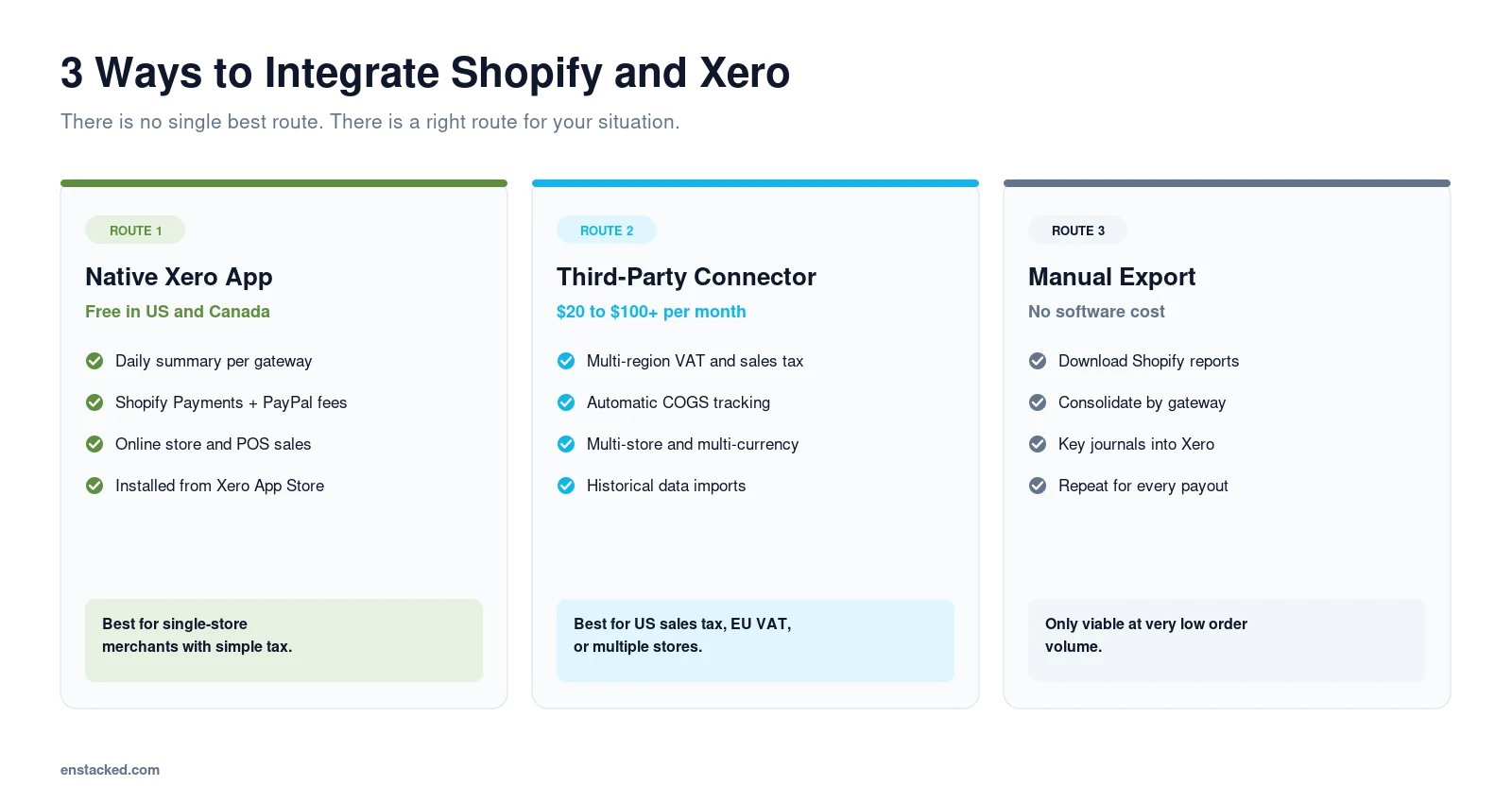
Route 1: The Native Shopify Integration by Xero
This is Xero’s own official app, and it is the right starting point for most stores.
- Cost: free plan in the US and Canada. A Standard plan at around $13 per month in the UK, Australia, and New Zealand adds sales tax grouping.
- What it does: posts a daily summary of Shopify sales per payment gateway, or individual sales if you prefer, and surfaces Shopify Payments and PayPal fees.
- Best for: single-store merchants, straightforward tax situations, stores where reconciliation is the main pain.
- Where to get it: the Xero App Store. This is the detail most guides get wrong.
Route 2: A Third-Party Connector (A2X, Link My Books, Amaka)
Purpose-built tools that handle the cases the native app leaves alone.
- Cost: typically $20 to $100+ per month depending on order volume.
- What they add: multi-region tax mapping including VAT, OSS and US sales tax, automatic COGS tracking, multi-store and multi-currency support, historical data imports.
- Best for: US sellers with sales tax obligations, UK and EU sellers dealing with VAT rates, anyone running multiple stores or gateways.
Route 3: Manual Export and Journal Entry
Download Shopify reports, consolidate them, and key the figures into Xero yourself.
Viable only for very low volume, and it stops being viable the moment you register for VAT or add a second payment gateway. The error rate climbs fast.
Pro Tip
Start with Route 1 even if you suspect you will need Route 2. The native app is free in the US and Canada, and running it for a month tells you exactly which gaps you actually have rather than which ones a vendor says you have.
What the Native Integration Does and Does Not Do
Being clear about this upfront saves you weeks of confusion.
What It Handles
- Daily summary of Shopify sales, or individual sales, depending on your setting.
- Separate summaries per payment gateway so each payout reconciles independently.
- Shopify Payments and PayPal transaction fees.
- Refunds and taxes handled within the payout match.
- Both online store and Shopify POS sales.
What It Does Not Handle
- US sales tax. Not supported. You download this from Shopify for filing.
- Live stock quantities in Xero. Shopify stays the source of truth.
- Automatic COGS per sale. This needs a third-party tool or manual journals.
- Multi-store consolidation. One connection per store.
- Deep historical imports. Backdating is limited compared with dedicated tools.
Tax grouping by rate is available in Australia, the UK, and New Zealand on the paid tier. That regional split matters and almost no guide mentions it.
Best Way to Integrate Shopify and Xero: Step-by-Step
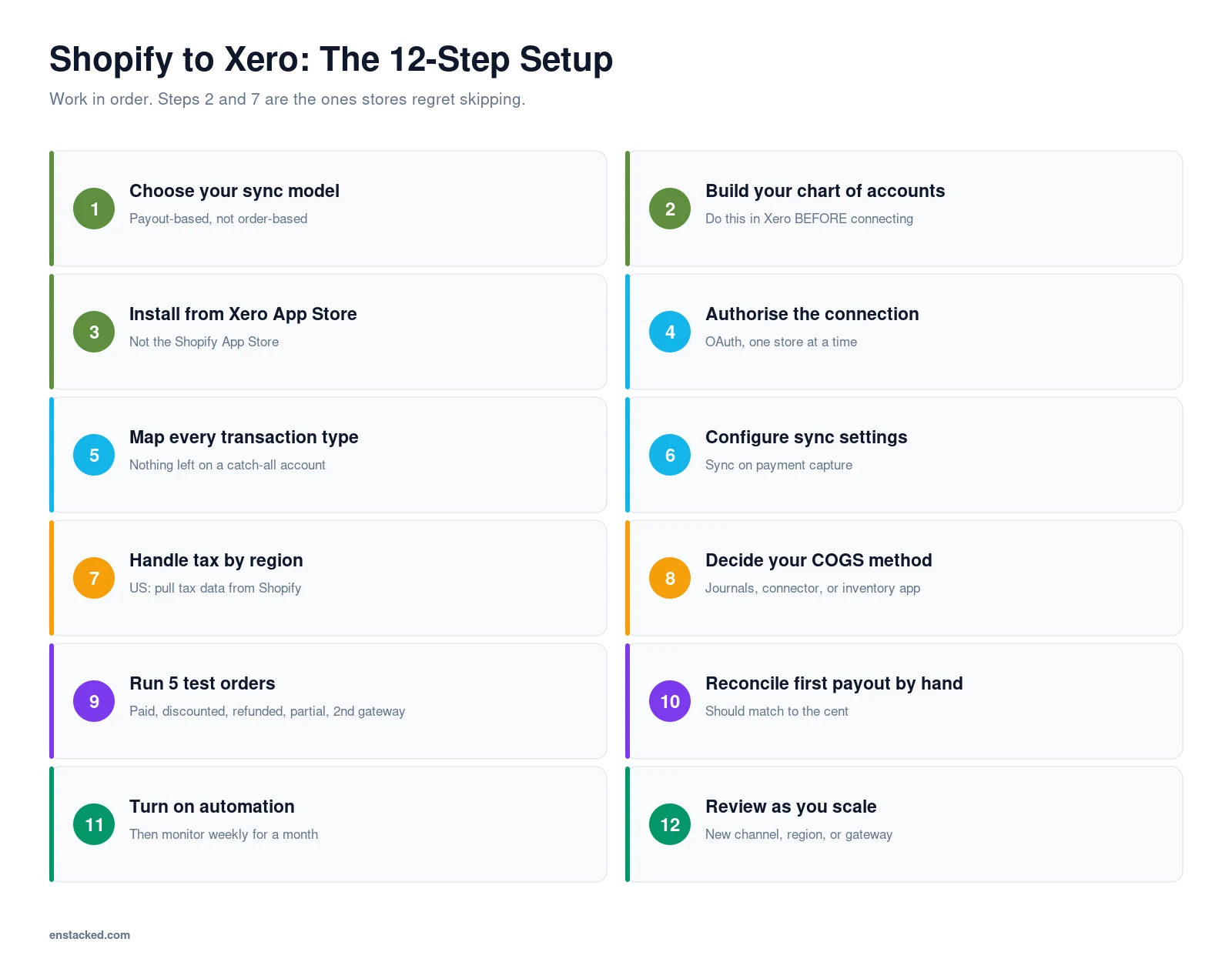
Step 1: Decide Your Sync Model Before You Install
Choose payout-based summaries unless your accountant specifically wants order-level detail.
Order-level sync makes sense for low-volume, high-value stores where each sale is a meaningful record. For everyone else it creates noise.
Step 2: Build Your Chart of Accounts in Xero First
Do this before connecting. Mapping into a chart of accounts that does not exist yet is how stores end up with everything dumped into “Sales”.
In Xero, go to Accounting > Chart of Accounts and create:
- Shopify Sales (revenue)
- Shipping Income (revenue)
- Discounts Given (contra-revenue)
- Refunds and Returns (contra-revenue)
- Merchant Fees (expense, one per gateway if you use several)
- Shopify Clearing Account (current asset, holds funds between sale and payout)
- Inventory Asset and Cost of Goods Sold (only if you are tracking COGS)
- Rounding (a small account that absorbs cent-level differences)
The clearing account is the one people skip and the one that makes reconciliation work.
Step 3: Install the App From the Xero App Store
Log in to Xero, open the Xero App Store, and search for Shopify integration by Xero. Select Get this app.
It is not listed in the Shopify App Store, which is where most people look first and give up.
Step 4: Authorise the Connection
You will be asked to sign in to your Shopify store and approve access. This uses OAuth, so Xero never stores your Shopify password.
Connect one store at a time. If you run multiple stores, each needs its own connection and its own tracking category in Xero.
Step 5: Map Every Transaction Type
This is the step that determines whether your books are clean a year from now.
Map each component to the account you created in Step 2: product revenue to Shopify Sales, shipping charges to Shipping
Income, discounts to Discounts Given, refunds to Refunds and Returns, and gateway charges to Merchant Fees.
Do not leave anything mapped to a default catch-all account. Every unmapped line becomes a question your accountant asks you in March.
Step 6: Configure Your Sync Settings
Set your preferences for summary versus individual sales, which gateways to include, and whether to sync on order creation or payment capture.
Sync on payment capture. Syncing on order creation records revenue you have not been paid for yet, which distorts cash flow reporting.
Step 7: Sort Out Tax According to Your Region
United States: the native integration does not handle sales tax.
Pull your tax report from Shopify under Analytics > Reports > Taxes and use that for filing. If you have nexus in several states, use a dedicated tool.
UK, Australia, New Zealand: the paid Standard tier groups Shopify sales by tax rate. Confirm your rates map to the right Xero tax codes before going live.
EU and multi-region: if you are handling OSS or IOSS, the native app will not be enough. Plan for a third-party connector.
Step 8: Decide How You Are Handling COGS
The native app does not calculate cost of goods sold per sale. You have three options.
- Periodic journals. Count stock monthly and post one journal. Simple, low cost, less precise.
- Third-party tool. A2X and Link My Books both offer automatic COGS tracking per payout.
- Inventory app. A dedicated system feeding both Shopify and Xero, worth it above a certain scale.
Whichever you pick, decide now. Retrofitting COGS onto twelve months of books is genuinely painful.
Step 9: Run Test Orders Before Going Live
Place five test orders and check each one lands correctly in Xero:
- A standard paid order.
- An order with a discount code applied.
- An order you then refund in full.
- An order you partially refund.
- An order through a second gateway, such as PayPal, if you use one.
Then compare the Xero entry against the actual payout amount. They should match to the cent, or land in your Rounding account.
Step 10: Reconcile the First Payout Manually
Wait for your first real Shopify payout to hit your bank, then reconcile it by hand in Xero.
Open the bank line, find the matching summary invoice, and confirm the totals agree. If they do not, your mapping is wrong and now is the cheapest possible time to find out.
Step 11: Turn On Automation and Monitor for a Month
Once a payout reconciles cleanly, enable automatic sync.
Then check weekly for the first month: does every payout have a matching entry, are fees landing in the right account, do refunds reduce revenue correctly, and does your Shopify clearing account return to near zero?
A clearing account that keeps growing means something is syncing in but never clearing out.
Step 12: Review as You Scale
Revisit the setup when you add a sales channel, enter a new tax region, add a payment gateway, or cross a volume threshold where order-level sync becomes unwieldy.
This is usually the point where merchants move from Route 1 to Route 2.
Need this set up properly the first time?
Hire Dedicated Shopify Developers
Mistakes That Quietly Break Your Books
- Recording payouts as revenue. A payout is net of fees and refunds. Booking it as gross sales understates both revenue and expenses.
- Skipping the clearing account. Without it, the gap between sale date and payout date has nowhere to live.
- Assuming tax is handled. In the US it is not. Check before your first filing, not after.
- Ignoring secondary gateways. PayPal, Klarna, and Shop Pay Installments each pay out separately and each needs mapping.
- Expecting stock quantities in Xero. They are not coming through this integration.
- Connecting before building the chart of accounts. Cleanup costs more than setup.
What Shopify Xero Integration Costs in 2026
- Xero subscription: plans start around $25 per month in the US, varying by region and tier.
- Shopify integration by Xero: free in the US and Canada. Around $13 per month for the Standard tier in the UK, Australia, and New Zealand.
- Third-party connectors: roughly $20 to $100+ per month, scaling with order volume.
- Accountant setup review: a few hundred, once. Usually the best money in this list.
Compare that against the hours currently going into manual reconciliation. For most stores the software cost is recovered within the first month.
Also read: 11 Shopify Features to Level Up Your Store in 2026
To Wrap Up
The best way to integrate Shopify and Xero is payout-based, mapped to a chart of accounts you built deliberately, and tested with real orders before you trust it.
Start with the free native app from the Xero App Store. Add a third-party connector only when you hit a specific limitation, which for most merchants means US sales tax, multi-region VAT, or automated COGS.
And go in knowing what the integration does not do. That single piece of honesty saves more time than any feature.
If you would rather have this configured and validated by a team that does it regularly, Enstacked can help.
You can check our Shopify development service & hand the whole project to our eCommerce development team.
Book a Free Consultation with Enstacked
Frequently Asked Questions (FAQs)
Is the Shopify integration by Xero free?
There is a free plan for merchants in the US and Canada. In the UK, Australia, and New Zealand, a Standard plan at around $13 per month adds sales tax grouping by rate.
You also need an active Xero subscription, which starts at roughly $25 per month depending on region and plan.
Where do I install the Shopify Xero integration?
From the Xero App Store, not the Shopify App Store. Log in to Xero, search for “Shopify integration by Xero”, and select Get this app.
This trips up a lot of merchants who search the Shopify App Store first and assume the integration does not exist.
Does the Xero Shopify integration handle sales tax?
Not in the US. Xero states plainly that the integration does not account for US sales tax, and that you need to download tax data directly from Shopify for reporting and filing.
In Australia, the UK, and New Zealand, the paid tier can group sales by tax rate. For multi-region VAT or OSS, use a third-party connector.
Does Shopify Xero integration sync inventory?
Not stock quantities. Shopify remains the source of truth for how many units you have.
Xero handles the financial side, meaning inventory value and cost of goods sold. Syncing live quantities requires a separate inventory management app.
Can Xero automatically reconcile Shopify payouts?
Yes, and this is the strongest reason to connect the two. The integration posts a daily summary per payment gateway that matches the deposit landing in your bank.
Reconciliation becomes a match-and-confirm rather than an investigation.
Should I sync every order or a daily summary?
A daily summary for almost everyone. Order-level sync clutters your ledger and does not match your bank deposits, since Shopify pays out net of fees and refunds on a delay.
Order-level sync only makes sense for low-volume, high-value stores.
Which is better for Shopify: Xero or QuickBooks?
Both integrate well and both are supported by the major third-party connectors. Xero tends to suit non-accountants and multi-currency sellers, and has strong UK and EU VAT handling.
QuickBooks has deeper US sales tax features natively. Your accountant’s preference is a legitimate tiebreaker.
How are Shopify refunds and chargebacks recorded in Xero?
Refunds appear as line items within the payout summary, reducing revenue in the period the refund was processed rather than the period of the original sale.
Chargebacks and their associated fees also appear in the payout and should be mapped to a dedicated account so you can track them.
Does Shopify POS sync to Xero?
Yes. Shopify POS sales flow through the same payout structure as online orders, so they are included in the daily summary without additional setup.
Can I import historical Shopify data into Xero?
The native integration is limited on backdating. Third-party connectors such as A2X and Link My Books typically support importing several months or more during setup.
If historical data matters to you, decide before you connect, since it is harder to add later.

- Recover Lost Sales
- Boost Conversions
- Reduce Abandonment
- Faster Store
📘 FREE REPORT
The Shopify Revenue Leaks Report
Discover the hidden mistakes silently costing Shopify stores thousands every month—and learn exactly how to fix them.
Instant access • No spam • Unsubscribe anytime.